
ComfyUI MiniMax H3 Director
A timeline editor for MiniMax H3 inside ComfyUI. Drag images, videos and music onto tracks, trim them on a ruler, write a prompt per shot, press Run. Instead of one prompt box for a whole clip you get a storyboard — and you can see the exact prompt the model will receive while you are still editing it.



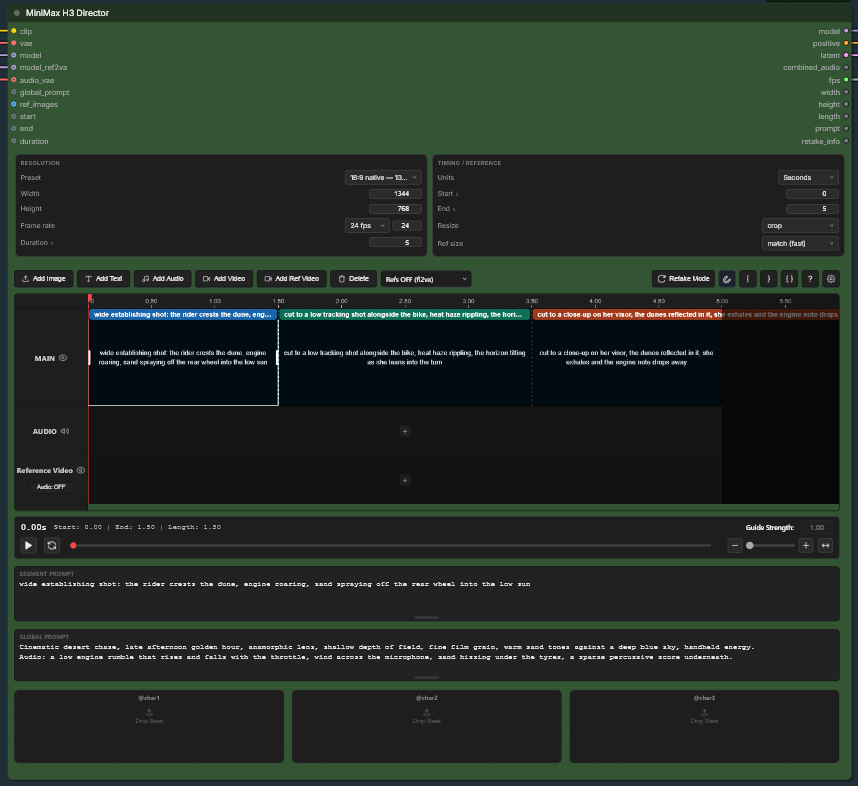
This is the LTX Director timeline editor by WhatDreamsCost, ported to MiniMax H3. Same editing, new backend. See Credits.
Contents
- News
- Why
- What you get
- Requirements
- Installation
- Models
- Quick start
- The timeline
- Prompt format
- Writing it yourself
- Live preview while sampling
- Writing the prompt for you
- Keeping the last frame
- Retake Mode
- Longer than 15 seconds
- Troubleshooting
- Reporting a bug
- Contributing
- Credits
- License
News
0.2.2 · 2026-08-16 — a spoken line stays where it was written instead of being
appended to the end of its shot, so first appearance and (Sx) follow one order, and a
voice reference's declaration ends on the speaker ID the guide reuses. The resolution panel
carries a preset for every aspect ratio in H3's envelope, in both orientations and two size
tiers, or takes a ratio and a megapixel budget and works the canvas out for you — and a
cover-cropped timeline image can no longer collapse the canvas to one pixel. New node:
Save Last Frame, which writes the last frame of a batch and passes the batch on
untouched.
0.2.1 · 2026-08-16 — width and height can be wired in from a resolution node, as
connection-only inputs beside start / end / duration. The Analyze button can now
reach a cloud endpoint: there is an API-key field, kept in ComfyUI's settings and never in
your workflow. A subject description written for @ref1 reaches the prompt in the
ComfyUI prompt format too, where it used to be dropped. And 4–15 s is the trained
range, not a limit — longer renders work, they just leave the envelope the model card
describes.
0.2.0 · 2026-08-16 — full reference mode. A reference is no longer always a character
and no longer always followed exactly: subject slots carry a kind (scene, prop, style,
…) and every reference carries a retention marker from fully_preserved to
weak_reference, plus a box to write the sentence that follows it in your own words.
Timeline images can be frame anchors, storyboard references, or subject-defining images
that get no <Picture> entry at all. Prompts gain a summary section with a derived
[task type] prefix, and retention_analysis uses the guide's own line format. Dialogue
written as @ref1 says: … is given speaker IDs and <d> tags for you. The reference panel
resizes, with the extra height going to the image previews.
0.1.6 · 2026-08-10 — the compiled prompt can be written by hand and reverted, images on
the ref_images wire can be described, an audio clip can name whose voice it is, and the
live preview lets you choose between true speed and the shot's own frame rate.
0.1.5 · 2026-08-06 — picture notes in Refs ON now use the reference guide's own
phrasing for frame anchors: [Shot 1] begins from <Picture 1>, ends on, and
The keyframe of [Shot 2] corresponds to ….
0.1.4 · 2026-08-06 — overall_soundscape and non_diegetic_music have their own boxes
under the Global Prompt, and the alignment line's end mark can no longer name a moment past
the end of the video.
0.1.3 · 2026-08-06 — new MiniMax H3 Enhance Prompt node: a local vision model turns reference images plus a one-line idea into a prompt for the Director, and hands the same images on so it describes exactly what H3 will condition on.
0.1.2 · 2026-08-06 — reference images are numbered along the timeline again, and prompts
in Refs OFF now carry the image-alignment instruction MiniMax's guide requires. The
Director Chain node is withdrawn until it can actually be operated.
0.1.1 · 2026-08-04 — only the checkpoint the toolbar asks for is loaded, instead of both model inputs reading ~42 GB of weights to use half of them.
0.1.0 · 2026-08-04 — first public release: the LTX Director timeline editor by WhatDreamsCost, ported to MiniMax H3.
Full history in the changelog.
Why
MiniMax H3 generates video and audio jointly, takes reference images, videos and audio, and anchors on a first and last frame. All of that is reachable through core ComfyUI nodes — but you address it by hand-writing a storyboard prompt, counting frames onto a 17k+5 grid, and wiring conditioning nodes for every reference.
This node turns that into an editor. Segments on a track become shots with timestamps.
Images dropped on the track become keyframes or <Picture i> references. Audio becomes
either a reference or the muxed soundtrack. The prompt is compiled for you, live, and you
can read it before you spend a render on it.
What you get
Five nodes, category MiniMax H3:
| Node | What it does |
|---|---|
| MiniMax H3 Director | The timeline. Outputs a patched model, the compiled positive conditioning, an empty joint AV latent, the muxed combined_audio, plus fps / width / height / length / prompt / retake_info. |
| MiniMax H3 Preview Override | Watch the whole shot denoise, not a single frozen frame. |
| MiniMax H3 Retake Stitch | Splices a regenerated range back into the base video. |
| MiniMax H3 Enhance Prompt | A local vision model writes the prompt from your reference images. |
| MiniMax H3 Save Last Frame | Saves the last frame of a batch and passes the batch on unchanged. |
Editing features carried over from LTX Director: main track, reference-video track, audio
track, ruler in seconds or frames, drag / resize / copy / paste, prompt zones per segment,
waveform preview, filename labels, gear menu, workspace folder, chunked upload for large
videos, drag-and-drop straight onto the node, and the @ref1 … @ref9 subject
slots including the optional local VLM "Analyze" button (Ollama / LM Studio /
any OpenAI-compatible endpoint) with automatic VRAM release before a run.
Requirements
- ComfyUI ≥ 0.30.0 — H3 support,
comfy_api.latestand the packed AV latent all landed in 0.30. Older builds will fail to load the nodes. - Python 3.10+ (ComfyUI's own environment; the portable build's
python_embededis fine). - No extra pip packages. Everything the nodes import ships with ComfyUI already.
- VRAM: the fp8 checkpoints are ~21 GB on disk. 16 GB VRAM works with ComfyUI's offloading at 480p–768p; below that expect heavy swapping. The text encoder is a separate ~15 GB load.
- Disk: budget ~60 GB if you want both model paths plus the text encoder and VAEs.
Installation
Via ComfyUI Manager (recommended)
- Open Manager → Custom Nodes Manager
- Search for MiniMax H3 Director
- Install, then restart ComfyUI and reload the browser tab.
Not listed yet? Use Manager → Install via Git URL and paste:
https://github.com/seesee75-commits/ComfyUI-MiniMaxH3-Director
Manual
Clone into your custom_nodes folder and restart:
cd ComfyUI/custom_nodes
git clone https://github.com/seesee75-commits/ComfyUI-MiniMaxH3-Director
On the Windows portable build the folder is
ComfyUI_windows_portable\ComfyUI\custom_nodes.
There is nothing to pip install — the package declares no third-party dependencies.
Then restart ComfyUI and hard-reload the browser (Ctrl+F5). The timeline is a
frontend extension; a stale cached .js is the single most common "node looks broken"
report.
Updating
cd ComfyUI/custom_nodes/ComfyUI-MiniMaxH3-Director
git pull
Models
Download from 🤗 Comfy-Org/MiniMax-H3. The example workflow carries download links, so ComfyUI can offer to fetch them for you.
Put the files directly in these folders — no subfolder. A file at
models/diffusion_models/MiniMax-H3/… will not match the example workflow.
ComfyUI/models/
├── diffusion_models/
│   ├── minimax_h3_fl2va_pruned_fp8_scaled.safetensors     21 GB   ← text/keyframe path
│   └── minimax_h3_ref2va_pruned_fp8_scaled.safetensors    21 GB   ← reference path
├── text_encoders/
│   └── qwen3vl_32b_minimax_h3_nvfp4_awq.safetensors       15 GB
└── vae/
    ├── minimax_h3_video_vae_fp16.safetensors             4.9 GB
    └── minimax_h3_audio_vae_fp32.safetensors             0.6 GB
The two diffusion checkpoints are not interchangeable — they are separate trainings:
| Toolbar switch | Checkpoint | Use it for |
|---|---|---|
| Refs OFF | minimax_h3_fl2va_* |
text→video, and first/last keyframes from the timeline |
| Refs ON | minimax_h3_ref2va_* |
subject slots, reference images, reference videos, reference audio |
Connect both to the Director's two model inputs and the toolbar switch picks the right one. Connecting only one is fine — the node warns rather than silently using the wrong path.
Only the selected checkpoint is ever read from disk: the model inputs are lazy, so with
the toolbar on Refs OFF the ref2va loader never runs at all. Wiring both costs you
disk space, not RAM.
Other quantisations on the repo work too: *_bf16 (66 GB, best quality),
*_int8_convrot (34 GB), *_pruned_int8_convrot (21 GB). The text encoder also comes as
_bf16 and _int8_convrot if nvfp4_awq does not run on your GPU.
Quick start
- Workflow → Open →
example_workflows/MiniMax H3 Director.json(or dragdocs/images/workflow-overview.pngonto the canvas — the same graph is embedded in that screenshot) - Fix any red nodes — usually the model dropdowns, if your filenames differ.
- Double-click a segment on the main track and type what should happen.
- Drag an image onto the track for a first-frame anchor (optional).
- Run.

Read the COMPILED PROMPT panel under the timeline before running: it shows the exact
text the model will get, the shot count, the frame count, the reference tally and the
detailed_description word count, plus warnings for the things that silently bite.
The word count is there because the guide suggests 350–500 words for generation tasks, which is more than most people write. It is a figure, not a verdict — being under it is perfectly normal for a short clip, and the guide itself warns against "mechanical word-count adherence". Only going past 500 raises a warning.
Defaults that matter, if you wire it yourself:
CLIPLoadertype must beminimax.- Sampler
res_multistep, schedulersimple, ~20 steps, throughBasicGuider(no CFG). For reference-heavyref2vaprompts,betaornormaloften beatssimple. - The joint latent goes to both
VAEDecode(video VAE) andVAEDecodeAudio(audio VAE); each pulls its own half out.CreateVideomuxes them. - Length snaps up to H3's 17k+5 frame grid at 24 fps — 5 s becomes 124 frames (5.17 s).
- Native canvas is a 768 px short edge, capped at 768×1344.
UNETLoader ×2 ─┐
CLIPLoader   ─┼→ MiniMax H3 Director ─┬→ model ──→ BasicGuider ─→ SamplerCustomAdvanced
VAELoader ×2 ─┘                       ├→ positive ┘                      │
                                      ├→ latent ─────────────────────────┘
                                      ├→ combined_audio → CreateVideo.audio
                                      └→ fps ───────────→ CreateVideo.fps
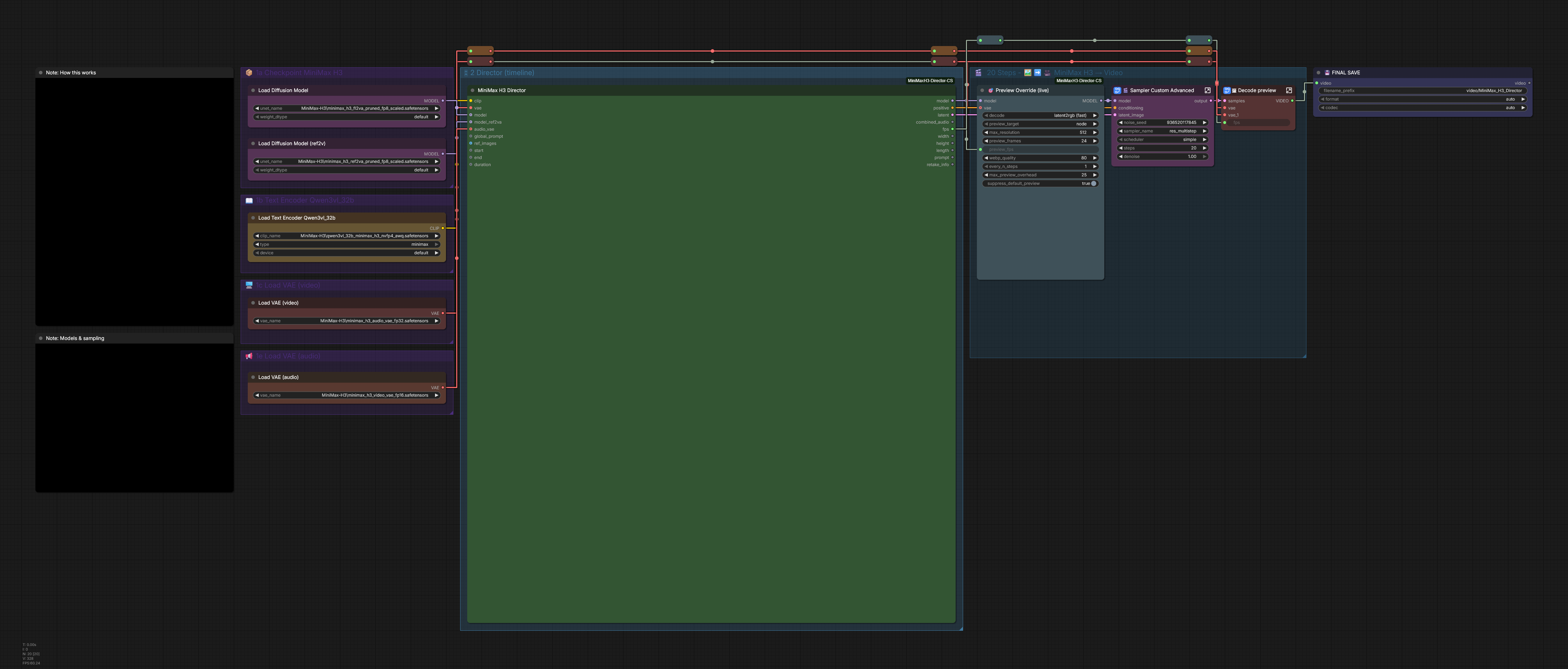
The example packs the sampler and the two decoders into subgraphs so the graph stays readable; open them if you want to change sampler, scheduler or steps.
The timeline
| Track | Drop this | Becomes |
|---|---|---|
| Main | images | first/last keyframe (Refs OFF) or <Picture i> (Refs ON) |
| Main | prompt zones | [Shot N] entries with timestamps |
| Reference video | video clips | <Video k> motion/style references |
| Audio | music, SFX | <Audio j> reference and/or the muxed soundtrack |
| Subject slots | images | <Subject N> definitions — people, scenes, props, styles |
Driving it from other nodes
The settings panel owns the canvas and the window, and hides the widgets behind them so there is one place to look. Five sockets exist for the cases where another node should decide instead — they are connection-only, so they take up no space until you wire something to one:
| Input | Unit | Replaces |
|---|---|---|
width, height |
pixels | the panel's Width / Height |
start, end |
seconds | the panel's window start and end |
duration |
seconds | the panel's Duration |
Wire a resolution node — Resolution Selector, an Empty Latent sidecar, anything that
outputs two integers — into width and height and the panel's own fields step aside.
Leave them unconnected and nothing changes.
A wire carries no minimum, and a node whose value was never set hands over 0. Zero
pixels and zero seconds are refused by name rather than passed on, because what they break
breaks a long way from the wire that caused it. If you want the canvas derived from the
first image, leave the sockets alone — that is what the panel's 0 already means.
Reference limits
From MiniMax's own model card — not from ComfyUI's node signatures, which are looser. These are enforced, with a warning naming exactly what was dropped:
| Limit | Value |
|---|---|
| Reference images | ≤ 9 — the subject slots and the ref_images input share this pool |
| Reference videos | ≤ 3 clips, each 2–15 s, ≤ 15 s total |
| Reference audio | ≤ 3 clips |
| All types together | ≤ 12 files |
Output envelope: 4–15 s at 24 fps — the range H3 was trained on, and not a limit this pack enforces; see Longer than 15 seconds. Aspect ratios 21:9, 16:9, 4:3, 1:1, 3:4, 9:16.
About "2K". The model card's 2K does not come from these weights. It comes from
H3-Regenerate-2K, a separate in-context regeneration pass, and MiniMax says of it: "this
module is not yet open-sourced. We will release it once it is ready." The base model's
canvas is a 768 px short edge. The 1920×1088 preset is therefore labelled past native
— it renders, at real cost in time, outside the canvas the model knows.
Picking the canvas
Every ratio in that envelope is a Preset, in both orientations, at two sizes:
| Ratio | Native | Fast |
|---|---|---|
| 21:9 | 1344×576 | 1120×480 |
| 2:1 | 1344×672 | 960×480 |
| 16:9 | 1344×768 | 864×480 |
| 3:2 | 1152×768 | 736×480 |
| 4:3 | 1024×768 | 640×480 |
| 5:4 | 960×768 | 608×480 |
| 1:1 | 992×992 | 640×640 |
| 4:5 | 768×960 | 480×608 |
| 3:4 | 768×1024 | 480×640 |
| 2:3 | 768×1152 | 480×736 |
| 9:16 | 768×1344 | 480×864 |
| 1:2 | 672×1344 | 480×960 |
| 9:21 | 576×1344 | 480×1120 |
Native keeps H3's 768 px short edge, and holds the long edge at 1344 for the two widest ratios, letting the short edge give way instead. That 1344 is this table's own ceiling, not a rule of the model's: H3's canvas policy is a 768 short edge and an area cap of 768×1344, so at 21:9 the model itself would go to 1536×672 and the preset's 1344×576 spends a quarter less canvas than it is allowed. Deliberately — a preset should be the safe answer. Reach for Aspect / MP when you want the whole budget at a wide ratio.
Fast is the same list at a 480 px short edge — 1:1 aside, which stays area-matched to
the rest of its tier rather than dropping to 480×480. Every edge is a multiple of 32 — H3's
own step, and what divisible_by defaults to — so a preset is never quietly floored to
something else on the way in.
One entry sits under its own Past native heading: 16:9 — 1920×1088, which renders
outside the canvas the model knows and is named for that rather than for a 2K module that is
not here. It costs time and memory in proportion; everything above it does not.
Aspect / MP is the same question from the other end: name a shape and a pixel budget in megapixels, and Width and Height are filled with the best pair of /32 edges that holds the ratio. Holding the ratio outweighs hitting the budget exactly, and overshooting the budget counts against a fit twice as hard as undershooting it, because memory is what a budget is protecting — 16:9 at 1.03 MP lands on H3's own 1344×768 rather than the 1376×768 that is closer to true 16:9 and 2.6% more canvas. Either box works on its own: a budget with no ratio picked rescales the shape already in the boxes, and a ratio with an empty budget uses the native 1.03 MP. The MP box shows what the edges came to, not what was asked for.
Typing Width and Height by hand still works — both menus follow along, and read — for a
shape the ratio list does not name. Leave both at 0 and the canvas comes from the first
timeline image instead, through H3's own policy: 768 short edge, 768×1344 area cap, per-axis
round to 32.
When a reference video runs you out of memory
A reference video is the most expensive thing you can put on the timeline. Its frames are VAE-encoded whole, and the resulting latents then ride through every sampling step — so cost scales with frames × width × height, and a long or large clip is the usual cause of an OOM render.
Select the clip on the reference-video track and the properties panel gives you the three numbers that matter:
| Field | Effect |
|---|---|
| start | First frame taken from the source. Lets you use the interesting middle of a clip without paying for the run-up. |
| frames | How many frames are encoded — linear on memory. At 24 fps this is also the clip's length, so the panel shows the seconds beside it and flags the model card's 2–15 s window. |
| size | Short edge it is decoded at. The biggest lever: memory goes with the square, so 384 costs about a quarter of 768. |
Rough figures for a 5 s output (124 frames), pixel data alone, before VAE activations:
| size | per frame | 124 frames |
|---|---|---|
| 768 (default) | 1.03 MP | ~1.5 GB |
| 512 | 0.46 MP | ~683 MB |
| 384 | 0.26 MP | ~384 MB |
| 256 | 0.11 MP | ~171 MB |
Try size first — a <Video k> contributes movement and camera work, which survives a
lower resolution far better than a character's face would. Nothing changes unless you turn
it down; the default is exactly what the node used before.
Do not expect a lower frame rate to help: H3 reads reference video at 24 fps and stamps its own timestamps on that basis, so feeding it fewer frames per second would tell the model the motion is faster than it is. Frames and duration are the same dial.
Video formats: anything your ComfyUI can decode. The editor previews a reference video
in the browser, which is fussier than the renderer — HEVC, ProRes and 10-bit footage inside
an ordinary .mp4 or .mov are commonly refused. When that happens the server reads the
file instead and the clip lands on the track as usual; you may lose the filmstrip preview,
never the clip. If the server cannot read it either, you get a message saying so.
Anything you drop on a track is uploaded to ComfyUI/input/whatdreamscost/. That is the
same folder LTX Director uses, deliberately — if you run both, assets and saved timelines
carry over between them.
Subject slots and the Analyze button
Drop an image into a slot and write @ref1 in a prompt; it expands to <Subject 1>
(MiniMax notation) or <Picture 1> (ComfyUI notation) and the image is attached as a
reference. This is the Refs ON (ref2va) path. @char1 … @char3 still work, so
prompts written against the old three-slot panel keep resolving.
A slot is not only for characters. The reference guide defines <Subject N> as any
reusable visible content — "people, animals, or objects; scenes, backgrounds, or
environments; clothing, props, interfaces, or visual effects; styles, actions,
expressions, or poses" — so each slot carries a kind telling the prompt what it is:
| Control | What it does |
|---|---|
| kind | Supplies the noun in <Subject N> is the environment shown in <Picture 1>. A typed description replaces it entirely. |
| retention | How closely to follow it. Written into retention_analysis verbatim. |
Slots start at three and a new empty one appears as you fill them, up to the nine-image cap.
A subject does not need an image. On the Refs OFF (fl2va) path H3 is sent no
reference images at all, so references/base-en.txt has no subject_definitions section
to declare one in — a subject there is prose, "established when a speaker first appears"
inside integrated_multimodal_description and referred to consistently after that. That
is exactly what a slot with a description and no image does: @ref1 drops the description
in where the tag sits.
Which is why the slot has a second box on that path:
| Box | Becomes |
|---|---|
| describes | the full identity, written where the subject first appears |
| called | what to call it at every mention after that |
@ref1 places a fresh loaf on the counter.
@ref1 says: First batch of the morning.
[Shot 1] a middle-aged baker with a calm, slightly raspy voice places a fresh loaf on the
counter. the baker (S1) says, <d>[English] First batch of the morning.</d>
First means first in the finished video, across the global block and every shot in order, prose before dialogue — so a subject introduced by its own spoken line is named in full there and abbreviated afterwards. Leave called empty and the description is repeated at every mention, which is what timelines written before this field did.
The same applies with references on to a slot that has a description but no image:
without a picture there is no <Subject 1> to name it by, so the prose carries it. A slot
that does have a picture ignores called — <Subject 1> is already a stable handle
that survives every cut.
Images left in a slot on the fl2va path are kept, so switching the toolbar back costs you nothing, but they are dimmed and the prompt panel says they are not being sent.
How closely a reference is followed
Every reference carries a retention marker — the guide's term for "exactly or loosely". These are fixed English values written straight into the prompt, so the dropdowns show them under their own names rather than friendlier ones:
| Marker | Meaning |
|---|---|
fully_preserved |
The defined role of the referenced content is fully preserved |
partially_preserved |
Still used, but some defined characteristics change |
attribute_transfer |
Its characteristics move onto a different target subject |
weak_reference |
Broad similarity in style, category, composition or atmosphere only |
Audio has its own set, because copying a signal and imitating one are different jobs:
fully_copy, partially_copy, reference, weak_reference.
Right-click any reference — a timeline image, a reference video, an audio clip — to set its marker. Subject slots have theirs in the panel.
Saying what is retained
The marker is only half the line. After it comes a sentence naming what actually has to survive, and the guide's own example is specific rather than generic:
<Subject 2> (appears in [Shot 1], [Shot 2]): fully_preserved - the Samoyed's thick white
fur, pointed ears, dark nose, and curved tail are retained.
Every reference has boxes for exactly that — up to two, one per section of the prompt it feeds:
| Box | Becomes |
|---|---|
| describes | the reference's line in subject_definitions — what the thing is |
| retained | the sentence after the marker in retention_analysis — what must survive |
Subject slots carry both in the panel. Timeline images, reference videos and audio clips carry theirs in the properties panel when selected. Leave either empty and a sentence is generated instead — the boxes are overrides, never obligations.
describes is what lets you write relationships the timeline cannot work out — anything beyond what the panel's own fields already state:
<Audio 1> is the gravel in his voice and nothing else about the take.
Type the part after is — the label is added for you, so it cannot come out wrong or
doubled. Paste a whole line that already starts with its label and it is taken as written.
One such relationship has its own control rather than a box: an audio clip's Voice of
picks a subject, and the declaration becomes the guide's <Audio 1> is the voice-timbre
reference for <Subject 1> (S1). A describes line still wins over it, for when the
binding is not the whole story.
Frame anchors and storyboard references are the one exception: they have retained
alone. Their declaration states where the image sits in the video (<Picture 2> is the
first frame of [Shot 1].), which the timeline already knows.
Dialogue
A line in a shot prompt that starts with a reference tag and contains a colon is dialogue. Everything between the tag and the colon is how it is delivered:
@ref1 exclaims with light annoyance: Hey! Watch your dog!
becomes
<Subject 1> (S1) exclaims with light annoyance, <d>[English] Hey! Watch your dog!</d>
(S1) is a speaker ID. You never write one: they are handed out in the order people
actually speak across the whole timeline, and the same speaker keeps the same ID at every
later line — so a subject who talks in shots 1 and 3 is (S1) in both. They are also kept
out of retention_analysis, which the guide forbids; type one into a retained box and
the preview says so.
| Write | For |
|---|---|
@ref1 says: … |
a subject from the panel — the delivery defaults to says |
@ref1 [French] murmure: … |
another language; [English] is assumed |
@voice(a low male narrator) says: … |
someone with no panel slot. Reuse the same description and they keep one ID |
@audio2: … |
words carried by a reused track. Names <Audio 2> as the source and gets no speaker ID, per the guide |
Only a line that starts with a tag counts, so prose that merely mentions @ref1 or
contains a colon is left alone — the same rule the Audio: / Music: lines follow. A shot
whose only content is a spoken line is still a numbered shot.
The colon is what makes it dialogue, and quotes are not a substitute:
@ref1 says "hello sir"   →  <Subject 1> says "hello sir".            prose
@ref1 says: hello sir    →  <Subject 1> (S1) says, <d>[English] hello sir</d>
The first line reaches the model as narration — no speaker ID, no <d> tag, and nothing for
an <Audio N> voice reference to reuse. Nothing is silently reinterpreted, because a line
that quotes something is not always a line somebody speaks, but the preview now says when a
line reads as dialogue and stayed prose. Dialogue also wants @refN: @char1 and
@character1 still resolve to a subject label everywhere, but they do not speak, and the
preview says that too.
A spoken line stays where you wrote it. Dialogue is lifted out of the prompt to be rendered, then put back in the same place, so a line between two paragraphs stays between them — which is how the guide writes a shot: action, the line it motivates, then more action.
@ref1: before mid segment
mid segment
@ref1: after mid segment

→ [Shot 1] a woman (S1) says, <d>[English] before mid segment</d> mid segment.
  a woman (S1) says, <d>[English] after mid segment</d>
Whichever comes first in the shot — prose or a spoken line — is where the subject is named in
full, and called takes over from there. </d> closes a tag rather than ending a sentence,
so the next words run straight out of it with no full stop, exactly as the guide's example
does.
<scenetrans> and <cutoff>, for dialogue crossing a cut or speech that is cut short, are
passed through untouched if you type them.
Resizing the panel
The reference panel drags from the strip along its bottom edge, like the prompt and global prompt panels. All the extra height goes to the image previews rather than the text boxes, so drag it taller when you need to actually see what you are referencing. The height is remembered per node.
What an image is for
The guide only gives an image its own <Picture N> entry when the image really is a
frame. Right-click a timeline image to say which of the three it is:
| Used as | Result |
|---|---|
| frame anchor (default) | <Picture 2> is the first frame of [Shot 1]. — an image opens its own shot, so this is what it is unless you flag the segment as an end frame; one with no text of its own is a composition anchor instead |
| storyboard | <Picture 3> is a storyboard reference for [Shot 2], defining its viewpoint, subject placement, and shot order. |
| defines a subject | No <Picture> entry at all. Cited inside a <Subject N> line instead, exactly as the guide requires for an image that "is used only to define a character, scene, costume, or style". |
A subject-only image also stops being a keyframe, so it is no longer fitted to the output canvas — the full reference reaches the model instead of a cropped one.
How many slots there are is yours to set — the stepper above the panel goes from 1 to
9, starting at 3. Each slot holds two images, and H3 takes nine reference images in total,
so nine is where slots stop being useful rather than where the model gives up. − takes
the last slot away along with whatever is in it, which is the one control here that throws
work away; the tooltip says so.
An audio clip on the timeline can name whose voice it is: pick a subject in the clip's
info panel and the prompt says so in the guide's own words — <Audio 1> is the voice-timbre
reference for <Subject 1> (S1). Leave it unset and the clip stays a general voice reference.
The speaker ID at the end is the subject's global one, so it is the speaking order and not
the subject number: bind the clip to a subject who talks second and the line ends
<Subject 2> (S2). The guide is firm that this sentence "reuses the same (Sx) but never
assigns a new one independently", so a subject who never speaks has no ID to reuse and the
sentence ends on the label alone — which still says whose voice the clip is. The preview says
when that happens, since a voice reference for someone with no line is usually a missing line
rather than a deliberate choice.
Analyze is optional and off the critical path. It sends the slot image to a vision
model and pastes back a one-line description, so @ref1 still means something in
Refs OFF mode, where H3 gets no image at all. Nothing is installed for you and nothing
is sent anywhere unless you press the button.
To use it, point the gear menu's provider row at a vision model:
| Provider | Default URL | Set up |
|---|---|---|
| Ollama | http://127.0.0.1:11434 |
ollama pull qwen2.5vl:7b — any vision model works, the field is free text |
| LM Studio | http://127.0.0.1:1234 |
load a vision model, start the local server |
| Custom | — | any OpenAI-compatible /v1/chat/completions endpoint, local or hosted |
Using a hosted endpoint. Pick Custom, enter its base URL and model name, and put the key in the API key row that appears. Two things about where that key is kept:
- it goes into ComfyUI's own user settings (
user/<name>/comfy.settings.json), which stay on your machine — not into the timeline, which is serialised into the workflow JSON and would carry the key into every copy you share; - leave the field empty and the environment is used instead:
MINIMAX_DIRECTOR_VLM_API_KEY, thenOPENAI_API_KEY.
The same key reaches the Enhance Prompt node through the environment. Its widget is
called api_key_env and takes the name of a variable, not a key — widget values are
saved inside the workflow, so a key typed into one would travel with it.
The node also asks the server to release the model before a render, so the VLM is not still
in VRAM while H3 samples. Ollama takes keep_alive: 0; llama-server does too in router
mode, via POST /models/unload. A plain llama-server -m model.gguf has no such
endpoint — give it --sleep-idle-seconds N and it will let go by itself. LM Studio manages
residency on its own.
Keyframes go on the first and last frame only. H3's PackedLayout anchors exactly
those two positions; an image stranded in the middle of a window is reported in the
warnings rather than silently ignored.
Prompt format
Gear menu → Prompt Format. The default is MiniMax, the notation from their own
VIDEO_PROMPT_WRITING_GUIDE:
subject_definitions:
<Subject 1> is a baker in a flour-dusted apron, shown in <Picture 1>.
<Subject 2> is the environment shown in <Picture 2>.
<Picture 3> is the first frame of [Shot 1].

summary: [keyframe completion + reference generation] The target video follows <Subject 1>
opening the bakery.

retention_analysis:
<Subject 1> (appears in [Shot 1], [Shot 2]): fully_preserved - the flour-dusted apron and the wire-rimmed glasses are retained.
<Subject 2> (appears in [Shot 1]): weak_reference - only a broad similarity to <Subject 2> in style, category, composition and atmosphere is kept.
<Picture 3> ([Shot 1] first frame): fully_preserved - the framing and composition of <Picture 3> are retained.

detailed_description: Live-action, cinematic. [Shot 1] the baker opens the shutters.
The shot begins from <Picture 3>. [Shot 2] At 00:01.500, <Subject 1> lifts the loaf onto
the counter

overall_soundscape: street ambience, a distant tram
non_diegetic_music: soft piano
The first shot carries no timestamp; every later cut carries a strictly increasing
MM:SS.mmm one. Sections appear only when there is something real to put in them.
summary opens with a task type derived from what the references are actually used
for — keyframe completion, reference generation, audio reuse, audio reference,
joined with +. A reference video that only supplies camera movement counts as
reference generation, never video editing; the guide is explicit that "the mere
presence of video or audio does not automatically create a corresponding task type". The
gear menu's Task Type field overrides it, which is how you reach video editing and
video continuation — neither of which this node has a path to produce on its own.
summary is the reference guide's section and appears on that path only. The base guide's
structure is closed — the alignment instruction, then three required core fields — so with
Refs OFF the box is hidden rather than writing a section H3 was never trained to read
there. Your text is kept for when the toolbar goes back.
The two sound sections have their own boxes under the Global Prompt, on both paths. What
you type there goes straight into overall_soundscape and non_diegetic_music. Both
guides list them as required, so an empty non_diegetic_music is written as N/A — their
own value for having none. An empty overall_soundscape is not filled in the same way:
there N/A says the video was asked to be silent, which is a claim only you can make, so
the prompt panel points the omission out instead. H3 generates the audio; leaving that
field out hands the whole soundtrack to a guess.
Audio: / Sound: / SFX: and Music: / Score: lines written in the prompt text are
still lifted into the same two sections, so older workflows and the Enhance node keep
working. A filled box wins over a lifted line.
<Subject N> vs <Picture N> is worth knowing: the guide reserves <Subject N> for
reusable content — a person, a place, a style — and <Picture N> for concrete frame
anchors. ComfyUI's tokenizer only ever labels images <Picture i>, so
subject_definitions binds the two. That is what lets a subject keep one name across
every cut. @ref1 therefore expands to <Subject 1> here.
Note what that means for a subject slot's image: it is passed to the model as
<Picture 1>, but it gets no <Picture 1> declaration of its own. The guide is
explicit — an image used only to define something is cited inside its <Subject N> line
instead. Only real frame and storyboard anchors are declared as pictures.
ComfyUI switches to [0s-1.5s] …, the notation the ComfyUI H3 templates use. Same
timeline, same references, only the wording changes — so it is a fair A/B.
Writing it yourself
EDIT on the COMPILED PROMPT panel hands the text over to you. It starts as whatever the
timeline just compiled, so there is nothing to retype, and REVERT throws your version
away and compiles again. While it is on, the panel is titled PROMPT (HAND-WRITTEN) and
says that timeline edits no longer touch the text.
Only the text is yours. Which images, videos and audio clips are loaded still comes from the
timeline — the tokenizer numbers <Picture i> in the order the plan decided, and rewriting
a sentence cannot renumber that without invalidating what you just wrote. Your version is
kept as written rather than merged into the next recompile: an edit that vanished when you
nudged a segment would lose work without asking, and one that survived in silence would stop
matching the timeline you are looking at.
Why a storyboard and not a per-segment mask
If you know LTX Director: its Prompt Relay builds a cross-attention mask so each segment
gets its own prompt. That cannot port. H3's DiT runs full self-attention over one packed
[text | cond | audio | video] sequence with mask=None hardcoded, so a relay mask would
have to span the entire sequence — several GB per attention call at 1344×768. The
storyboard is not a workaround: H3's Qwen3-VL encoder was trained on exactly this notation.
Live preview while sampling
ComfyUI ships latent_rgb_factors for H3, so previews work — but Latent2RGBPreviewer
renders x0[0, :, 0], the first latent frame only. You watch a still image while a
five-second shot is being sampled. KJNodes' Preview Override does the good version of
this, but its video paths are gated on LTX checks and nothing there unpacks H3's packed AV
latent, so on MiniMax it falls through to the same single frame.
MiniMax H3 Preview Override goes between the Director's model output and the sampler
and renders the whole shot as it denoises.
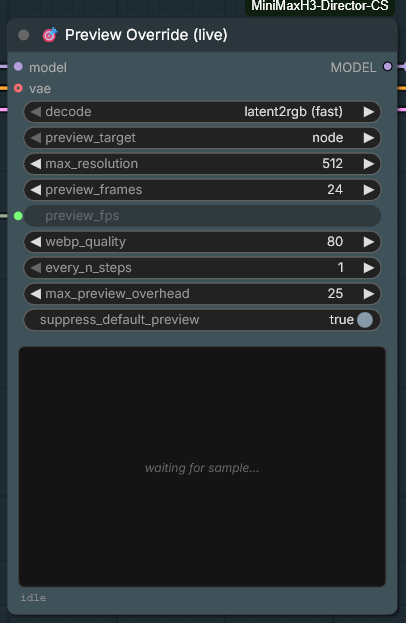
| Widget | What it does |
|---|---|
decode |
latent2rgb (fast) — one matmul, ~10 ms, rough colours. vae (quality) — the real decoder, true colours, real cost. |
preview_target |
node shows it on this node — always available. sampler (VHS) puts it in the sampler's usual preview slot and needs VideoHelperSuite installed; both does both. |
preview_frames |
Cap on latent frames used, thinned evenly across the shot, so it shortens nothing. The main cost knob. |
preview_fps |
The shot's frame rate. A FLOAT, so the Director's fps output wires straight in. |
playback |
true speed (default) spreads the sampled frames across the shot's real length, so the preview lasts as long as the finished clip. source fps plays them at preview_fps flat, like ComfyUI's own preview. |
max_resolution |
Long edge of the preview image, as a target — latent2rgb frames arrive at latent size (a 1344×768 shot is an 84×48 grid), so this upscales them smoothly. |
webp_quality |
Quality of the animation sent to the browser. |
every_n_steps |
Never preview more often than every N sampler steps. |
max_preview_overhead |
Share of render time previews may use, in percent (default 25). After a preview costing C seconds the next waits C·(100/P − 1) s. 0 disables. |
suppress_default_preview |
Hides ComfyUI's built-in single-frame preview. |
The time in the status line (render 9.9s) is server-side: how long ComfyUI took to
decode, scale and encode that preview. Not browser time, not the sampler. With
latent2rgb it is tens of milliseconds; with vae (quality) at 1344×768 it can be 20–25 s,
because the real decoder expands 37 latent frames into 124 output frames through a 5 GB
VAE. Capping the frame rate would not help — rate only sets playback speed. The cost
knobs are preview_frames (try 4–8 for VAE), max_resolution and every_n_steps.
Why the badge says 4.7fps of 24. With true speed the rate is derived, not set: the
frames that survive thinning are spread across the shot's real length. In latent2rgb
there is one image per latent frame and H3 compresses time about 3.35×, so a 124-frame shot
has 37 images to show and the rate cannot pass preview_fps / 3.35 — measured, 7.16 fps at
24. That is not a setting being ignored; other packs show a round 24 because they play the
same frames without correcting for the compression, which runs the preview 3.35× too fast.
Switch playback to source fps if that is the trade you want: motion at normal speed,
clip over early.
vae (quality) is the answer to "is there a small preview VAE, like LTX 2.3?" — there is
not. MiniMax has not released a TAESD-style decoder (latent_format.taesd_decoder_name is
None), so the choice is the cheap RGB approximation or the real video VAE.
Writing the prompt for you
MiniMax H3 Enhance Prompt hands your reference images and a one-line idea to a local
vision model and gets back prompt text shaped for H3. The same images come out of its
ref_images output, so what the model described is exactly what H3 conditions on.
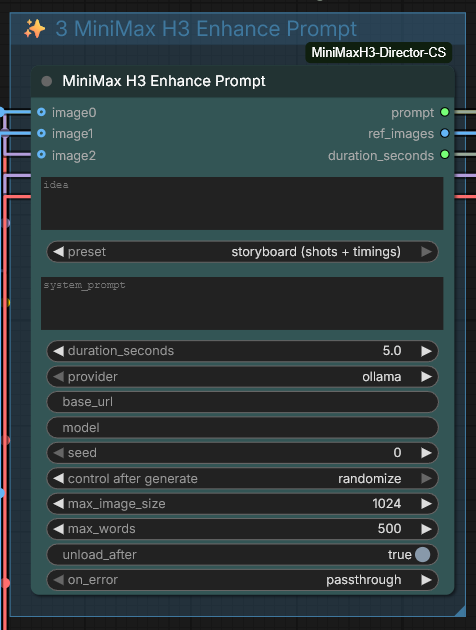
Ready-made graph: example_workflows/MiniMax H3 Director + Enhance Prompt.json.
LoadImage ─→ image0 ┐
LoadImage ─→ image1 ├→ Enhance Prompt ─┬→ prompt           → Director.global_prompt
                    ┘                  ├→ ref_images       → Director.ref_images
                                       └→ duration_seconds → Director.duration
Sockets grow as you connect, up to nine, and close the gap again when you disconnect.
| Widget | What it does |
|---|---|
idea |
What you want, in plain words. |
preset |
global writes scene, style, subjects and lighting and leaves the shots to your timeline. storyboard writes the whole shot sequence with timestamps — only for timelines whose segments carry no prompt text, or the two shot numberings collide. |
system_prompt |
Overrides the built-in instructions, which follow MiniMax's own prompt-writing guide. |
provider / base_url / model |
Ollama, LM Studio, or any OpenAI-compatible endpoint. http:// is added if you leave it off; host and port only, no path. |
seed |
ComfyUI caches node outputs, so an unchanged input never re-asks the model. Change this to force a fresh answer. |
max_words |
Caps the description. MiniMax's guide puts it at 350–500 words. |
unload_after |
Frees the vision model's VRAM when done. Leave it on unless you are iterating. |
on_error |
passthrough hands your raw text on and warns, so a stopped Ollama does not kill a render. |
It has to be a vision model. A text-only model ignores your images without saying so.
qwen2.5vl:7b is a reasonable Ollama default; anything larger writes noticeably better
prompts. Expect 15–45 s per run, during which the queue is blocked.
What it deliberately does not write: section labels, <Picture N> numbering, or shot
markers in global mode. The Director compiles the structured MiniMax prompt and assigns
the reference numbers — a second set from the model would nest structure inside structure
and collide with the Director's own ordinals. The instructions forbid it and the output is
filtered anyway, because small models do not reliably obey.
If the VLM and H3 share a GPU, the vision model is evicted after each run
(unload_after). Ollama has no per-request device selection, so to put it on a different
card you set CUDA_VISIBLE_DEVICES on the Ollama service, not here.
Keeping the last frame
MiniMax H3 Save Last Frame goes straight after VAEDecode. It writes the last frame of
the batch as a PNG — whatever the length — and passes the whole batch on to whatever comes
next, unchanged.
That frame is the one you reach for: it is the opening keyframe of the next shot, and
without this node getting at it means a second graph with ImageFromBatch wired to a
SaveImage, rebuilt every time the render length changes.
| Widget | |
|---|---|
save |
Off writes nothing and still passes the frames through, so the node never has to be bypassed between runs. |
filename_prefix |
Under ComfyUI's output folder. The same tokens as Save Image, e.g. %date:yyyy-MM-dd%. |
The file, the counter and the embedded workflow metadata are Save Image's own, so a frame saved here is a frame Save Image would have written. The IMAGE output is the same tensor that came in — the node cannot change what anything downstream decodes, encodes or muxes.
Picking a frame other than the last one is not there yet.
Retake Mode
Load a base video, turn on Retake Mode in the toolbar, mark a range: the Director
regenerates only that range, anchored on the base video's own frames either side of it.
The frame before the range becomes first_frame, the frame after becomes last_frame —
exactly what H3's first/last anchors are for, so the new material meets the old on both cuts.
Wire the Director's retake_info output into MiniMax H3 Retake Stitch together with
the decoded images (and audio) to get the full video back: base head + retake + base tail,
video and audio, resampled to 24 fps. keep_base_audio keeps the original soundtrack
across the whole thing instead of the generated one.
Longer than 15 seconds
Not solved yet. There was a Director Chain node that rendered a long timeline as a
chain of anchored windows, and its sampling worked — but there was no usable way to hand
it a timeline, so it has been withdrawn rather than shipped as a feature nobody can
operate. The code stays in the repository; the reasoning is written down at the top of
minimax_chain.py.
4–15 s is H3's trained range, not a cap. Nothing in this pack limits the length, and longer windows do render — reported working at 45 s, and the model card's envelope is simply where quality is known to hold. Past it, expect drift and looping, and a render time that climbs faster than the video does: attention cost goes with the square of the sequence, while memory grows roughly with its length. The node says so once in the console and once in the prompt panel, and then gets out of the way.
For a dependable long piece the answer is still several in-range windows spliced together.
Troubleshooting
The nodes do not appear after installing. Restart ComfyUI fully and hard-reload the browser (Ctrl+F5). If they still do not appear, look at the ComfyUI console during startup — an import error is printed there. Check your ComfyUI version is ≥ 0.30.0.
The node loads but the timeline is blank / looks like a plain widget list. Stale frontend cache. Ctrl+F5. In a private window it will look correct if that is the cause.
ERROR: clip input is invalid / garbage output.
CLIPLoader type must be set to minimax, not stable_diffusion or anything else.
vae.decode() fails, or the video is noise but the audio is fine.
The joint latent must go to VAEDecode with the video VAE and VAEDecodeAudio with
the audio VAE. Swapping the two VAEs is the usual cause.
The finished video is a flat, featureless grey, but the audio is fine and the live
preview looked right.
The latent is good and the video VAE is producing NaN. Flat grey — not noise, not black,
every pixel the same value — is what NaN looks like after clamping. latent2rgb previews
keep working because they never touch the VAE.
Confirm it in a minute instead of a full render: set the Preview Override's decode to
vae (quality). That runs the same video VAE, so if the preview goes grey too, the VAE
is where it breaks.
The thing to try is precision. minimax_h3_video_vae_fp16 runs in fp16, and ComfyUI's own
help text for --fp16-vae says it "might cause black images". Start ComfyUI with
--fp32-vae. fp32 is the only alternative here: ComfyUI declares this VAE's working
dtypes as [float16, float32], so --bf16-vae silently gets you one of those two. The
decoder grows from ~4.9 GB to ~10 GB, which on a 16 GB card means partial offload and a
slower decode; --cpu-vae is the slow-but-certain fallback.
Reported once so far, on ROCm/Windows, where fp16 convolution kernels take different code paths than on CUDA. Not reproduced on CUDA, and the fp32 remedy is not yet confirmed by the reporter — if you hit this, please say whether it helped.
Out of memory.
Lower the resolution first (768 short edge is native, but 480 works), then length. With
vae (quality) previews, lower preview_frames to 4 — a VAE preview allocates as much as
a real decode. Consider the _pruned_fp8_scaled checkpoints if you are on _bf16.
"neither model input is connected".
The Director has two model inputs on purpose: model (t2v/i2v) for fl2va and
model (ref2v) for ref2va. Connect at least the one your toolbar switch selects.
Images in the middle of the timeline seem ignored (Refs OFF).
They are — H3 anchors first and last frame only. Switch to Refs ON and they become
<Picture i> references instead, or move them to the window edges.
The generated clip is longer than I asked for. Length snaps up to the 17k+5 grid: 5, 22, 39, 56, 73, 90, 107, 124 … frames. 5 s → 124 frames → 5.17 s. This is the model's grid, not a bug.
Reporting a bug
Open an issue. The three things that make a report fixable:
- the full traceback from the ComfyUI console (not just the last line),
- the workflow JSON (Workflow → Export), and
- which model files you loaded.
The issue form asks for exactly these. For anything about dragging, resizing or the preview window, add the browser console (F12 → Console) too.
Contributing
Pull requests are welcome, and so are reports from hardware this has never run on — every line of it was verified on a single NVIDIA card, so ROCm and Apple silicon are unknown territory. CONTRIBUTING.md has the layout, the three checks to run before submitting, and the handful of rules that exist because breaking them caused a real bug.
Credits
The timeline editor is LTX Director by WhatDreamsCost — the editing model, the track layout, the interaction design and the bulk of the frontend code are theirs. The CS fork that this one branched from is by CGlide.
This project is that editor with a MiniMax H3 backend: new conditioning, storyboard prompt compilation, packed AV latents, preview and Retake — by seesee75.
MiniMax H3 by MiniMax, ComfyUI packaging by Comfy-Org.
License
GPL-3.0, inherited from LTX Director — see LICENSE. If you fork this, your fork is GPL-3.0 too, and it must stay open.