
 # SpeakoFlow: free voice dictation and an AI assistant for Windows, macOS, and Linux
### You think faster than you type.
**A free, local voice assistant for your desktop. Dictation, writing, and an AI assistant, all by voice.**
[](LICENSE)
[](#install)
[](https://tauri.app)
# SpeakoFlow: free voice dictation and an AI assistant for Windows, macOS, and Linux
### You think faster than you type.
**A free, local voice assistant for your desktop. Dictation, writing, and an AI assistant, all by voice.**
[](LICENSE)
[](#install)
[](https://tauri.app)
](LICENSE)
 ### Download
[](https://github.com/AbhishekBarali/SpeakoFlow/releases/latest)
[](https://github.com/AbhishekBarali/SpeakoFlow/releases/latest)
[](https://github.com/AbhishekBarali/SpeakoFlow/releases/latest)
[All releases](https://github.com/AbhishekBarali/SpeakoFlow/releases) · [Website](https://www.speakoflow.com) · [Documentation](https://www.speakoflow.com/docs)
### Download
[](https://github.com/AbhishekBarali/SpeakoFlow/releases/latest)
[](https://github.com/AbhishekBarali/SpeakoFlow/releases/latest)
[](https://github.com/AbhishekBarali/SpeakoFlow/releases/latest)
[All releases](https://github.com/AbhishekBarali/SpeakoFlow/releases) · [Website](https://www.speakoflow.com) · [Documentation](https://www.speakoflow.com/docs)
Get told when there's a new version: click Watch → Custom → Releases at the top of this page.
Contents
- What is SpeakoFlow?
- Why SpeakoFlow
- Features
- Default hotkeys
- Install
- Build from source
- Tech stack
- Privacy
- Troubleshooting
- Roadmap
- Contributing
- License
- Credits
What is SpeakoFlow?
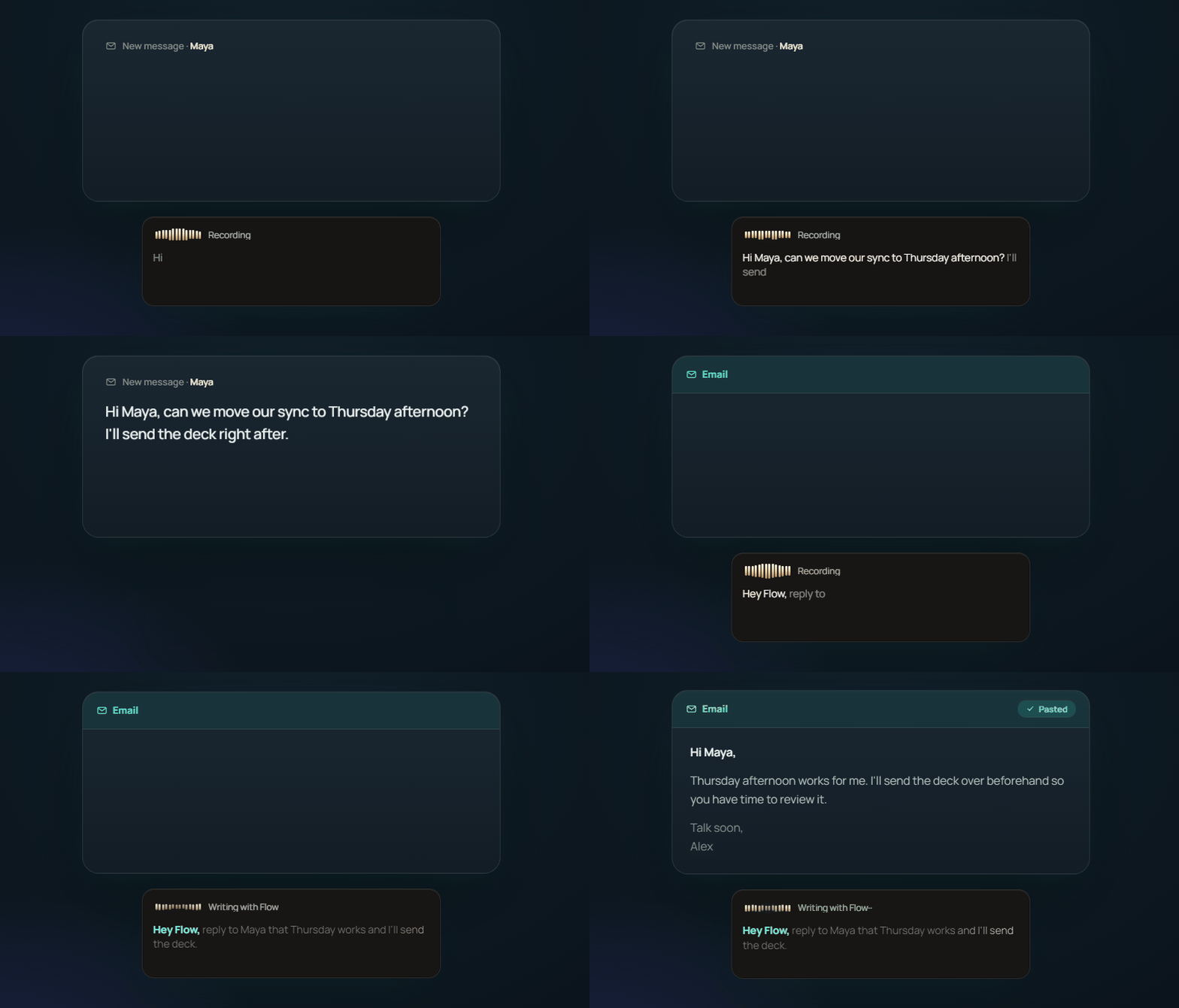
SpeakoFlow turns your voice into text, right where you're working. Press a hotkey and talk, and your words are typed into whatever app you're using. Say "Hey Flow" to turn what you say into a finished reply or email, or open a floating assistant panel to chat by voice and get answers read back to you.
Speech-to-text runs locally on your machine, so your voice never leaves your device. The AI assistant runs on any model you choose, from a fully offline built-in model to your own local server or a cloud provider with your own key. You decide how much stays on your machine.
I built it while studying alone for exams. I was paying for dictation software that stopped at typing: it could hear me, but it couldn't help me.
Why SpeakoFlow
Most dictation tools stop at typing. Wispr Flow, Superwhisper, and Handy all turn speech into text well. None of them can look at what you are working on and write the reply for you.
SpeakoFlow does both. It's also the only one of the four that's free, open source, and runs on all three desktop platforms.
- Compared with Wispr Flow. Wispr Flow is closed source, transcribes in the cloud, has no Linux build, and caps its free tier at 2,000 words per week ($15/month after that). SpeakoFlow is MIT licensed, transcribes on your own machine, and has no cap. Full breakdown: SpeakoFlow vs Wispr Flow.
- Compared with Superwhisper. Superwhisper is a capable closed-source app on macOS, Windows, and iOS, with Pro at $8.49/month or $249.99 for a lifetime licence. SpeakoFlow is free, MIT licensed, and also runs on Linux.
- Built on Handy. SpeakoFlow's dictation core comes from Handy, the more established project and a genuinely good pure-dictation tool. SpeakoFlow takes that core further: spoken-instruction writing, on-device translation, text-to-speech, personal memory, and a screen-aware assistant.
If all you need is dictation, Handy is a solid choice. If you want your computer to answer you, keep reading. See also: the best free and open-source Wispr Flow alternatives.
Features
Generate with Flow: say "Hey Flow" and it writes the reply
Begin a dictation with "Hey Flow" and SpeakoFlow acts on what you said instead of transcribing it. Describe the email, reply, or draft you want and it writes the finished text and pastes it where your cursor is. The trigger phrase is renameable, and it works in any app that accepts text. This is the part plain dictation tools don't do.
Screen vision: ask about what's on your screen
Ask a question about whatever you're looking at and the assistant answers with that context: the error in your terminal, the contract in your browser, the chart in your spreadsheet. Combined with Generate with Flow, it can write a reply based on what's on screen rather than on what you dictate. It only captures when you ask it to, the capture goes only to the model provider you chose, and only a small thumbnail is kept locally.
Dictation: type into any app with your voice
Press a hotkey and talk. Words type into any app, live as you speak or all at once when you stop. Transcription runs on your GPU or CPU with whisper.cpp or Parakeet, fully offline.
Assistant panel: a floating voice chat over your work
A floating always-on-top chat you open with a hotkey. Ask by voice or text, get streaming answers, and have them read back aloud. Collapses to a pill when you don't need it.
Translate: speak any language, get clean English, offline
Speak another language and get clean English, on your device, with a Whisper model. No cloud round-trip.
AI cleanup: strip filler and set the tone
Remove filler words and fix grammar in a tone you choose: Professional, Friendly, Concise, or your own custom instruction.
Web search, profiles, and personal memory
Optional web search so the assistant can look things up for current, factual answers. Profiles switch it between personas, each with its own voice and reply length. Personal memory is on-device and optional, so it learns how you like to work. It's off until you turn it on, and you can edit or erase it at any time.
Everything lives in Settings, and every hotkey is rebindable.
Full documentation for each: Generate with Flow, screen vision, dictation, the assistant panel, languages and translation, AI cleanup, web search, profiles, and memory.
Default hotkeys
| Action | Windows | macOS | Linux |
|---|---|---|---|
| Dictate | Left Ctrl + Left Super |
Option + Space |
Ctrl + Space |
| Ask the assistant | Left Ctrl + Left Alt |
Option + Ctrl + Space |
Ctrl + Alt + Space |
Hold the shortcut to talk and release to type it out, or switch Recording behavior to Tap in Settings so one press starts and the next press stops. Tap is the hands-free option. The choice applies to every recording shortcut, and all shortcuts are rebindable.
Every shortcut and its default, on all three platforms: Keyboard shortcuts.
Install
Download the latest build for Windows, macOS, or Linux from the Releases page. A short setup wizard helps you pick a transcription model and, optionally, a local model for the assistant.
Windows
Download the .exe installer and run it. Windows may show a SmartScreen notice
because the installer isn't signed by a known publisher yet. Choose More
info → Run anyway.
Linux
- Arch Linux. Install from the AUR:
bash yay -S speakoflow-bin # or paru -S speakoflow-bin - Debian, Ubuntu 24.04+, Mint 22+, Pop!_OS, Tuxedo OS. Download the
.deband install it. This registers the app icon and menu entry properly, which the AppImage can't do on its own:bash sudo apt install ./SpeakoFlow_*_amd64.debThe.debis built on Ubuntu 24.04, so it needs that era of glibc. On an older release, use the AppImage instead. - Any other distribution, including Fedora and openSUSE. Download the
AppImage, make it executable (
chmod +x), and run it. Note that an AppImage doesn't integrate with your desktop by itself, so it won't show an icon in your file manager or app menu; tools like Gear Lever or AppImageLauncher add that if you want it.
The AppImage and .deb are both built for x86_64 and ARM64. There's no .rpm
yet, because the packaging doesn't bundle the speech engine correctly, and
shipping one that installs but can't transcribe would be worse than not shipping
it.
macOS
Download the .dmg and drag SpeakoFlow into Applications. macOS then needs
Microphone and Accessibility permissions (System Settings → Privacy &
Security) so SpeakoFlow can hear you and type into other apps.
Because the app isn't Apple-signed yet, macOS blocks the first launch and needs one Terminal command to clear it. Full explanation below, or in the install docs.
Why macOS says "SpeakoFlow is damaged", and the one-line fixSpeakoFlow works fully on macOS, but it isn't signed by Apple yet, so macOS blocks it on first launch with a message that says **"SpeakoFlow is damaged and can't be opened."** **The app is not damaged.** That wording is what macOS shows for any app it can't trace to a paid Apple Developer account. Signing costs $99/year, which this project doesn't have yet, so the block is expected and harmless. Install it in three steps: 1. Download `SpeakoFlow__aarch64.dmg` and drag **SpeakoFlow** into your Applications folder. 2. Open **Terminal** (press `Cmd + Space`, type `Terminal`) and paste this, then press Return: ```bash xattr -dr com.apple.quarantine /Applications/SpeakoFlow.app ``` 3. Open SpeakoFlow normally, from Launchpad, Spotlight, or Applications. **You only do this once per version you install.** The command removes the "downloaded from the internet" tag that macOS puts on the file; after that the app opens like any other. Because SpeakoFlow can't auto-update while unsigned, you'll repeat the step the next time you download a new version. One command per update, never per launch. If you're wondering why there's no button to click instead: macOS 15 and later removed the old right-click → **Open** bypass, and the "damaged" message is the one case where no **Open Anyway** button appears in _System Settings → Privacy & Security_. Terminal is the only route left. Proper Apple signing and notarization is on the [roadmap](#roadmap) and removes this step entirely. **Apple Silicon only for now.** Builds cover M1 and newer. There's no published Intel Mac build yet. Not because it can't be built, but because it hasn't been tested on real Intel hardware, and shipping a download that might not start would be worse than shipping none. An Intel build is being proven in CI now. If it works it will be CPU-only, since the GPU backend targets Apple Silicon. In the meantime you can [build from source](#build-from-source), and see [BUILD.md](BUILD.md) for the extra Intel step. > An earlier version of this section said GitHub had retired its Intel build > machines, leaving no way to produce or test an Intel build. That was wrong. > GitHub retired the old `macos-13` runner in December 2025 but replaced it with > `macos-15-intel`, which is available until August 2027. Thanks to > [@hellosimplerick](https://github.com/AbhishekBarali/SpeakoFlow/issues/19) for > catching it.
To use the assistant, choose a provider in Settings:
- Built-in (offline). Download a small local model and run it fully on your machine, no key needed.
- Local server. Point SpeakoFlow at Ollama or LM Studio.
- Cloud. Bring your own API key for any OpenAI-compatible provider.
Build from source
git clone https://github.com/AbhishekBarali/SpeakoFlow.git
cd SpeakoFlow
bun install
mkdir -p src-tauri/resources/models
curl -o src-tauri/resources/models/silero_vad_v4.onnx https://blob.handy.computer/silero_vad_v4.onnx
bun run tauri dev
On Arch Linux and Arch-based distributions, build and install the current checkout with:
bun run install:arch
speak
This installs the app for the current user under ~/.local, including its
speech-engine libraries, desktop entry, and speak terminal command.
See BUILD.md for platform-specific setup.
Tech stack
- App: Tauri 2 with a Rust backend and a React and TypeScript frontend.
- Speech-to-text: whisper.cpp and Parakeet with GPU acceleration, plus Silero VAD for voice detection.
- Assistant: a built-in llama.cpp engine, or any OpenAI-compatible provider you configure.
- Text-to-speech: Kokoro locally, with OpenAI-compatible, ElevenLabs, and Azure options.
Privacy
Your voice is transcribed on your device and never uploaded. The assistant only contacts the model provider you choose, which can be a fully local one. There is no telemetry and no account. Optional features like web search and personal memory are off until you turn them on, and memory is stored on your device where you can view, edit, or erase it.
Full detail on what is stored and where: the privacy page.
Troubleshooting
Common issues are collapsed below. For anything not covered here, see the troubleshooting docs or open an issue.
Linux: the recording overlay won't stay on top of other appsThe recording overlay has to float above every other window. On Linux that is only possible two ways: the `wlr-layer-shell` protocol (used by wlroots compositors like Sway and Hyprland, and by KDE Plasma) or classic X11 "keep above" stacking. **A native GNOME/Wayland session supports neither.** Mutter does not implement `wlr-layer-shell`, and Wayland gives apps no way to raise themselves above others. So under native GNOME/Wayland the overlay can't stay on top. SpeakoFlow handles this automatically: when it detects GNOME on Wayland it runs under **XWayland**, where "keep above" works and the overlay floats normally. This is on by default and needs no setup. X11 sessions and KDE/wlroots Wayland already work out of the box. - Force native Wayland anyway (the overlay may not stay on top): launch with `SPEAKOFLOW_ALLOW_WAYLAND=1`. - If the overlay misbehaves under a layer-shell compositor, disable layer shell with `SPEAKOFLOW_NO_GTK_LAYER_SHELL=1`. Linux: hotkeys do nothing and the logs repeat "Permission denied"
If dictation and the assistant hotkeys don't respond on Linux and you see the log repeating `rdev grab error: ... PermissionDenied` (errno 13), the app can't read your input devices. This affects the **handy-keys** keyboard engine, which reads `/dev/input/event*` and needs your user to be in the `input` group. Two ways to fix it: - **Grant access.** Add your user to the `input` group, then log out and back in: ```bash sudo usermod -aG input $USER ``` - **Or switch engines.** Set the keyboard engine to **Tauri** in Settings, which uses the compositor's global-shortcut API and needs no special permissions. (Tauri is already the default engine on Linux, so this only affects you if you switched to handy-keys.) Linux: the app crashes when you pinch-to-zoom on a touchpad
On some Linux setups a trackpad pinch-to-zoom gesture crashes the window, with `Received invalid message: 'DrawingArea_CommitTransientZoom'` in the logs. This is a bug in **WebKitGTK** (the Linux web engine Tauri/wry uses), not in SpeakoFlow itself, and it affects many WebKitGTK-based apps. It is tracked upstream in [tauri#13115](https://github.com/tauri-apps/tauri/issues/13115) and [wry#544](https://github.com/tauri-apps/wry/issues/544). Until there's an upstream fix, avoid the pinch-to-zoom gesture inside the app window. Updating your system's WebKitGTK packages (`webkit2gtk-4.1`) to the latest version can also help, since newer releases handle the gesture more gracefully.
Roadmap
- Code signing for Windows and macOS
- A wider model catalog and more one-click local models
- More community translations
- Voice-to-text tuned for agentic coding
- Prompt-engineering help: describe what you want to build and get a solid prompt back
- Voice commands: trigger actions and complete tasks by voice
Contributing
Contributions are welcome. See CONTRIBUTING.md to get started, and CONTRIBUTING_TRANSLATIONS.md if you'd like to help translate the app.
License
Released under the MIT License.
Credits
SpeakoFlow builds on the dictation core from Handy by CJ Pais, used under the MIT licence. Thanks to CJ for making it open. The assistant, screen vision, Generate with Flow, translation, text-to-speech, and memory layers are SpeakoFlow's own.
Thanks also to Tauri, whisper.cpp, llama.cpp, Silero VAD, and Kokoro.