
English | 简体中文
ComfyTV
ComfyTV — the canvas-based app that truly belongs to ComfyUI.
ComfyTV turns ComfyUI into a TapNow / LibTV-style canvas app — and keeps going, all the way to a full media workbench. Every operation is its own node; results flow downstream automatically. Chain stages into a complete flow: generate → pick → edit → composite → export, across image, video, audio, music, panorama, 2D layers, and 3D.
Today that means ~190 stages, each with its own reference page.
📖 Documentation: comfytv.org — bilingual (English / 中文) guides plus a per-node reference for every stage.
Core ideas
- Per-node Run: each stage runs on its own, not through ComfyUI's global queue. Downstream stages consume the snapshot of an upstream stage's last output, so re-running one node doesn't drag the whole chain with it.
- Project-centric: stages belong to a project; every output is kept with full history and restores on reload.
- Your models, your workflows: a curated set of workflows ships under
workflows/<kind>/, all running against your own local models. Import any ComfyUI workflow as JSON, bind its inputs in the sidebar GUI editor, save per-stage presets, and star a default workflow per stage. - Part of the ComfyUI ecosystem: subgraphs and third-party plugins just work; Bridge nodes connect any plugin into a ComfyTV pipeline; remote ComfyUI machines can be registered as extra runners (Servers tab) with capability preflight.
- Libraries built in: a project asset library (images / video / audio / 3D models), a resource library (LUTs, fonts, SoundFonts), and reusable prompt fragments — all in the 7-tab sidebar, and all reachable from any prompt via
@references. - Rich in-node editors: many stages embed a real editor in the node — layer editor, storyboard workbench, piano rolls, 3D viewports, scopes — with live previews on most video effects.
What's inside
Image
Generation (text-to-image, image-to-image, edit, inpaint, outpaint, erase, upscale, relight, variations, multi-angle 3D camera), instant browser-side tools (crop / rotate / mirror / grid split), SAM-based part splitting + mask cleanup, line-art extraction, contact sheets.
2D layer editor & storyboard
A full layered editor inside a node: raster, text (real font parsing), vector-shape, parametric-fill (solid / gradient), and adjustment layers; per-layer masks; selections with magic wand, boolean ops and morphology; non-destructive transforms; undo; PSD import & export. The storyboard workbench reuses the same engine per board and adds onion skin, timeline playback, animatic / GIF / PDF / ZIP export, and Fountain script import.
The editor engine is developed as its own project, Pentrado — try it standalone in your browser at pentrado.com.
Video (~100 nodes)
- Edit: clip, split, concat, crop, resize, speed / reverse, rotate, scene detect, frame extraction, proxy generation with transparent proxy playback.
- Color: color wheels / curves / LUT / ASC CDL / HueCorrect / selective color / histogram EQ / gray world.
- Keying: chroma key plus a full keyer suite — PIK, Keyer, Despill, Color Suppress, KeyMix, matte monitor / morphology, Select0r.
- Roto & tracking: bezier roto masks with feather, point motion tracking, optical-flow mask propagation, corner pin, paint strokes with clone brushes.
- Compositing: 39 blend modes, keyframed transforms, 57 xfade transitions + luma wipes, time remap, sequencing.
- FX: glow, god rays, particle system, lens distortion (multiple lens models), chromatic aberration, lens flare, Z-defocus, old film, regrain, glitch, kaleidoscope, wave warp, water, light graffiti, slit scan, feedback, strobe, stylize, and more.
- 360: projection + stabilization for 360° footage, Card3D, STMap UV remapping + STMap generator.
- Infrastructure: parameter expressions, FX Chain (stack many effects, render in a single pass), scopes (waveform / vectorscope / histogram), titles / subtitles / annotations, speech-to-text subtitle generation.
Audio (30+ nodes)
Dynamics (compressor / gate / limiter / de-esser), parametric EQ with graph UI, loudness normalization, denoise / repair, echo, modulation, stereo tools, time-stretch / pitch-shift, saturation; convolution reverb — including capturing the sound of your own room — and an algorithmic reverb; stem split into vocals / accompaniment / drums / bass / other (built in, nothing extra to install), noise reduction, beats & notes extraction; mix, crossfade, sidechain ducking, segment export, analysis and visualization; audio-reactive parameter automation and meter overlays for video.
Music (symbolic)
Score stage with MusicXML and engraved notation, piano-roll score and MIDI editors, performance rendering with style profiles, a SoundFont (SF2/SF3) synthesizer, click track, and chord accompaniment — composition → performance → synthesis → mixing on one canvas.
Panorama
360° viewer with single- and multi-viewport capture; text-to-panorama and image-to-panorama workflows.
3D
Scene3D DCC-style stage (multi-camera, keyframed camera paths, multi-channel viewport capture), 3D model generation and loaders, a geometry workshop (mesh ops, booleans, primitives, map baking), PBR material stage with per-part material binding, and line-art rendering from 3D.
Compose & flow
Auto-spawned pickers (image / audio / video), A/B compare, track-style sequence assembly; a full director timeline and a storyboard → per-shot image pipeline are on the roadmap.
Install
cd ComfyUI/custom_nodes
git clone https://github.com/jtydhr88/ComfyTV
Restart ComfyUI. ComfyTV nodes appear under the ComfyTV category in the Add-Node menu, grouped into sub-categories (Project / Input / Generate / Image / Panorama / Video / VideoFX / Keying / Compose / Timeline / Audio / AudioFX / Music / 3D / Material / Storyboard / Bridge).
ComfyUI Desktop / macOS / multiple ComfyUI installs
If you use ComfyUI Desktop, are on macOS, or have more than one ComfyUI on your machine, the relative cd ComfyUI/custom_nodes above can easily drop you into the wrong instance (a common symptom: the clone succeeds but ComfyTV never shows up). Install into the running instance by its absolute path instead:
- Find the running instance. Read the ComfyUI startup log — it prints the base path it loaded from, e.g.
/Users/you/Downloads/ComfyUI (1)/ComfyUI. That is the instance to install into. - Clone straight into that instance's
custom_nodes, quoting the path (quotes are required if it contains spaces or parentheses). Keep it on one line so no stray line-continuation\splits it apart:bash git clone https://github.com/jtydhr88/ComfyTV.git "/Users/you/Downloads/ComfyUI (1)/ComfyUI/custom_nodes/ComfyTV"If you must wrap it across lines, the\has to be the very last character of the line with nothing after it — a stray\at the end of thecdline, for example, silently joins the next command sogit clonenever runs on its own. - Verify the layout. The first level of
custom_nodes/ComfyTV/must contain__init__.py. If you instead see a nestedComfyTV/ComfyTV/…, move the inner folder up one level. - Fully restart the ComfyUI backend (quit and relaunch the Desktop app, or stop and restart the server — not just a browser refresh). On success the startup log shows ComfyTV loading and registering its nodes.
User guides
The full documentation lives at comfytv.org — guides plus a reference page for every node, in English and 中文. The guide sources are also browsable in docs/:
| Guide | What it covers |
|---|---|
| getting-started.md | Install, the canvas basics, your first generation, per-node Run, picking from a set |
| sidebar.md | The 7-tab sidebar: workflow config, asset library, prompt fragments, stage manager, presets, resources, servers — plus @ references in prompts |
| generate.md | Text / Image / Video / Audio generation, choosing a model, running |
| image-tools.md | Crop, Rotate, Mirror, Inpaint, Erase, Cutout, Upscale, Outpaint, Grid Split, Variations, Multiangle, Relight |
| panorama.md | Loading/viewing a 360° panorama, capturing single + multi viewports |
| video-and-audio.md | The video & audio suites: editing, color, keying, compositing, FX, audio processing |
| making-music.md | Composition → performance → synthesis → mixing on one canvas: MusicXML, every Music-node parameter, reverb presets |
| compose.md | Pickers, A/B Compare, and the bigger arranging tools |
| roadmap.md | What works today vs TODO (backend workflows not yet built) |
| models.md | Per-workflow model files + folder locations + download URLs for everything shipped under workflows/ |
| custom-workflows.md | Adding your own ComfyUI workflow as a JSON file (no Python edits) |
| sidebar-config-editor.md | The sidebar GUI for editing how a stage's inputs map to its workflow nodes |
| bridges.md | Connecting third-party ComfyUI plugins (mesh2motion, IPAdapter, …) via Bridge nodes |
MCP server (agent access)
ComfyTV ships a built-in, read-only MCP endpoint so AI agents (Claude Code, Claude Desktop, any MCP client) can inspect your ComfyTV state — projects, the live canvas, workflows, outputs, assets, remote jobs, and recent execution errors. Nothing here can run or modify anything.
It runs inside the ComfyUI server process — no extra install:
claude mcp add --transport http comfytv http://127.0.0.1:8188/comfytv/mcp
Notes:
- Canvas visibility needs an open browser tab. The
get_canvastool reads a snapshot the ComfyTV frontend mirrors to the backend every few seconds; with no tab open the tool reportsavailable: falserather than guessing. - Zero cost when unused. The canvas mirror stays dormant until an MCP client actually connects — users who never attach an agent get no background ticks or requests. Right after connecting, give the mirror ~10 seconds to warm up before the first
get_canvas. - Trust boundary. The endpoint has the same (lack of) auth as every other ComfyUI route — if you expose port 8188 beyond localhost, the MCP endpoint is exposed with it.
- Pairs with comfy-mcp. comfytv-mcp covers the product layer (projects/canvas/stages); the official comfy-mcp covers the machine layer (installing nodes, downloading models, running raw workflows). Agents work best with both connected.
- Local stage failures are also captured in a small in-memory buffer (
exec_errorstool /GET /comfytv/exec_errors) so an agent can diagnose a failed run without tailing logs.
Quick tour
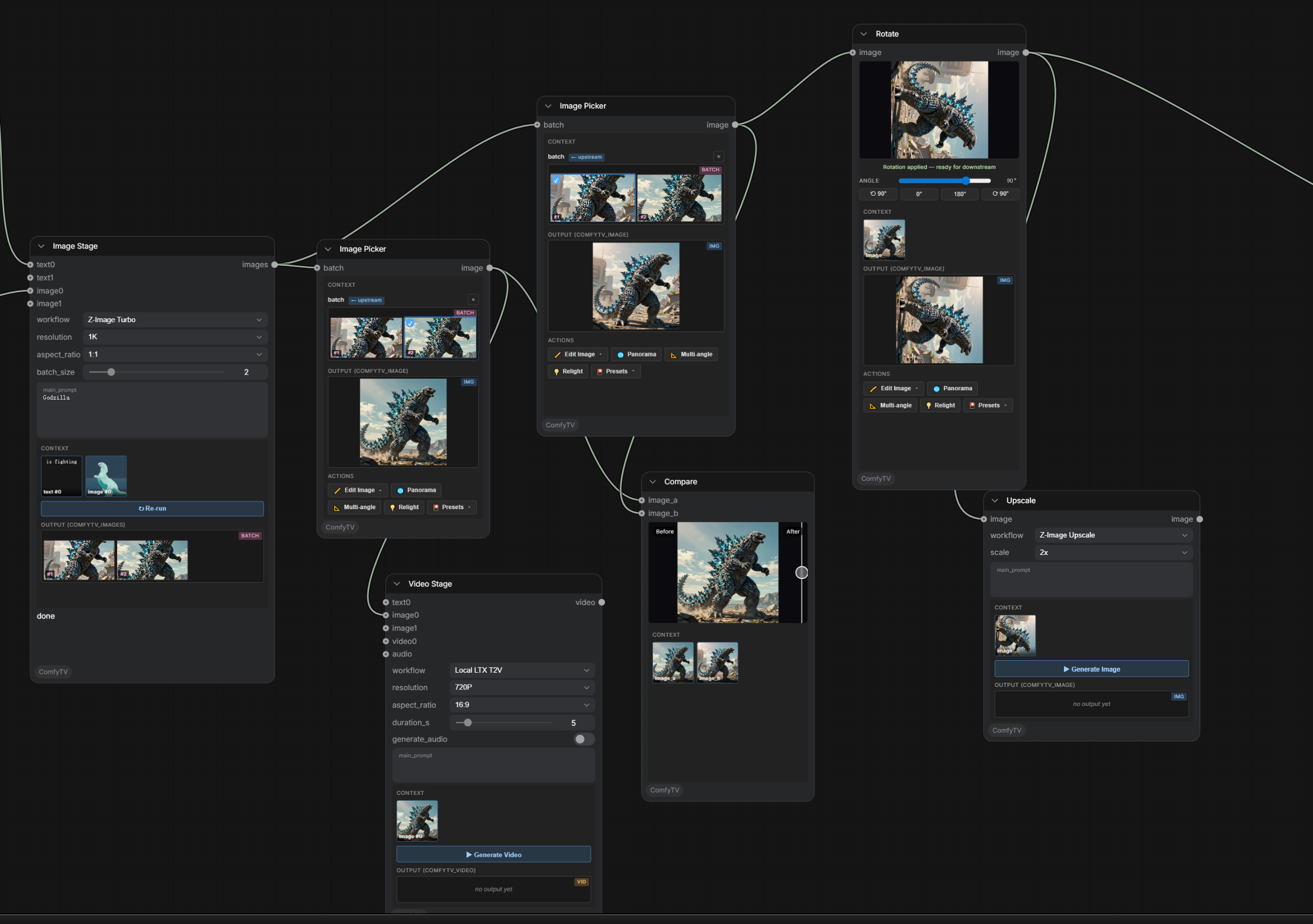
- Drop a Generate → Image node, type a prompt, pick
Local SD1.5as the workflow, click Run. It produces a set of images and auto-spawns an Image Picker. - Pick a frame in the picker. Its
✏️ Edittoolbar offers Inpaint / Crop / Rotate / Mirror / Grid Split / Upscale / Outpaint / Cutout. - Crop / Rotate / Mirror happen entirely in the browser — no Run needed.
- Wire the picked image into a Generate → Video node (
Local LTX I2V) and Run. - Chain a few VideoFX nodes (color, glow, grain, …) into an FX Chain and render them in a single pass — most effects preview live right in the node.
- Use Compose → Compare to A/B the before/after.
License
See LICENSE.