
Hermes Android — v2.0.0
Android client for Hermes Agent — chat with your Hermes sessions from a phone or tablet over local Wi-Fi or a private Tailscale network.
v2.0.0 merges the community Remote Gateway edition contributed by @CristianGCiocoi, with review and testing from @AI-Guru and @grunjol. The merge brings a unified Desktop Gateway JSON-RPC transport, per-chat model selection, multi-attachment uploads, durable turn recovery, voice dictation, and a comprehensive test suite. See CHANGELOG.md for the full list and the merge PR thread for the community discussion.
Current release
- Version: 2.0.1 (build 2131)
- Package:
com.hermesagent.hermes_android - Recommended APK for modern phones: ARM64 release build from the Releases page.
- Production builds are signed with a private release keystore. Debug APKs
signed with the Android debug certificate remain available for testing
under the
com.hermesagent.hermes_android.devpackage ID. - Previous upstream releases remain available from the Releases page.
Remote Gateway edition highlights
- One Desktop Gateway JSON-RPC session for text, images, and files.
- Copy/select text, Read aloud, Stop, Edit and resend, Regenerate, and export.
- Up to 10 Remote Gateway attachments per draft, capped at 64 MiB total; generic files retain the 16 MiB per-file limit.
- File-backed app cache, metadata-sanitized JPEG/PNG/WebP images, ordered sequential upload, accessible reordering, remove, and individual retry. Sanitized JPEG inputs remain JPEG; PNG and WebP inputs are emitted as PNG.
- Legacy REST remains fail-closed to one image and does not expose multi-select.
- Per-chat model and thinking effort without changing the profile default.
- Search, Rename, Branch, and Delete for remote conversations.
- Native approval, sudo/secret, clarification, reasoning, tool activity, notifications, background results, reviews, and subagent status.
- Persistent reconnect/session resume and defensive retry handling.
- Background turn notifications — Android notifications fire when a gateway turn completes while the app is backgrounded, mirroring the Hermes Desktop tray notification behaviour. Notifications are automatically cleared when returning to the app.
See CHANGELOG.md for the complete .13 change list and
docs/HERMESAPK_DEVELOPMENT_LOG.md for the
sanitized implementation and validation record.
What's new in v2.0.1
- Background turn notifications — Android notifications fire when a Desktop Gateway turn completes while the app is backgrounded, mirroring Hermes Desktop tray notification behaviour. Notifications are automatically cleared when you return to the app.
- Scroll bug resolved — the inherited mid-history scroll-jump on session
reopen (from upstream PR #71) has been fully resolved. The
ChatScrollCoordinatoronly aligns to the end on initial load, never inside the streaming completion handler.
What's new in v2.0.0
v2.0.0 merges the community Remote Gateway edition from @CristianGCiocoi.
- Unified Desktop Gateway JSON-RPC transport — text, images, and files share one WebSocket session instead of split REST+WebSocket paths.
- Per-chat model and thinking-effort selection without changing the profile default.
- Multi-attachment uploads — up to 10 files per message, 16 MiB each.
- Copy/Select, Read Aloud, Edit+Resend, Regenerate, Stop, Export, Search, Rename, Branch, Delete for conversations.
- Native Desktop Gateway event handling — approvals, sudo, secrets, clarifications, reasoning, tool activity, notifications, background results, reviews, and subagents.
- Voice dictation — stage voice input before explicit send.
- Durable turn recovery — completed gateway responses survive Android process-kill lifecycle events.
- Persistent accessible text size setting.
- ATLAS document intake metadata for mobile uploads.
- Secure Android credential storage with platform key material.
- 113+ Flutter tests plus a synthetic gateway contract suite under
tools/fake_gateway/.
What's new in v1.0.8
- Reverse-proxy path prefixes — configure separate path prefixes for the Gateway API and dashboard, e.g.
/profile/peterbefore/apiand/v1, and/dashboardbefore dashboard/apiroutes. - Proxied dashboard mode — enable Dashboard behind proxy when nginx/Caddy/your host injects dashboard authentication. In this mode the app sends clean dashboard requests without trying to scrape a dashboard session token or perform password login.
- Prefix-aware validation and chat — API-key validation, session browsing, existing chat history, streaming chat completions, and dashboard drawer screens all use the configured prefixes.
What's new in v1.0.7
- Password-protected dashboards — the Memory/Cron/Skills/Settings tabs now work against a dashboard secured with basic-auth, not just an open (
--insecure) one. The app logs in via the dashboard's/auth/password-loginflow and reuses the session cookie (the same mechanism the desktop client uses). - Configurable dashboard port — set a custom dashboard port per connection when it isn't the default
9119. - Dashboard details in the connection flow — set the dashboard port/username/password while adding a connection (expand Custom dashboard details) or later via ⋮ → Dashboard Login, with validation before saving.
What's new in v1.0.6
- Voice chat support — tap the microphone in chat to dictate a message to Hermes, and Hermes can speak the response back.
- Spoken replies can be toggled from the chat input bar.
- Android/iOS microphone and speech-recognition permissions are included.
Features
- Hermes chat on Android — browse sessions, create new chats, and send prompts to your Hermes Agent.
- Streaming responses — chat uses the Hermes Gateway OpenAI-compatible streaming endpoint:
POST /v1/chat/completions. Tokens appear in real-time with smooth auto-scroll. - Messaging-style UI — dark/light/system themes, gold Hermes accent color (
#D4AF37), markdown rendering, relative timestamps, and responsive phone/tablet layouts. - Gold/black Hermes branding — distinctive gold accent on black background, custom app icon with mipmap densities, agent messages use grey bubbles.
- Gateway API integration — sessions and chat run through the Hermes Gateway API Server, normally on port
8642, with HTTP and HTTPS endpoints supported. Reverse-proxy deployments can set a gateway path prefix that is applied before/apiand/v1routes. - Dashboard integrations — Memory, Cron Jobs, Skills, and Settings screens use the Hermes dashboard API (default port
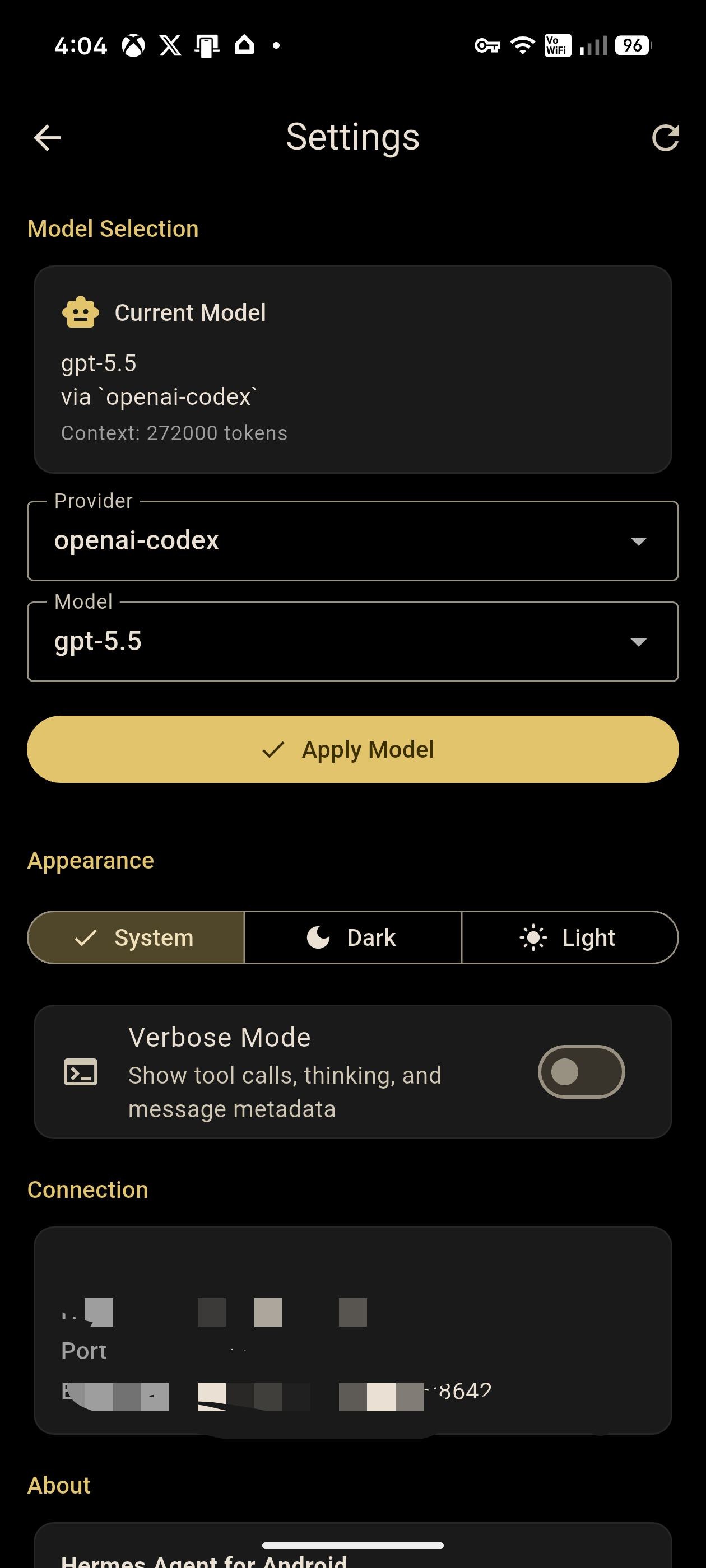
9119, configurable per connection) on the same host. Works with open (--insecure) dashboards, password-protected dashboards via the built-in login, and proxied dashboards where auth is injected upstream. - Model settings — view and change the configured Hermes model where the dashboard exposes model settings.
- Cron management — list, trigger, pause/resume, create, edit, and delete scheduled Hermes cron jobs.
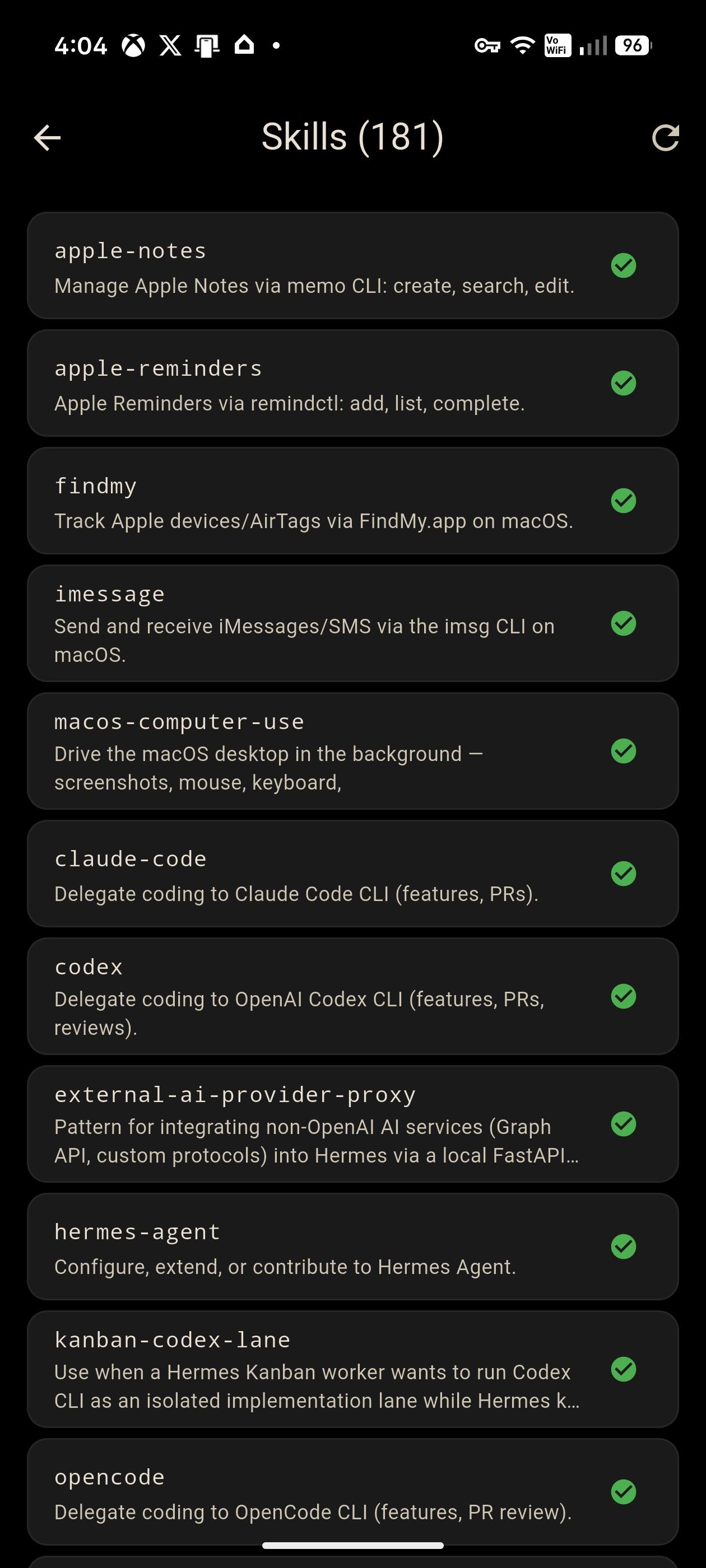
- Skills browser — view available Hermes skills with descriptions and trigger conditions.
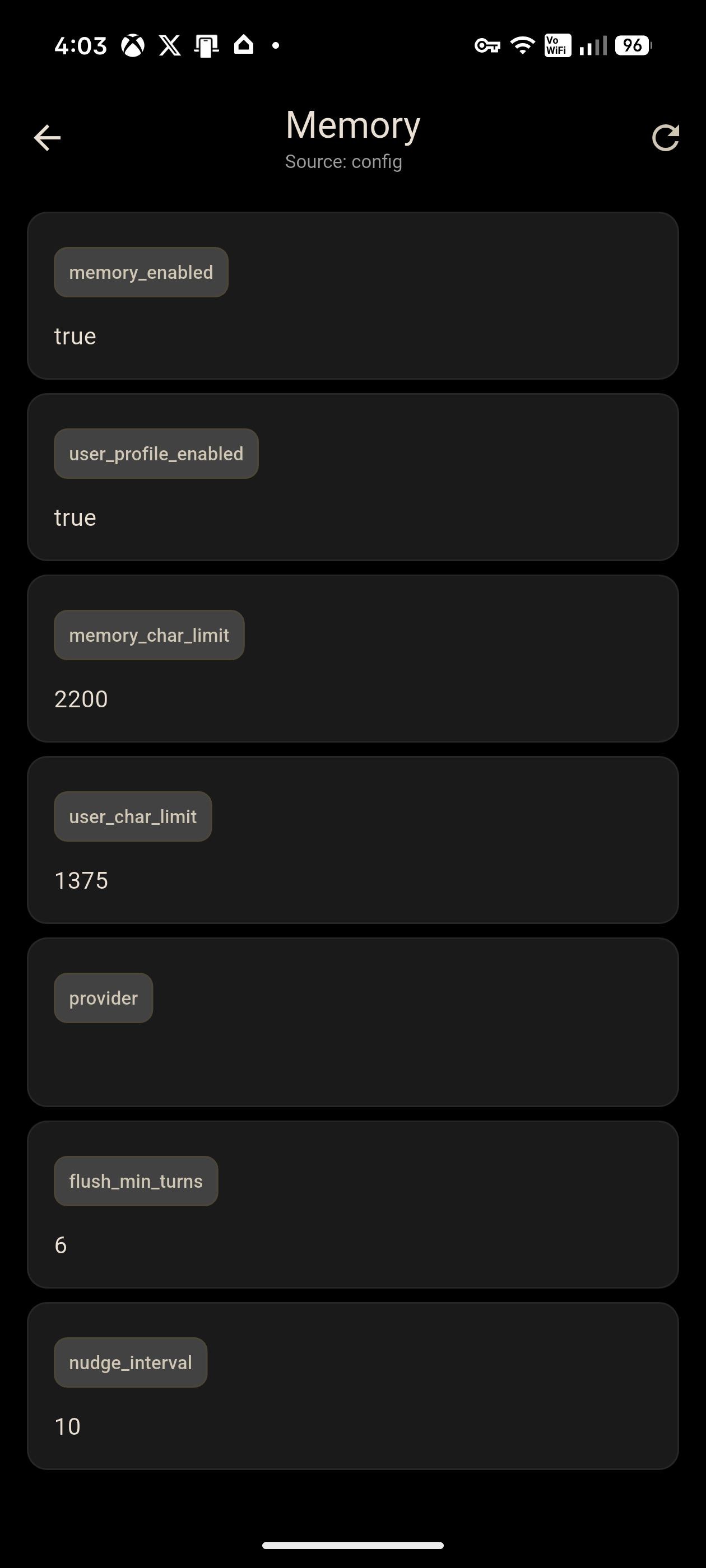
- Memory viewer — inspect conversation memory across sessions.
- Verbose mode toggle — show raw message metadata (role, tool calls, timestamps) in chat.
- Three-way theme toggle — Dark / Light / System default.
- Keyboard handling — auto-scroll on keyboard open, send action on Enter, FAB to scroll to bottom.
- Voice chat — microphone dictation sends recognised speech to Hermes, with optional text-to-speech replies.
Screenshots
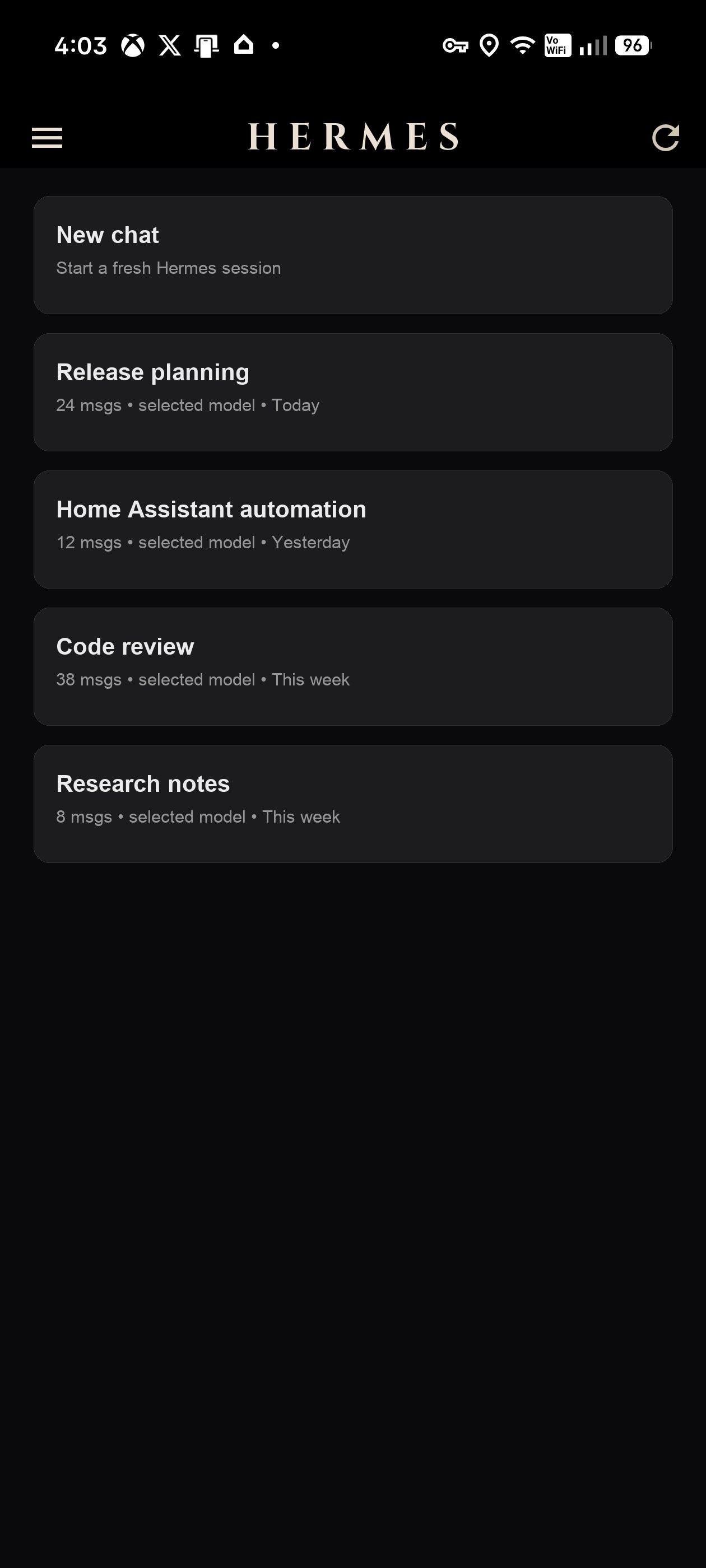 Session list |
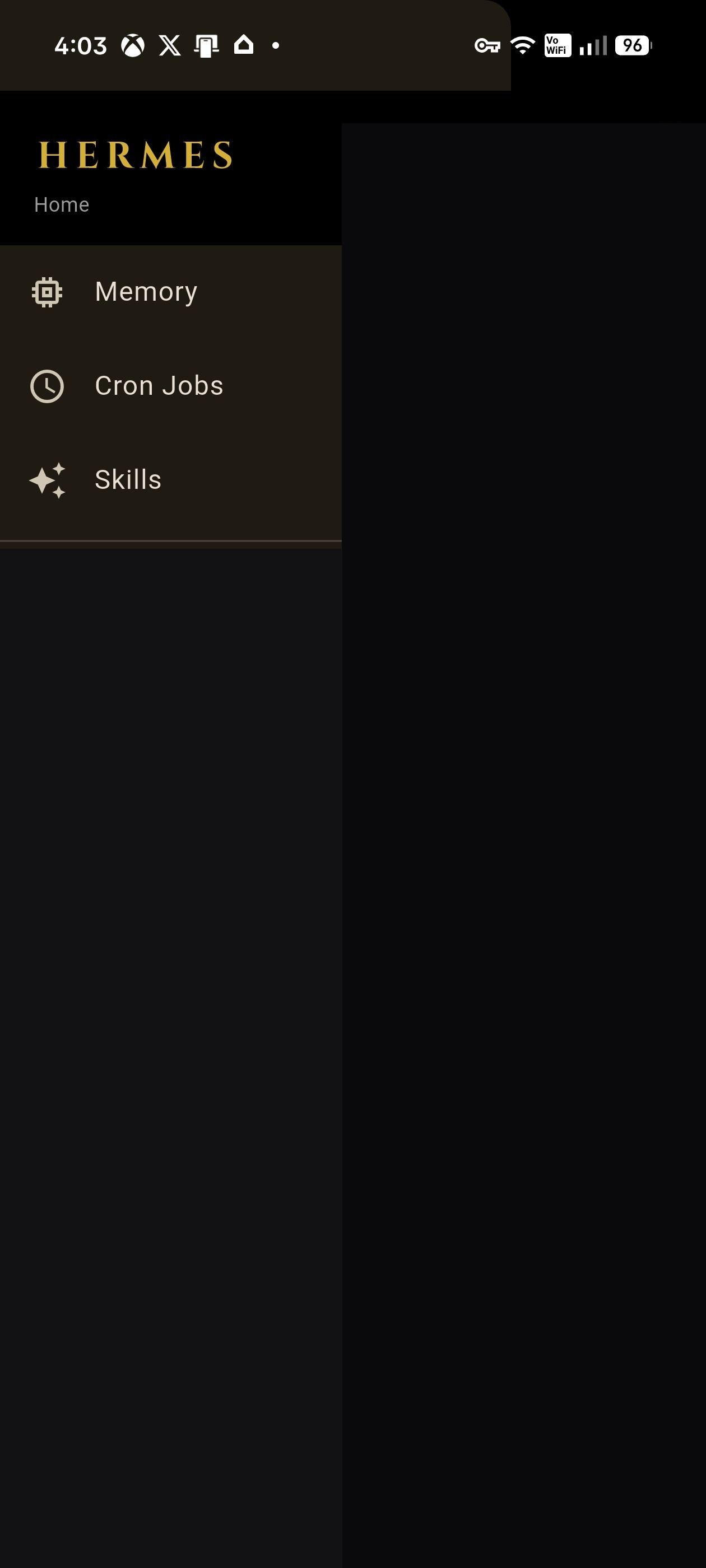 Navigation drawer |
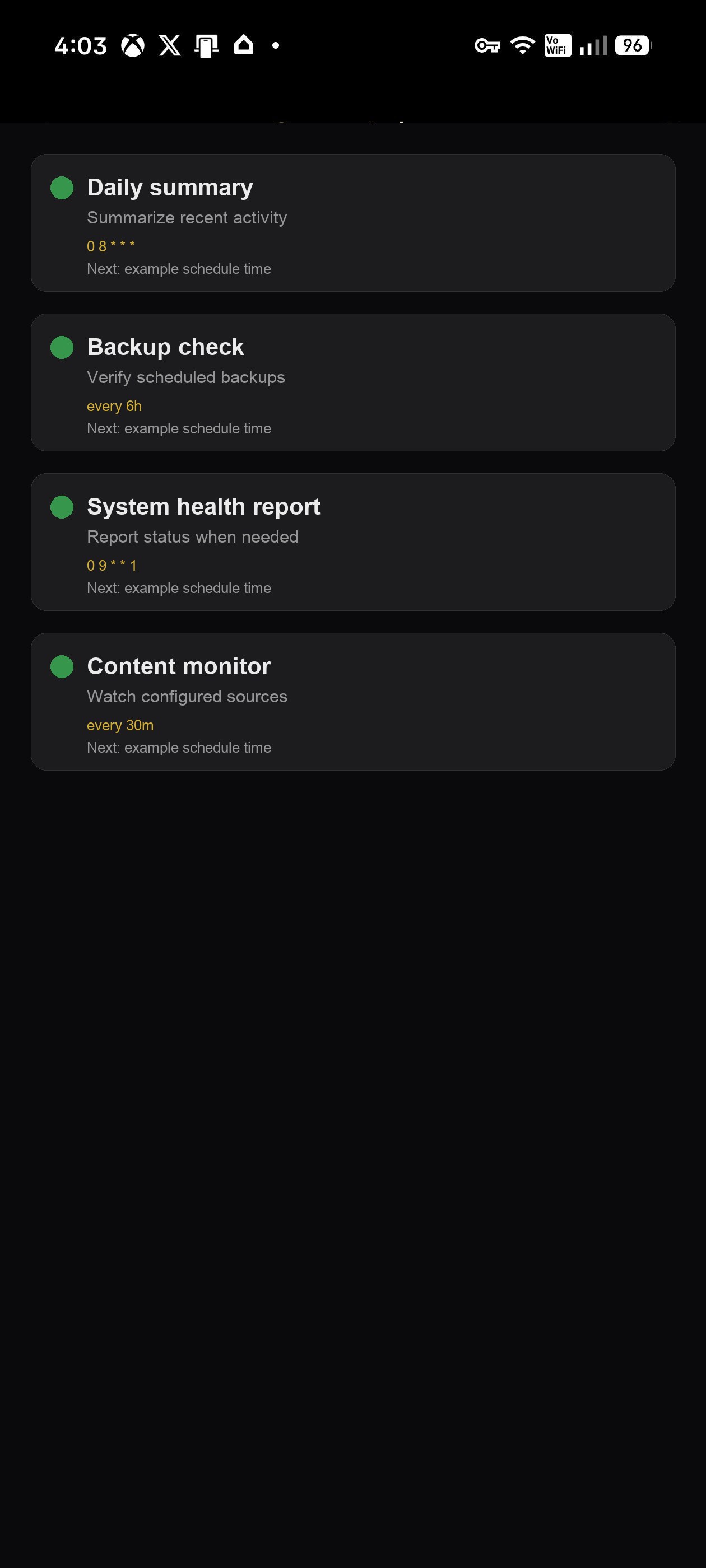 Cron jobs |
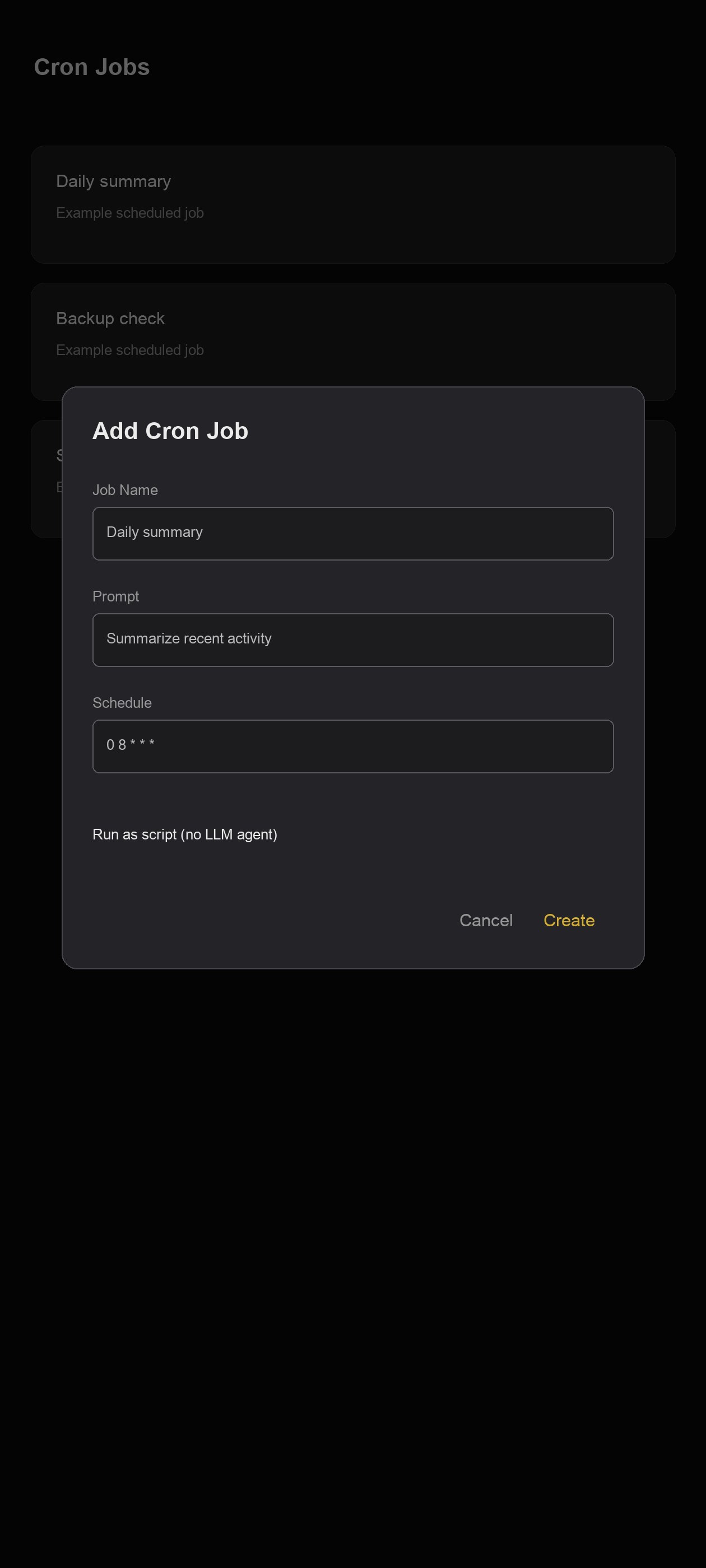 Add cron job |
 Memory |
 Settings |
 Skills |
Quick start
Prerequisites
- Android device or emulator (Android 8+).
- Hermes Agent installed on the host machine.
- Hermes Gateway API Server reachable from the Android device.
API_SERVER_KEYfrom the Hermes host environment (~/.hermes/.env).- Optional: Hermes dashboard reachable for Memory/Cron/Skills/Settings screens.
Hermes Agent docs: https://hermes-agent.nousresearch.com/docs
Install the APK
Download the latest APK from this repository's GitHub Releases page.
For most Android phones, install the ARM64 APK:
adb install Hermes-Android-2.0.1-arm64-release.apk
If sideloading directly on Android, enable Install unknown apps for your browser or file manager, then open the downloaded APK.
1. Start the Gateway API Server
The Android chat/session features connect to the Hermes Gateway API Server. It must bind to an address your phone can reach, not only 127.0.0.1.
Use your normal Hermes gateway/API-server startup command and confirm:
- host/IP is reachable from Android
- port is usually
8642 API_SERVER_KEYis available in~/.hermes/.env
2. Optional: start the dashboard for drawer features
Memory, Cron Jobs, Skills, and Settings use the Hermes dashboard API (default port 9119).
Open dashboard (no login):
hermes dashboard --insecure --host 0.0.0.0 --tui --port 9119
Password-protected dashboard (recommended on shared networks) — start it with a
basic-auth provider instead of --insecure, then enter the username/password in
the app's Dashboard / Proxy Settings dialog (see Dashboard access).
--host 0.0.0.0is required when connecting from another device. A localhost-only dashboard cannot be reached from Android.
3. Connect the app
- Put the Android device and Hermes host on the same Wi-Fi/LAN (or connect via Tailscale — see below).
- Find the Hermes host IP:
```bash # macOS ipconfig getifaddr en0
# Linux hostname -I | awk '{print $1}' ```
- Open the Hermes Android app.
- Tap + to add a connection.
- Enter:
- Label: any name, e.g.
Home- Host: the host IP, e.g.192.168.1.50- Port:8642- API Key:API_SERVER_KEYfrom the Hermes machine - If your deployment is behind a reverse proxy path, expand Custom proxy and dashboard details and set the gateway/dashboard prefixes there. Do not put URL paths in the Host field; the Host field is just the scheme, hostname, and optional port.
- Tap the saved connection to browse sessions.
- Tap a session to start chatting, or create a new one.
4. Optional: configure dashboard access
The drawer screens (Memory, Cron Jobs, Skills, Settings) talk to the Hermes dashboard, which can run on a different port from the Gateway API Server and may be password-protected. Configure it per connection — either while adding the connection (expand Custom proxy and dashboard details in the Add Connection dialog) or afterwards:
- On the connections list, tap the ⋮ menu on a connection → Dashboard / Proxy Settings.
- Fill in:
- Gateway path prefix — optional reverse-proxy path before gateway
/apiand/v1routes, e.g./profile/peter. - Dashboard path prefix — optional reverse-proxy path before dashboard/apiroutes, e.g./dashboard. - Dashboard behind proxy — enable this when the proxy injects dashboard authentication and the app should not fetch a dashboard SPA token or log in with username/password. - Dashboard Port — leave blank to use the default (9119for HTTP, or the same external port for HTTPS deployments), or set an explicit port if your dashboard is exposed elsewhere. - Username / Password — only for a password-protected dashboard. Leave both blank for an open (--insecure) dashboard. - Tap Save. The app validates the settings against the dashboard before storing them.
When credentials are set, the app authenticates via the dashboard's
/auth/password-login flow and reuses the returned session cookie — the same
mechanism the Hermes desktop client uses.
Connect remotely with Tailscale
Tailscale gives your phone and Hermes machine a private encrypted network, so you do not need to expose Hermes directly to the public internet.
Tailscale website: https://tailscale.com/
Install Tailscale on Android
- Install Tailscale for Android: https://tailscale.com/download/android
- Sign in with the same Tailscale account/tailnet used by your Hermes machine.
- Leave Tailscale connected while using the Hermes app.
Install Tailscale on the Hermes machine
Install Tailscale for your OS: https://tailscale.com/download
Examples:
# macOS with Homebrew
brew install --cask tailscale

# Debian/Ubuntu
curl -fsSL https://tailscale.com/install.sh | sh
sudo tailscale up
After the Hermes machine is connected, get its Tailscale address:
tailscale ip -4
You can also enable MagicDNS and use the machine name instead of the 100.x.y.z IP:
- MagicDNS docs: https://tailscale.com/kb/1081/magicdns
Connect the app over Tailscale
In the Android app connection dialog:
- Host: the Hermes machine Tailscale IP, e.g.
100.64.12.34, or its MagicDNS name - Port:
8642 - API Key:
API_SERVER_KEY
If using Memory/Cron/Skills/Settings remotely, keep the dashboard reachable on the same Tailscale host at port 9119.
Connect over HTTPS
For hosted/reverse-proxy deployments (e.g., Hugging Face Spaces, VPS with nginx/Caddy), enter the full HTTPS URL in the Host field:
https://your-hermes-host.example.com
If no port is included, the app uses port 443. If your HTTPS service uses a custom port, either include it in the URL (https://host.example.com:8443) or set the Port field to that value before connecting.
For HTTPS connections, dashboard drawer screens use the same external HTTPS port. For local HTTP/LAN connections, chat uses port 8642 and dashboard screens use port 9119.
Reverse-proxy paths
If your proxy exposes Hermes under URL paths, keep the Host field to the origin only and put paths in Custom proxy and dashboard details:
Host: https://your-hermes-host.example.com
Port: 443
Gateway path prefix: /profile/peter
Dashboard path prefix: /dashboard
Dashboard behind proxy: on, if the proxy injects dashboard auth
With that setup, the app calls gateway routes such as
https://your-hermes-host.example.com/profile/peter/v1/chat/completions and
dashboard routes such as
https://your-hermes-host.example.com/dashboard/api/model/info.
Security notes
- Prefer Tailscale/VPN for remote use.
- Do not port-forward the Gateway API Server or dashboard directly to the public internet.
- Rotate
API_SERVER_KEYif it is shared or exposed. - Local/Tailscale examples use HTTP, so the private network boundary matters. Use HTTPS for public or hosted endpoints.
Architecture
Android app (Flutter)
├─ Gateway API Server, port 8642 or HTTPS proxy prefix
│  ├─ GET /api/sessions
│  ├─ GET /api/sessions/{id}/messages
│  └─ POST /v1/chat/completions  (SSE streaming)
└─ Hermes dashboard, port 9119 or HTTPS proxy prefix
   ├─ /api/memory
   ├─ /api/cron/jobs
   ├─ /api/skills
   └─ /api/model/*
Using the app
Chat screen
- Send messages — Type in the input field and tap the send button or press Enter.
- Streaming responses — The agent's response appears token-by-token in real-time. The chat auto-scrolls to the bottom as new tokens arrive.
- Tool progress — When the agent uses tools, inline progress messages show the tool name, status, and progress.
- Verbose mode — Toggle in the app settings to show raw message metadata (role, tool call IDs, timestamps).
- Markdown rendering — Assistant messages render markdown (code blocks, tables, lists, links).
- Relative timestamps — Messages show "2m ago", "3h ago", etc.
Voice chat
The chat input bar has two voice controls:
| Button | Icon | What it does |
|---|---|---|
| Mic | 🎤 / 🎤🔴 | Tap to start voice dictation. Speak your message — it appears in the input field and sends automatically when you pause. Tap again (or the red stop icon) to cancel. |
| Voice reply toggle | 🔊 / 🔇 | Toggles whether Hermes reads its response aloud after a voice-input message. On = 🔊 (volume up), Off = 🔇 (volume off). |
How voice replies work:
- Tap the mic, speak your question, and wait for the recognition to finish (the text appears and auto-sends).
- Hermes streams its response as text in the chat as usual.
- After the full response arrives, if the voice reply toggle is on (🔊), the app reads the response aloud using text-to-speech.
Voice replies only trigger when you send a message via the mic button. Typed messages produce text responses only.
Setting up text-to-speech (Android)
Spoken replies require Google Text-to-Speech to be installed and configured on your device. The app uses the device's built-in TTS engine — it does not bundle its own voices.
Step-by-step:
- Install Google Text-to-Speech — If not already on your device, install from the Play Store: Google Text-to-Speech
- Set as default engine — Settings → Accessibility → Text-to-speech output → Preferred engine → Google Text-to-Speech
- Download voice data — In the same TTS settings screen, tap the gear icon ⚙️ next to Google Text-to-Speech → Install voice data → select English (Australia) or your preferred English voice → download
- Check media volume — TTS uses the media audio stream, not the ringer. Turn up media volume and make sure your phone isn't in silent/vibrate-only mode.
- Test TTS — In the TTS settings screen, tap "Play" to hear a test phrase. If you hear it, the app should work.
Troubleshooting voice:
- Mic button does nothing — Speech recognition may be unavailable on your device. Ensure Google app is installed and has microphone permission.
- Voice reply toggle is on (🔊) but Hermes doesn't speak — Google TTS is likely not installed or has no voice data downloaded. Follow the TTS setup steps above.
- Hermes speaks quietly or too fast — Adjust speech rate and volume in Settings → Accessibility → Text-to-speech output.
- Recognition is inaccurate — Speak clearly, reduce background noise, and check that the device's system language includes English.
Session list
- Browse all Hermes sessions.
- Tap a session to open its chat.
- Pull to refresh the session list.
- Create a new session from the session list header.
Navigation drawer (☰)
Access these dashboard-powered screens:
- Memory — View conversation memory across sessions. Shows stored facts, preferences, and project context.
- Cron Jobs — List all scheduled cron jobs. Trigger, pause/resume, create, edit, or delete jobs.
- Skills — Browse available Hermes skills with descriptions and trigger conditions.
- Settings — View and change the configured Hermes model, theme preference, and verbose mode.
Theme
- Three-way toggle: Dark / Light / System default.
- Gold Hermes accent (
#D4AF37) on dark mode; adapted for light mode.
Cron job management
The Cron Jobs screen supports full CRUD:
- List — See all jobs with status (enabled/disabled), next run, and schedule.
- Create — Tap + to add a new job with schedule (cron expression or interval), prompt, and optional skills.
- Edit — Tap a job to modify its schedule, prompt, skills, or status.
- Trigger — Manually run a job immediately.
- Pause/Resume — Toggle job enabled state.
- Delete — Remove a job (with confirmation).
Development
cd hermes-android
flutter pub get
flutter analyze
flutter test
flutter run -d android
Build release APKs
flutter clean
flutter pub get
flutter build apk --release --split-per-abi
mkdir -p release-apks
cp build/app/outputs/flutter-apk/app-*-release.apk release-apks/
pubspec.yaml declares the base Android versionCode. The F-Droid ABI-split
block in android/app/build.gradle.kts derives per-ABI codes as
base * 10 + ABI code (armeabi-v7a = 1, arm64-v8a = 2, x86_64 = 3), so the
codes stay ordered armeabi-v7a < arm64-v8a < x86_64 as fdroiddata requires.
For v2.0.1, base 2131 therefore produces codes 21311/21312/21313.
CI reads the completed arm64 APK with aapt and fails if that relationship
drifts. Release-floor checks continue to apply to the base value and must not
be weakened to rely on the ABI code.
Output files:
build/app/outputs/flutter-apk/app-arm64-v8a-release.apk
build/app/outputs/flutter-apk/app-armeabi-v7a-release.apk
build/app/outputs/flutter-apk/app-x86_64-release.apk
Release checklist
Every release PR must complete CODE_QUALITY_CHECKLIST.md before tagging or publishing APKs. The checklist covers analysis, architecture, UX, security, release, and manual smoke-test checks.
Minimum release flow:
- Update
pubspec.yamlversion. - Complete
CODE_QUALITY_CHECKLIST.mdand record any exceptions in the release PR. - Build split release APKs.
- Tag the release, e.g.
v1.0.0. - Create a GitHub Release with all APK assets.
- Confirm the repository visibility and release assets on GitHub.
Troubleshooting
I can see sessions but dashboard drawer screens fail
Chat/session features use port 8642. Memory, Cron Jobs, Skills, and Settings use the dashboard on port 9119. Start the dashboard with --host 0.0.0.0 and make sure port 9119 is reachable over Wi-Fi or Tailscale.
Chat fails with an auth error
Check that the Android connection's API key matches API_SERVER_KEY from the Hermes machine (~/.hermes/.env).
The app cannot find the host
- Verify phone and host are on the same Wi-Fi or same Tailscale tailnet.
- Try the raw IP before a hostname.
- Check local firewall rules for ports
8642and9119. - On Android, ensure the app has network permission (granted by default).
Streaming stops or messages don't appear
- The SSE connection may have timed out. Pull to refresh the session list and re-enter the chat.
- Check that the Gateway API Server is running and responsive:
curl http://<host>:8642/api/sessions. - If using a reverse proxy, ensure it supports long-lived SSE connections (no aggressive timeouts).
Dashboard screens show empty or error
- Verify the dashboard is running with
--host 0.0.0.0(an open dashboard also needs--insecure). - If the dashboard is password-protected, set the username/password under ⋮ → Dashboard / Proxy Settings (or Custom proxy and dashboard details when adding the connection). A 401 here means the credentials are wrong.
- If the dashboard sits behind a reverse-proxy path, set Dashboard path prefix. If the proxy injects dashboard auth, enable Dashboard behind proxy so the app sends clean requests.
- Check the dashboard port matches the connection (default
9119for local/Tailscale, same HTTPS port for hosted; override it in Dashboard / Proxy Settings if needed). - The dashboard must be on the same host as the Gateway API Server for the app's drawer to reach it.
Voice dictation or spoken replies aren't working
- Spoken replies not working — Install Google Text-to-Speech, set it as the default engine, and download English voice data. See Setting up text-to-speech above for step-by-step instructions.
- Speech recognition not working — Ensure the Google app is installed and has microphone permission (Settings → Apps → Hermes → Permissions → Microphone).
- Voice reply toggle is off — Check the speaker icon in the chat input bar: 🔊 = on, 🔇 = off. Tap it to enable spoken replies.
- Media volume is zero — TTS uses the media audio stream, not the ringer. Turn up media volume with the physical volume buttons while on the home screen.
- Hermes speaks but audio is quiet or fast — Adjust speech rate and volume in Settings → Accessibility → Text-to-speech output.
Host field examples
The app accepts any of these forms and normalizes them when saving:
192.168.1.50
192.168.1.50:8642
http://192.168.1.50:8642
100.64.12.34
hermes-machine.tailnet-name.ts.net
https://your-hermes-host.example.com
https://your-hermes-host.example.com:8443
For hosted paths such as https://your-hermes-host.example.com/profile/peter, enter https://your-hermes-host.example.com as the host and /profile/peter as the Gateway path prefix.
Project structure
lib/
├── main.dart                          # App shell, saved connections, navigation drawer
├── core/
│   ├── models/
│   │   ├── attachment_draft.dart       # File-backed image/file composer model
│   │   ├── connection.dart             # SavedConnection model and host normalization
│   │   └── session.dart                # Session model
│   ├── screens/
│   │   ├── session_list_screen.dart   # Session browser
│   │   ├── chat_screen.dart           # Chat with SSE streaming
│   │   ├── settings_screen.dart       # Model/theme/app settings
│   │   ├── memory_screen.dart         # Memory viewer
│   │   ├── skills_screen.dart         # Skills browser
│   │   └── cron_screen.dart           # Cron job manager
│   ├── services/
│   │   ├── attachment_draft_service.dart # Cache, sanitization, limits, upload order
│   │   ├── connection_manager.dart    # Saved connections, Gateway API, Dashboard API
│   │   └── ws_client.dart             # JSON-RPC WebSocket client for future dashboard/TUI use
│   └── utils/
│       └── responsive.dart            # Phone/tablet breakpoints
└── assets/
    └── icon/
        └── icon.png                   # App icon source
Credits
- CristianGCiocoi — community Remote Gateway edition: unified JSON-RPC transport, per-chat model selection, multi-attachment uploads, durable turn recovery, voice dictation, gateway contract test suite, and the comprehensive CHANGELOG. Merged in v2.0.0.
- AI-Guru — detailed review, independent testing, and scroll-offset bug identification for the community edition.
- grunjol — technical review and transport-architecture feedback for the community edition; also contributed PR #68: reverse-proxy path prefix and proxied dashboard support.
- louquillio — contributed PR #74: session source filters in Settings.
- sternbergm — contributed PR #67: password-protected dashboards and configurable dashboard port.
License
MIT