

ComfyUI Pixaroma
Useful ComfyUI nodes for everyday workflows.
Load Image • Crop • Compose • Paint • 3D • Compare • Preview • Save MP4 • Notes & Labels • Resolution • Switches • Remove Background • Text & Number utilities


📥 Install · 🎨 Nodes · 📺 Tutorials · 🛠 Changelog · 💬 Discord
💬 Need help, have an idea, or found a bug? Post in the #pixaroma-nodes channel on the Pixaroma Discord, or open a work item (issue) on GitLab.
💡 Updated Pixaroma and a node looks broken or old? Hard-refresh your ComfyUI browser tab with Ctrl+Shift+R (Cmd+Shift+R on Mac). The browser caches old node visuals, so without a hard refresh you can still see the previous version even though the update installed correctly.
🎨 Creative Suite
Pixaroma turns ComfyUI into a powerful, easy-to-use design space. It brings professional editing right into your workflow!
🗂️ Pixaroma Workflows
Click the orange W in the top toolbar, beside the Help question mark (or press Alt+W). A panel opens over the workflow files you already have, so nothing is imported and nothing is moved. Every workflow gets a picture: a small map of the graph itself straight away, then its own last output image once you have run it, or any picture you choose. Search reads inside the files, so you can type a model or LoRA filename, a phrase from a prompt, or your own note and find the workflows that use it. Rename with F2, drag onto a folder to move, and right click for duplicate, cover, reveal and delete. Needs tidying gathers the ones worth a look: files still called "Unsaved Workflow", sets that are copies of each other, and any needing nodes you do not have, each with its fix beside it. Under your own folders are collections that fill themselves by reading each file, so a workflow filed in the wrong place still turns up in the right place. The cursor starts in the search box and the arrow keys move through the results.
❓ Pixaroma Help
Not sure what a node does? Click the orange ? in the top toolbar, beside Align. A help window opens covering every Pixaroma node, the canvas tools that do not add a node at all, and four short guides: updating the nodes, opening a workflow you downloaded, the fix for most "it looks broken" reports, and where to ask when none of that helps. Search reads the whole text, not just node names, so you can type the problem ("buttons missing", "make it bigger") instead of guessing the name. Each node page explains what every input, setting and output is for, and you can drop the node straight onto your canvas with a button or by dragging its card there. The bar along the bottom always shows which version you are on and copies the full details for a support question in one click, with Discord and the tutorials next to it. Drag the divider to widen the list, and click the ? again to close.
✨ Image Composer
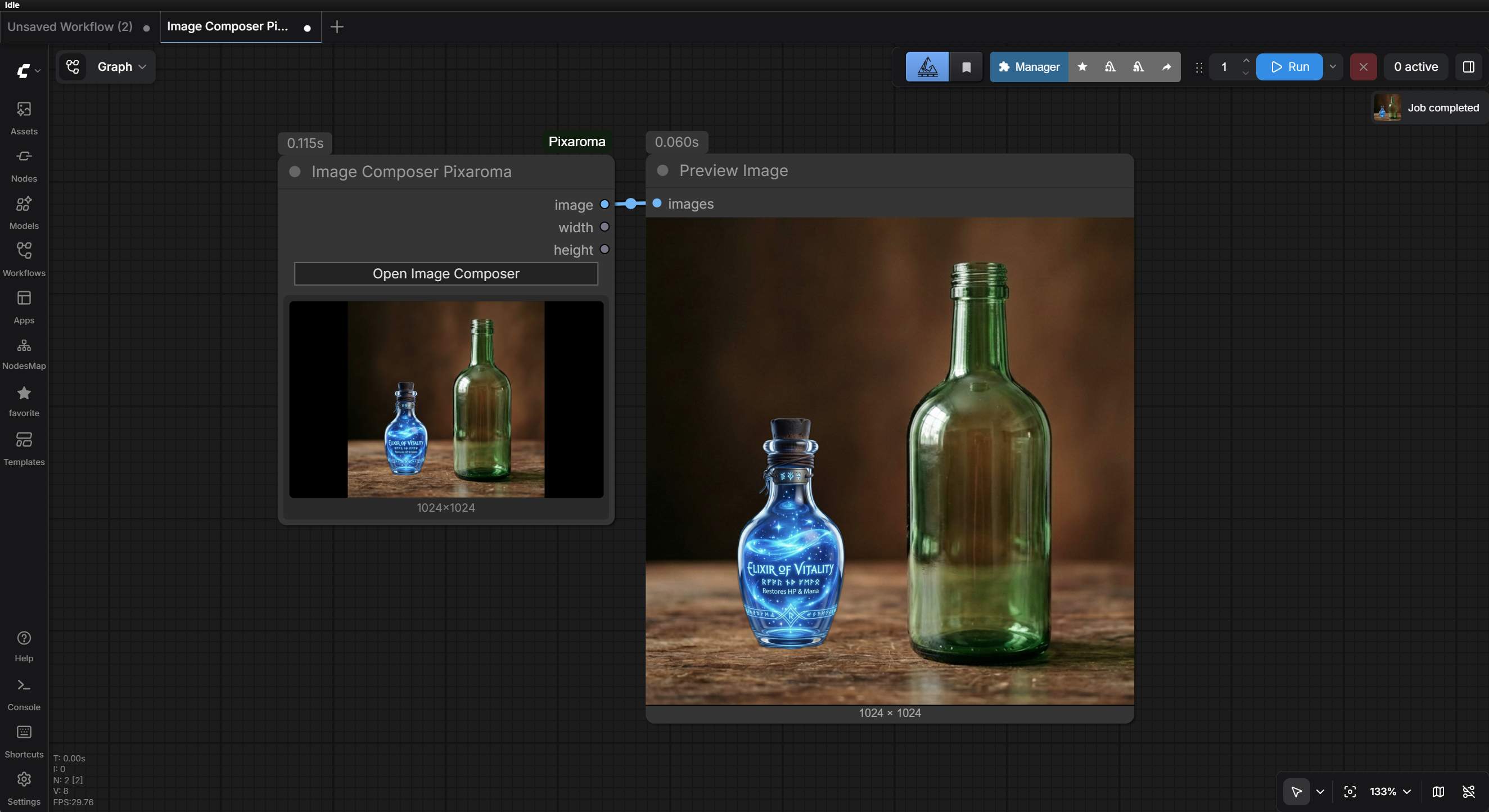
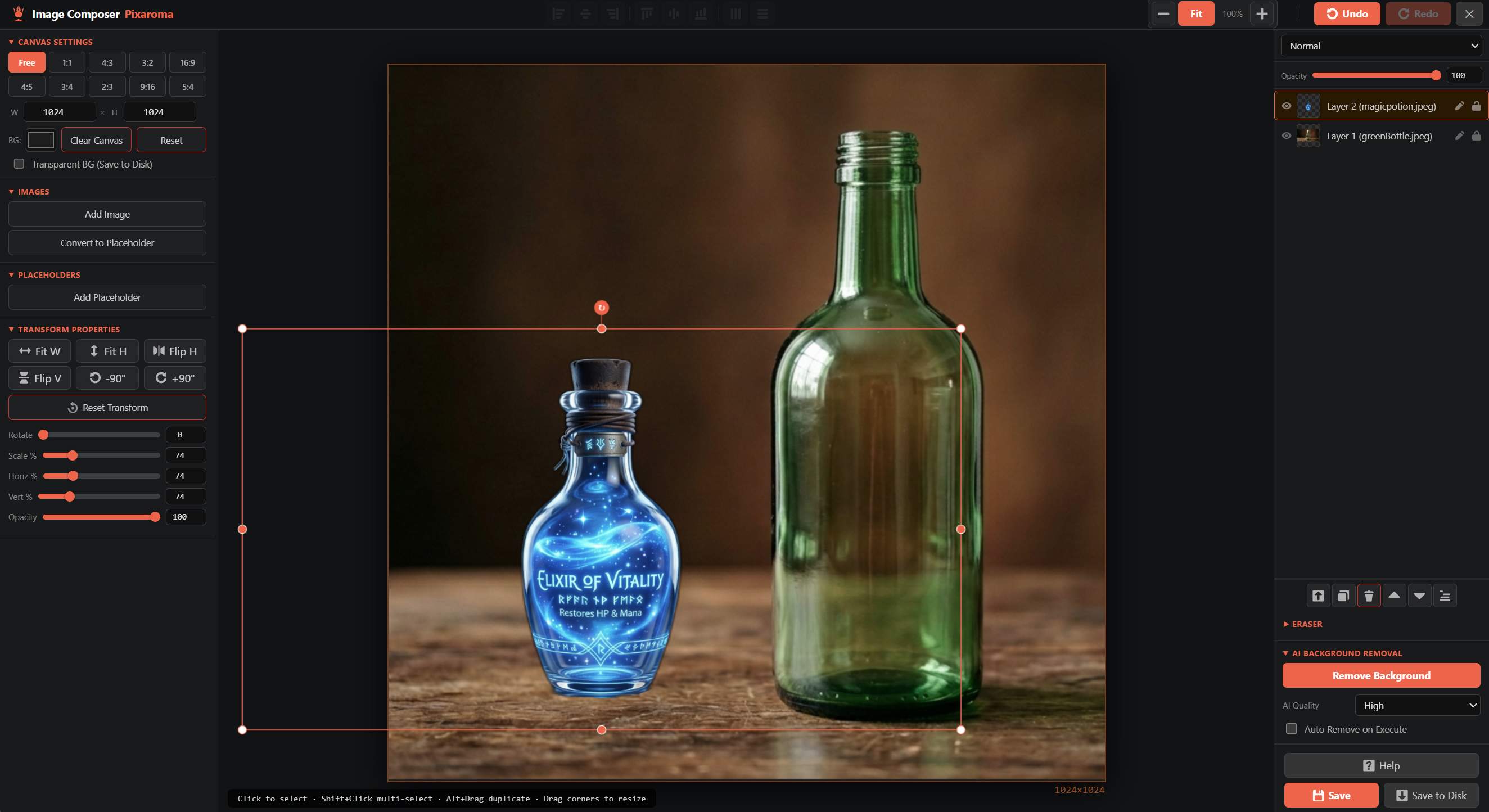
Easily combine and arrange multiple images. Move, scale, and rotate layers using a simple visual editor. Per-layer blur lets you focus or defocus any layer non-destructively with a simple slider. Shift+Scroll wheel scales the selected layer in place for quick adjustments. Use the eraser to tweak things by hand, or let our AI background removal tool isolate objects for you instantly.
🖌️ Paint Pixaroma
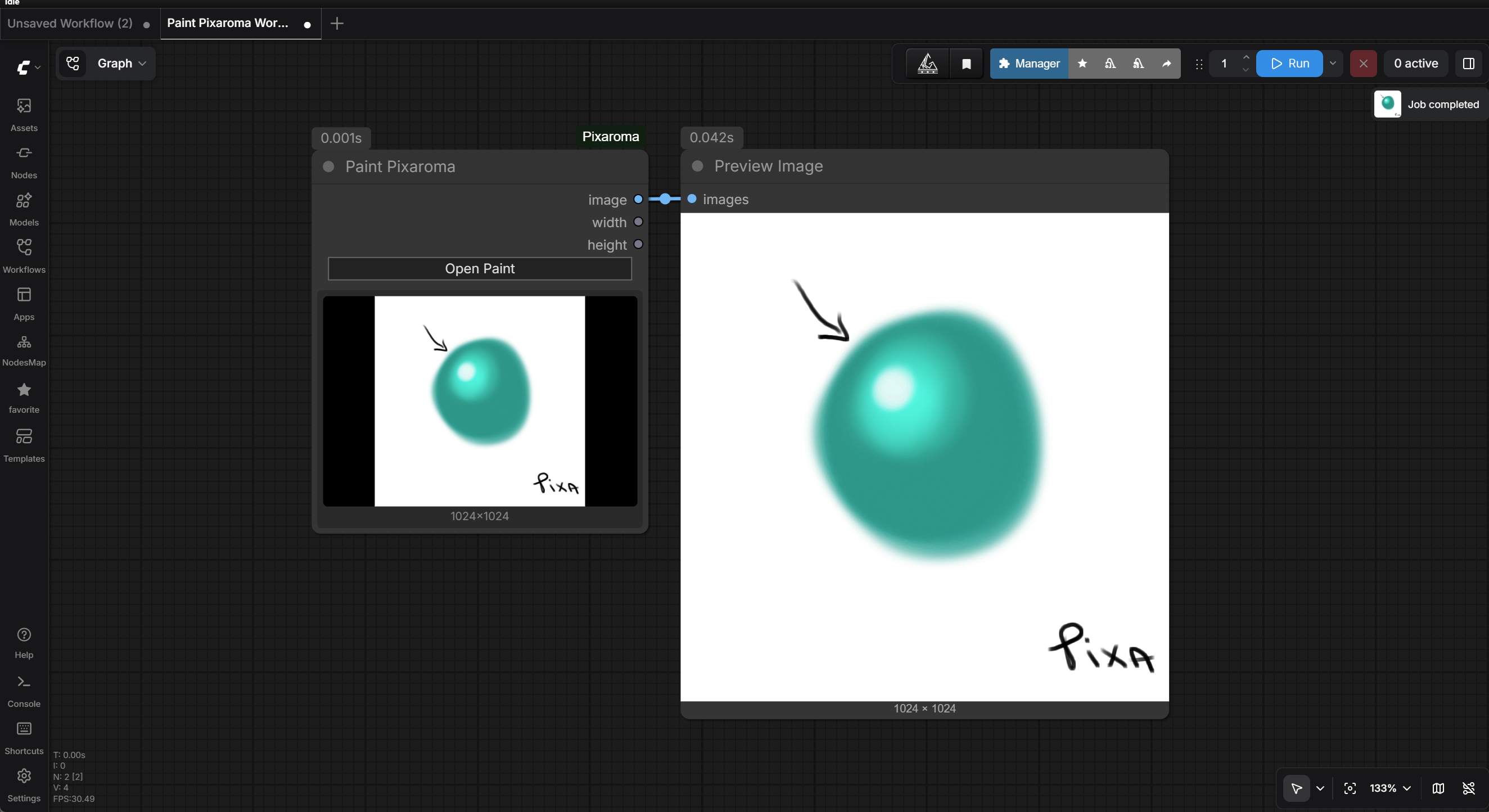
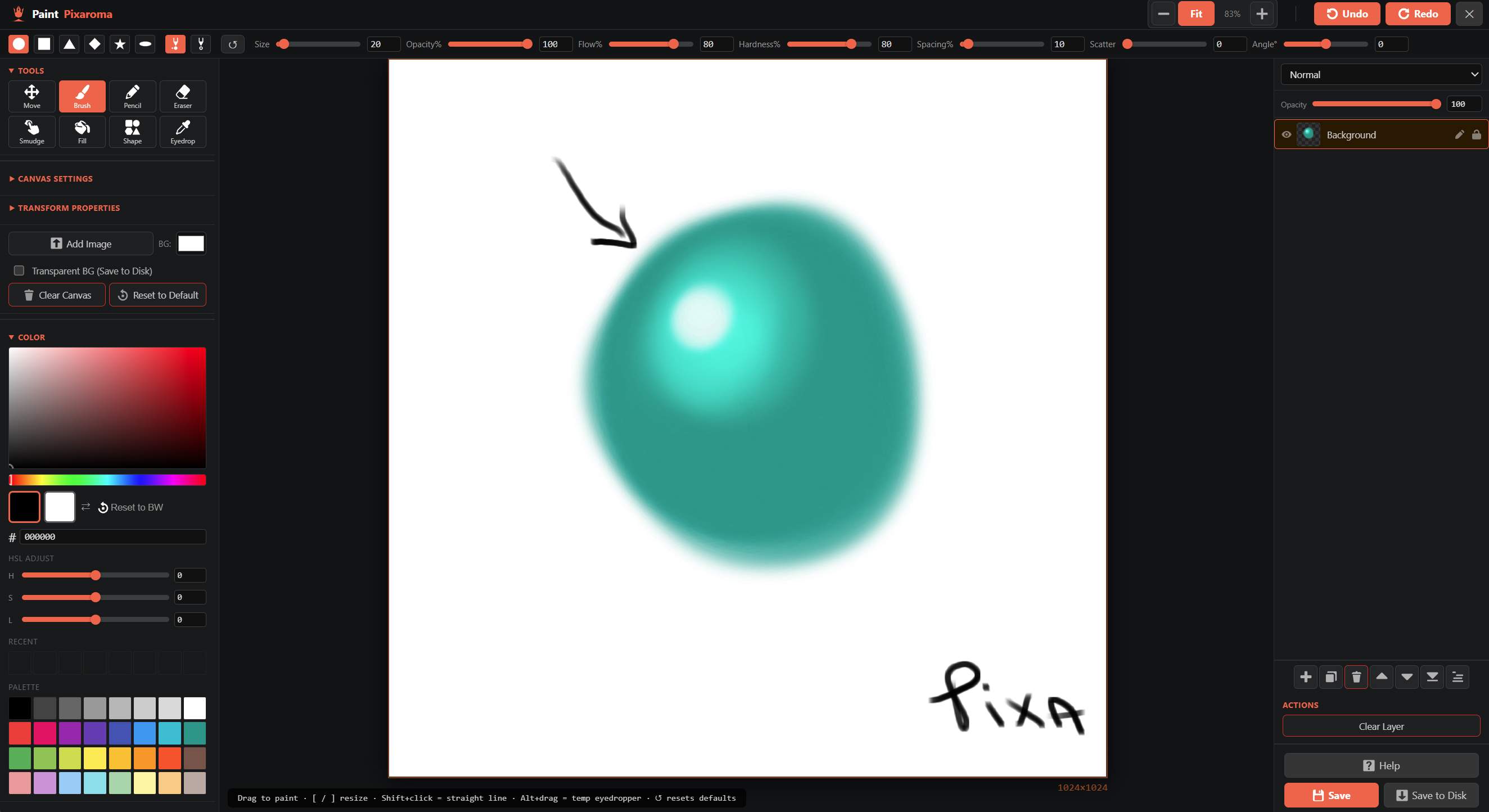
A fast, easy-to-use painting tool. It features layers, custom brushes, and a smudge tool for smooth blending. Perfect for fixing details, drawing custom masks, or painting from scratch.
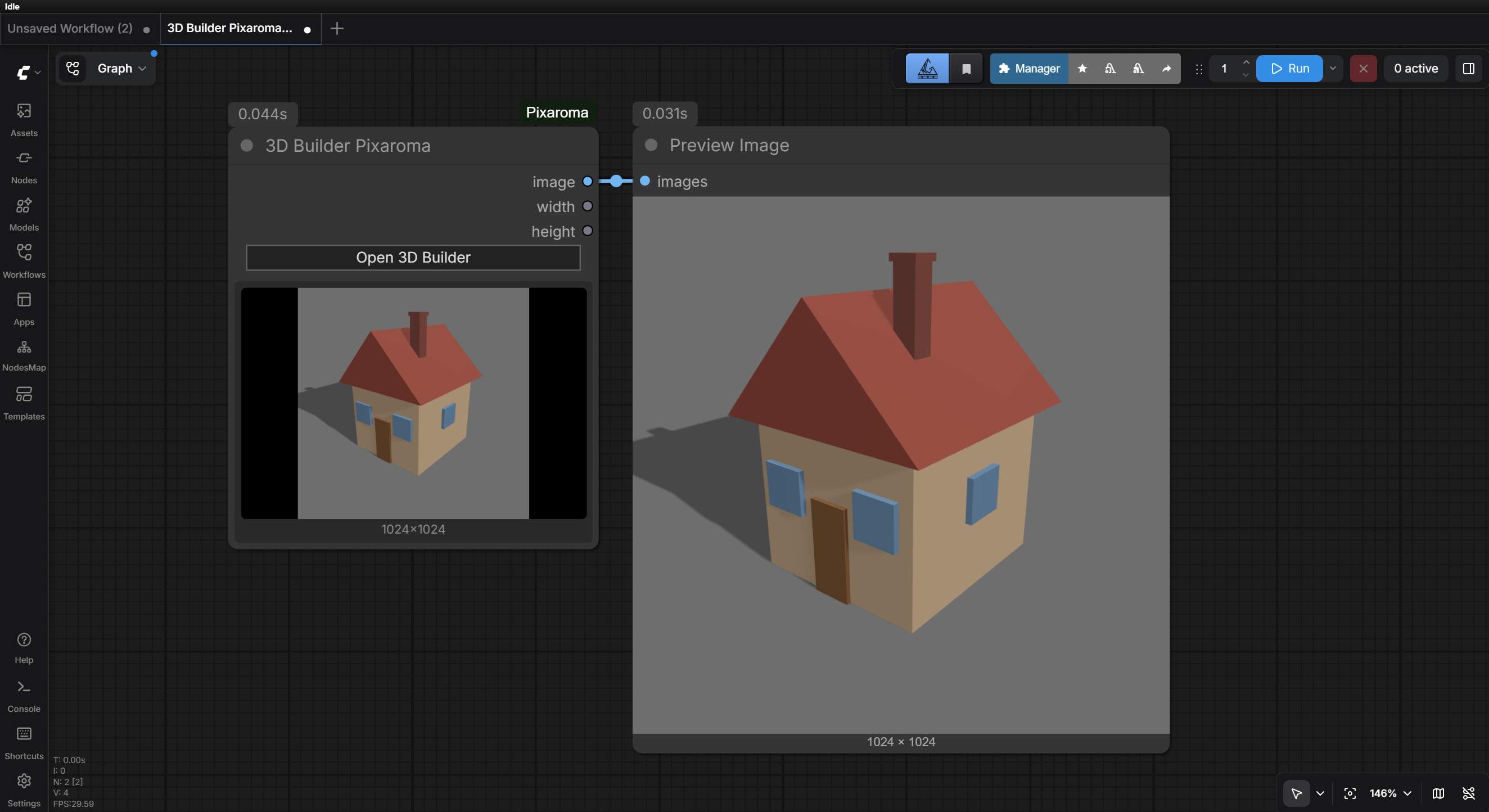
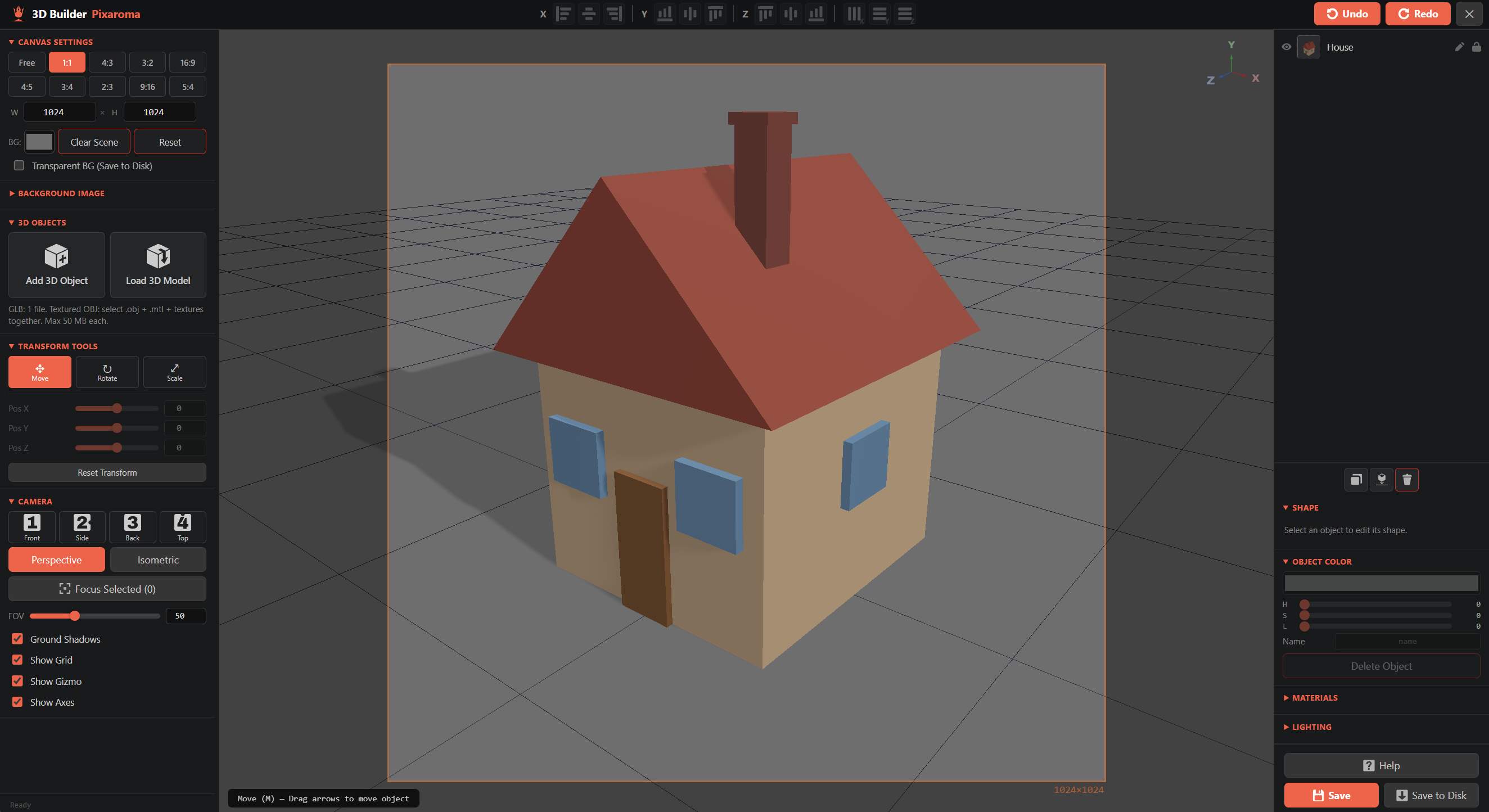
🧊 3D Builder
A full 3D scene editor right inside ComfyUI. Drop in shapes, trees, houses, furniture, or import your own 3D models. You get easy camera controls, realistic lighting, undo/redo, and live previews. Perfect for making reference scenes for ControlNet or depth maps!
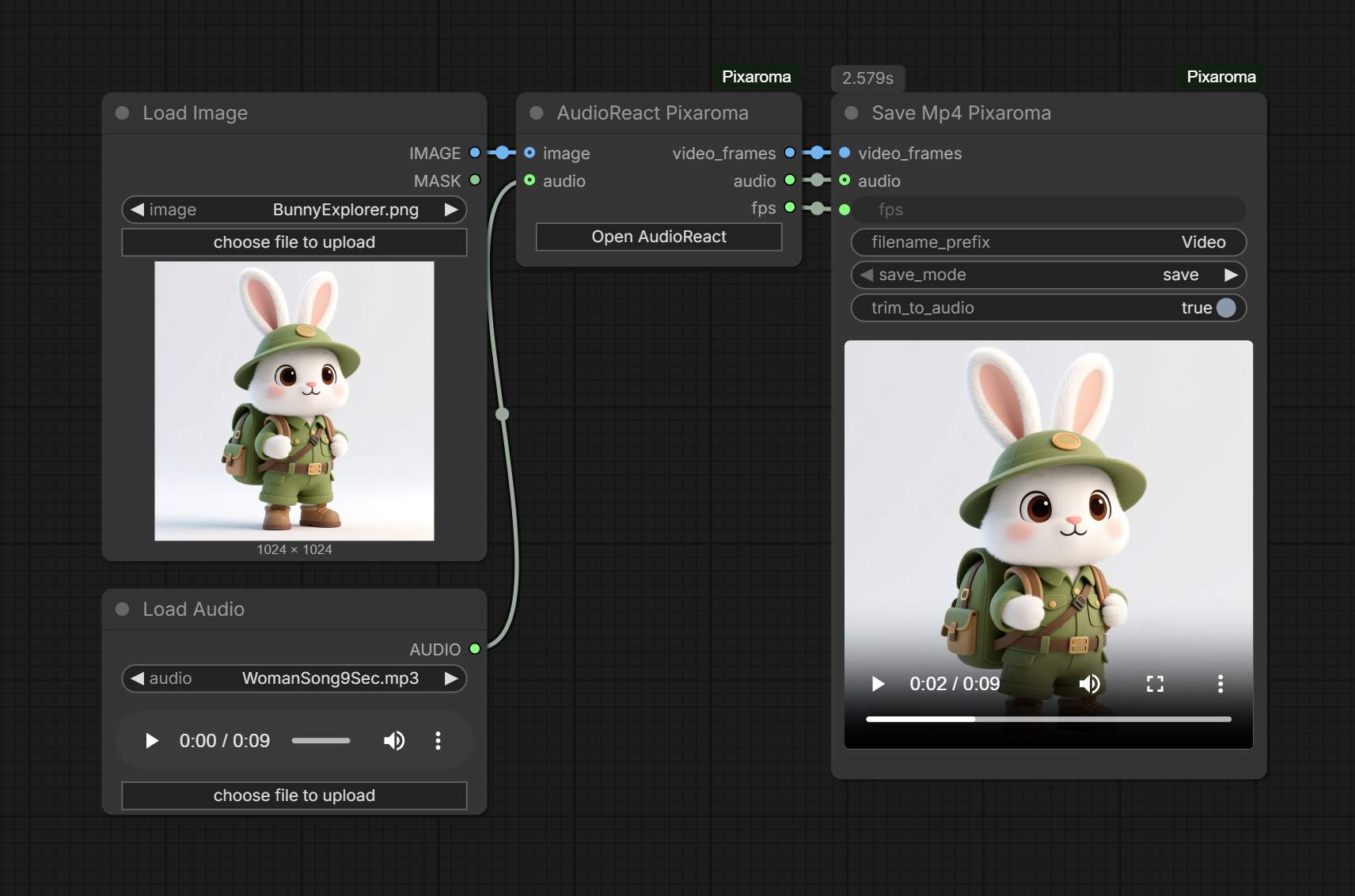
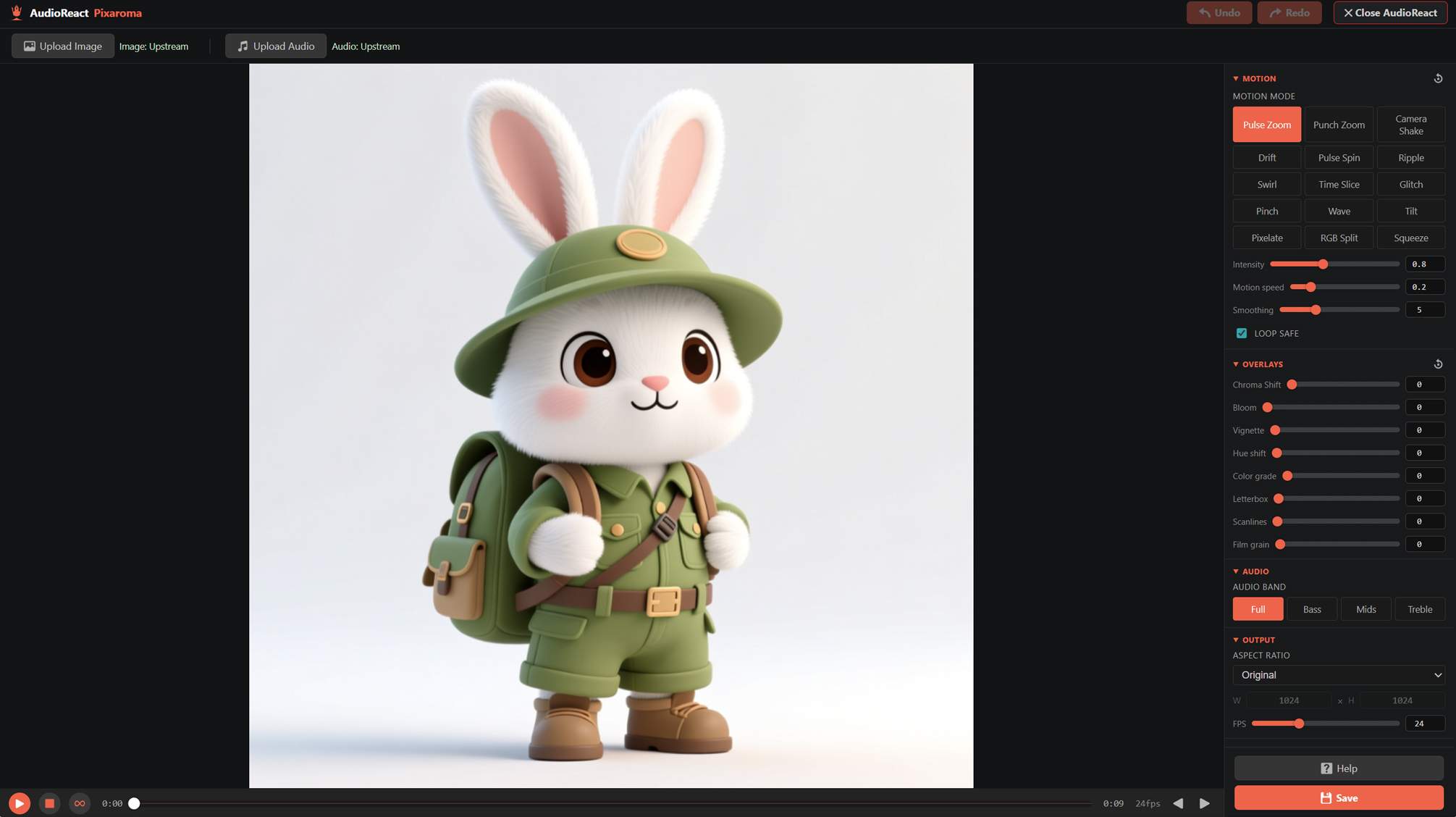
🎚️ AudioReact Pixaroma
Audio-reactive image-to-video. No extra models needed, just an image and an audio track. Open the fullscreen editor, scrub the audio, and watch 15 motion modes (Pulse Zoom, Camera Shake, Glitch, Pinch, Wave, Tilt, Pixelate, RGB Split, and more) react to the beat in real time with a live WebGL preview. Stack 8 overlay effects on top: chroma shift, bloom, vignette, hue shift, cinematic teal/orange grade, letterbox, scanlines, and film grain. Pairs with Save Mp4 Pixaroma to write the clip directly to MP4 with audio muxed in. Requires WebGL2.
📊 XY Plot Pixaroma
Compare settings side by side without setting anything up. Drop it at the end of your workflow and wire your final image in, just like a preview node. Then pick what changes across (columns) and down (rows) from a dropdown of the nodes already in your graph - no extra wiring. The value box adapts to your pick: a number gives a Start/End/Steps range, a dropdown (sampler, model, scheduler) gives a checklist, a lora lets you compare loras or their strengths (works with the Power Lora Loader too), and your prompt gives find-and-replace. Hit Run once and every combination fills a labeled grid right in the node, with Dark/Light/Mono grid themes and Save/Copy/Open buttons. The seed stays locked across the grid so the only thing changing is the thing you're testing.
🎛️ LoRA Loader Pixaroma
Stack as many LoRAs as you want in one compact node, each on its own line with an on/off switch and a strength you type or nudge with arrows - and chain the model and clip through several of them. Click the i on any LoRA to see its details and trigger words, read straight from the file with no internet needed; tick the ones you want (or type your own) and they come out of a triggers output as plain text for your prompt. A searchable, browse-by-folder picker makes finding a LoRA quick, and an optional Civitai lookup fills in official trigger words and a preview when you ask, with a link to the model's page. If Civitai keeps saying it cannot find a LoRA you know is there, add your Civitai API key in the settings: the site keeps some models out of sight for anyone who is not signed in, and a key lets the lookup see them. The key is kept on your computer and never goes into a workflow. Add LoRA, all on/off and the settings tuck into the middle of the node to keep it small; right-click a row to move, duplicate or remove it.
🔗 Text Join Pixaroma
Join a few pieces of text into one, each on its own line - and every line is type-or-wire: type straight in, or drag a wire from another node to feed it, so fixed text and text from elsewhere mix freely. Comes in Two, Three and Four line versions, and the lines grow as you enlarge the node so long text has room. Right-click for the settings: choose what goes between the pieces (comma, space, new line, none, or your own), skip empty lines so you never get a stray comma, and - the handy part - rename each line to whatever fits your workflow (trigger words, prompt, camera, lighting) so the node reads the way you think. A per-line copy and paste sits on each box, and it works in both the classic and the new node interface.
✂️ Image Crop
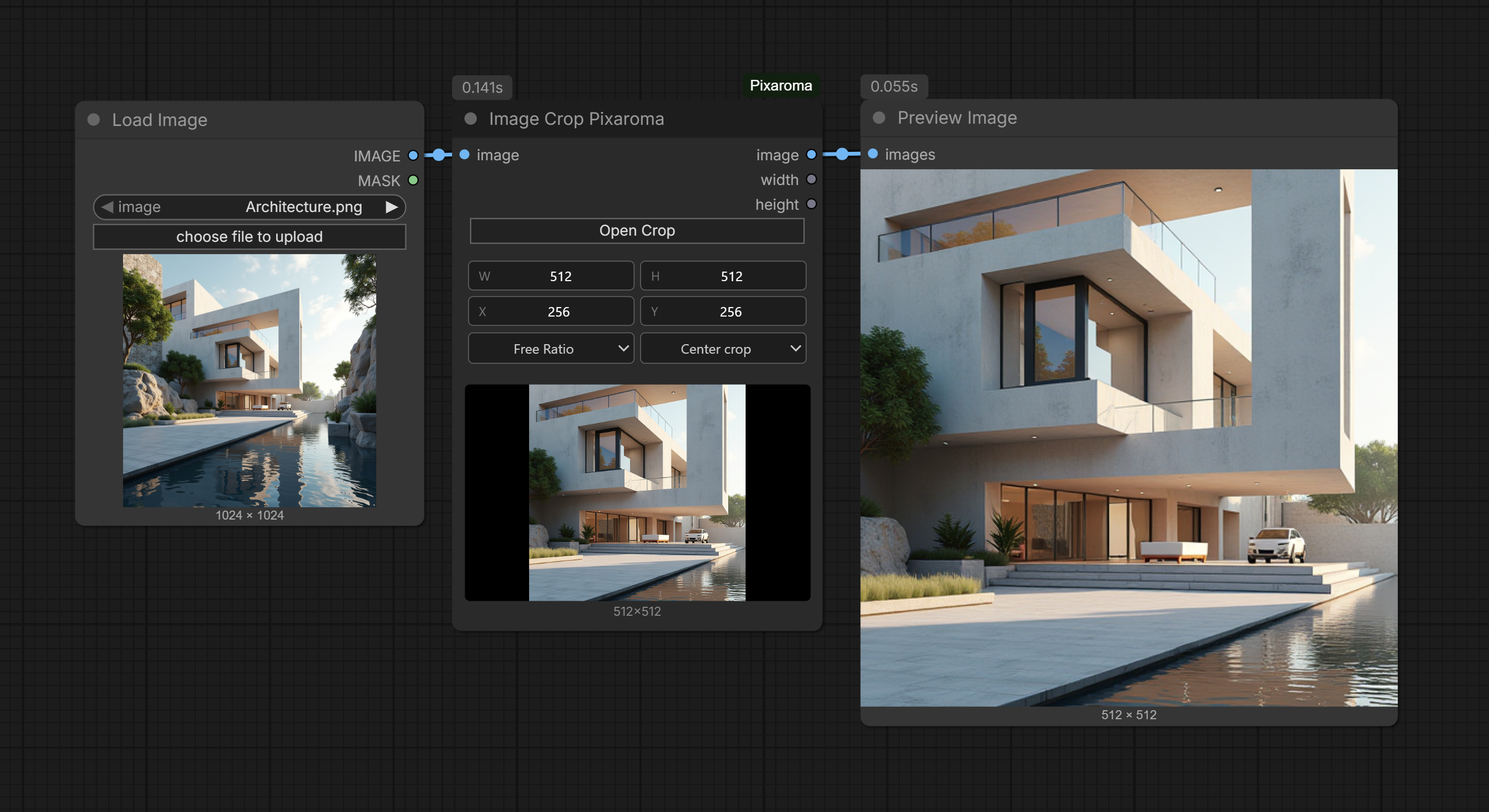
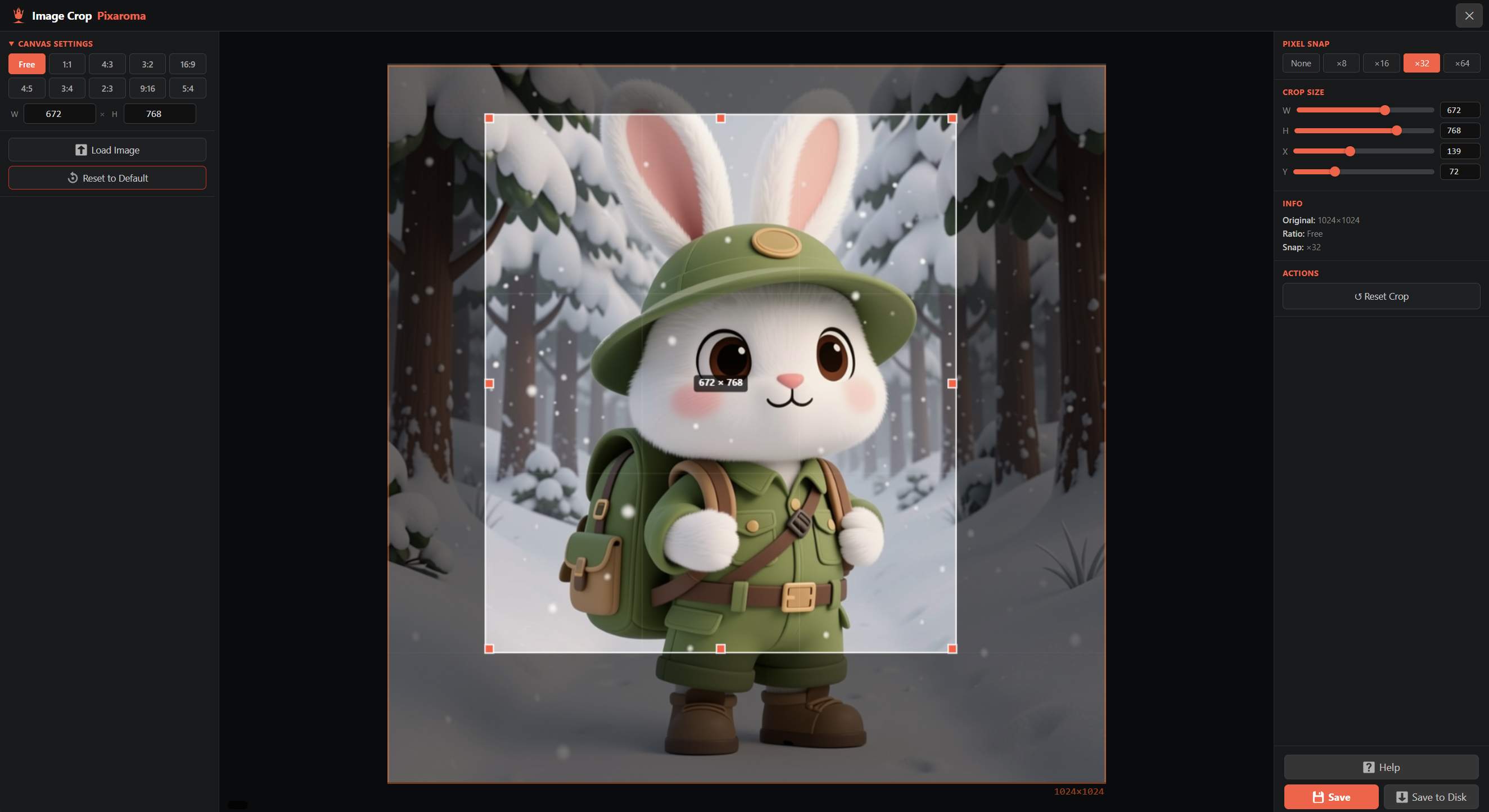
No more guessing crop sizes with numbers! Visually draw your crop box, or set width, height, position and a center/edge alignment right on the node - math expressions like 1024+512 work too. Standard presets (1:1, 16:9, 9:16…) keep social and video aspects locked. Wire any IMAGE output into the node (Load Image, VAE Decode, anything) and run the workflow once - the editor and mini-preview will show the live source. Or paste an image straight from the clipboard with Ctrl+V. It keeps transparency too (wire a mask in, get a matching cropped mask out) and hands off a crop_info wire to the new Image Uncrop node, so you can edit the crop and paste it back later.
🧩 Image Uncrop
The other half of crop-and-edit: paste an edited or upscaled crop back onto the original image at the exact spot it came from. Wire the crop_info from Image Crop into it, run your crop through any nodes you like (upscale, recolor, inpaint, remove background), and Image Uncrop drops the result back in place - everything outside the crop stays untouched. A feather slider softens the seam for a seamless blend, and transparency carries straight through.
🩹 Inpaint Crop Pixaroma
The easy way to set up an inpaint. Open the fullscreen editor and paint over the part you want the AI to redo - brush, erase, invert, an adjustable brush, and zoom (scroll) + pan (Space-drag) for fine detail. The node automatically finds the area around your mask, adds a margin, and crops a clean, model-friendly piece (sized to a multiple of 8 and scaled toward your target) so even a small spot gets enough resolution to look sharp. Set how the result blends back - softness, mask grow, and Mask (only the painted area) vs Whole crop - right here, with a live preview. Wire the cropped image and mask into your inpaint or edit model (Flux, KSampler, edit models), then send the crop_info wire to Inpaint Stitch to paste the result back. Turn on invert_mask to inpaint the opposite area (no separate Invert Mask node), and it works with a mask wired in too. Works in both the classic and the new node interface.
🪡 Inpaint Stitch Pixaroma
The other half: paste your inpainted crop back onto the original, blended so the seam disappears. Wire in the crop_info from Inpaint Crop and your processed crop, and by default only the area you painted changes - everything else stays pixel-perfect. Fine-tune the softness, blend mode, and an optional color match right on this node; because it runs after the sampler, changing them re-runs only this node (instant, no re-generating the image). It also hands back the untouched original, so you can drop both into Image Compare for an instant before / after.
🌓 Image Compare
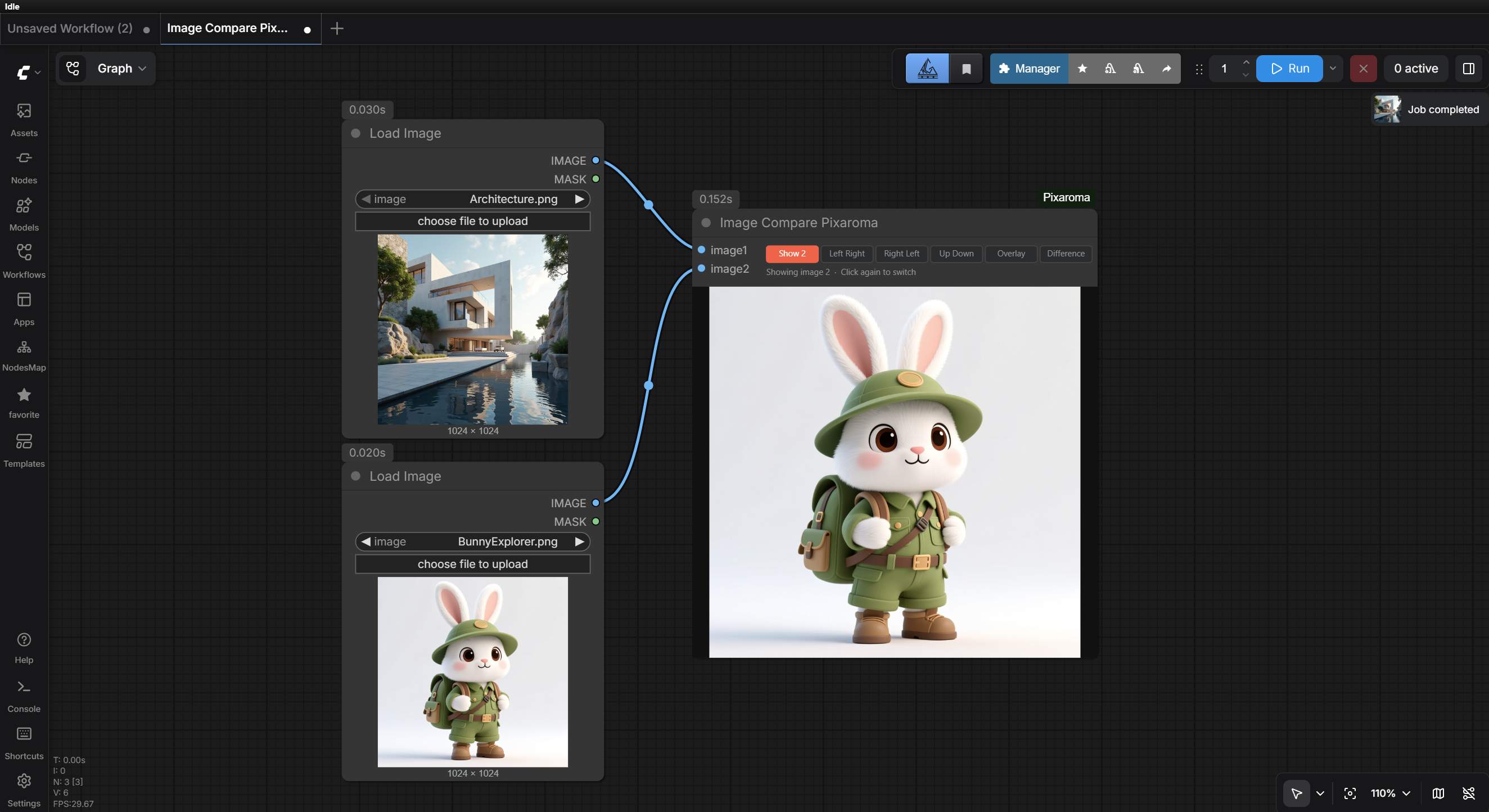
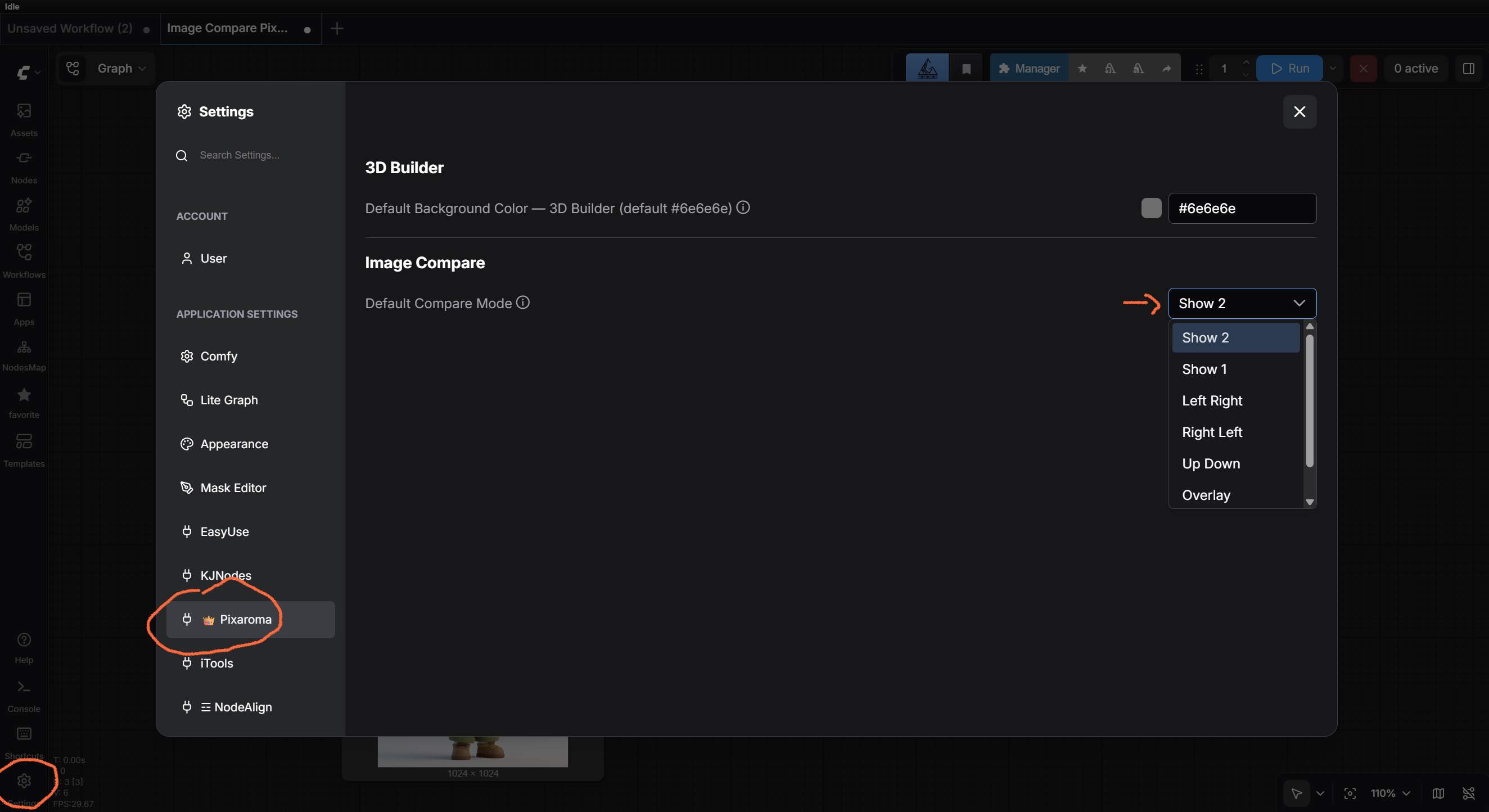
The best way to see the difference between two images. Easily compare them side-by-side with a slider, overlap them, or highlight exactly what changed between the two versions.
⏸️ Pause Image Pixaroma
A checkpoint you drop into your workflow to stop and look at the image before running the slow part (like an upscale or a second pass). Press Run and it pauses there, showing you the image while the rest of the workflow waits. Like what you see? Hit Continue and only the steps after it run - the heavy generation is skipped, so it's fast, and you upscale the exact image you saw. Don't like it? Hit Regenerate for a fresh one, or change something upstream and run again. Flip the toggle to Pass to run everything in one go. Copy, Save to disk, Save to output, and Open buttons act right on the previewed image. Works in both the classic and the new node interface.
✍️ Pause Text Pixaroma
A checkpoint for words, the way Pause Image is for pictures. When text comes from an AI writer and heads into the rest of your workflow, this lets you read it and fix it before it goes on. Drop it in the wire between the text source and whatever uses the text. Press Run and it pauses, showing the text in an editable box - tidy it up, then hit Continue to send your edited version on (the slow text step is skipped, so it's fast). Don't like what it wrote? Hit Regenerate and it finds the node that made the text, rolls its seed, and gives you a fresh one, so you never have to touch the seed yourself. Flip the toggle to Pass to run straight through without stopping, or Keep to reuse the same text and make a new image every run - handy for trying one prompt many times. Copy and Revert buttons are right there. Works in both the classic and the new node interface.
🖼️ Load Image Pixaroma
A drop-in replacement for ComfyUI's native LoadImage with everything you'd want in one node. Same upload / drag-drop / Ctrl+V paste / multi-frame / alpha-to-mask behavior as native, plus inline resize: pick from Off, Max megapixels, Longest side, Scale by ×, Fit inside, Crop to fill, or Match aspect ratio with a sub-toggle for Crop or Pad (12 ratio presets + Custom, with a Pixaroma color picker for the Pad color). Snap to /8/16/32/64, Resample picker (Auto / Nearest / Bilinear / Bicubic / Lanczos with one-line hints under each), and an Allow upscaling toggle apply on top. Numeric fields accept math expressions (1024+64, 512*2), ↑↓ arrow stepping (Shift = 10×), and have visible +/- spinner buttons. A live Input → Output info bar with tiny aspect-ratio rectangles shows you exactly what dimensions the workflow will produce as you tweak settings. Outputs include IMAGE, MASK, WIDTH, HEIGHT, FILENAME (no extension), ORIGINAL_WIDTH, ORIGINAL_HEIGHT - eliminates downstream Get Image Size + Image Scale chains in most workflows.
🪶 Load Image Mini Pixaroma
The compact version of Load Image, for when you want a small, uncluttered node on the canvas. Same engine and the same picking - upload / drag-drop / Ctrl+V paste, the ◀ ▶ arrows and thumbnail file picker, and full Open in Mask Editor / Copy-Paste (Clipspace) support - but the face is just a toolbar, the file picker and a preview. All the resize modes (Max megapixels, Longest side, Scale by ×, Fit inside, Crop to fill, Match aspect ratio) plus snap, resample and upscaling live in the gear settings panel, and you can recolour the node's buttons per node. It outputs just IMAGE and a small image_info bundle. Pair it with Image Info Pixaroma to unpack that bundle into IMAGE, MASK, WIDTH, HEIGHT, FILENAME - wire it in only when you need those extras, so the loader itself stays small (Image Info also shows the size and filename right on its own face). Works in both the classic and the new node interface.
📂 Load Images from Folder Pixaroma
Point it at any folder on your computer and batch-process its images through your workflow. Pick which ones in a thumbnail gallery (Select all, the First N, or hand-pick), then hit Run once and it feeds each selected image through your graph on its own, giving you a finished result for every image (mixed image sizes are fine). Set the folder with the real OS folder dialog (the Browse button, Windows / Mac / Linux) or just type or paste a path. It carries the same inline resize options as Load Image Pixaroma (Max megapixels, Longest side, Scale by, Fit inside, Crop to fill, Match aspect ratio, Pad), applied to each image as it loads. Outputs IMAGE, MASK, WIDTH, HEIGHT, FILENAME, INDEX, TOTAL - wire WIDTH/HEIGHT into an empty latent so it matches each image, and FILENAME into a Save node so every result keeps its original name. Works in both the classic and the new node interface.
↔️ Image Resize Pixaroma
Resize any image (and its mask) anywhere in your workflow with one compact node. Pick a mode - Off, Max megapixels, Longest side, Scale by ×, Fit inside, Crop to fill, Match aspect ratio, or Pad (add a colored border for outpainting / inpainting, where the new area becomes the editable mask region). Crop to fill has a 9-point anchor (keep the top, a corner, the center…) and a Fill / Crop toggle (scale-and-crop, or cut a piece at original pixels). A live Input → Output card with tiny aspect-ratio rectangles shows exactly what you'll get, and turns orange only when the size actually changes. Wire a width / height in (e.g. from Resolution Pixaroma): connect just one to scale while keeping the aspect ratio, or both for an exact size, and the controls adapt automatically. Snap to /8/16/32/64, a Resample picker (Auto / Nearest / Bilinear / Bicubic / Lanczos), and an Allow upscaling toggle apply on top; number fields take math like 1024+64. Outputs IMAGE, MASK, WIDTH, HEIGHT.
📏 Longest Side Pixaroma
One-number resizing, and the small sibling of Image Resize. Click a size and the longer edge of your picture becomes exactly that, with the other edge following so nothing is squashed - it works the same for a tall photo or a wide one, so you never have to decide whether you mean width or height. Five size tabs (864, 1024, 1216, 1536, 2048 by default; type your own in the settings, and each one is rounded to match the step). Five shape chips (keep, 1:1, 16:9, 9:16, 2:3 by default, swapped from a palette of every ratio) - picking a shape takes the biggest piece of it out of your picture first, so nothing stretches and no empty bars appear. A small button steps through Off / 8 / 16 / 32 / 64 and rounds both sides, which is what most models want. The node shows the size it will send before you run, reading the picture coming in. The gear also holds the crop anchor (9 points), whether small pictures may grow, the resample quality and the node's colour. Outputs IMAGE, WIDTH, HEIGHT. Reach for Image Resize Pixaroma instead when you need a width and a height. Works in both the classic and the new node interface.
🔲 Resize Crop Pixaroma
A dead-simple crop-to-fill node. Wire in an image, set a width and height (type them, or wire them in from another node like WH or Resolution Pixaroma), and it scales the image to completely fill that size and crops the overflow from the center - so the output is always exactly the size you asked for, with no stretching or black bars. Smaller images scale up to fill. An optional mask is cropped along with it. Outputs IMAGE, MASK, WIDTH, HEIGHT. Perfect for forcing images or video frames to a fixed size like 512×896 or 704×1280. Works in both the classic and the new node interface.
🖼️ Outpaint Pixaroma
Add a solid-colour border around your image so an outpainting model can paint new scenery into it - the setup step for extending a picture past its edges, in one node. To ratio grows the image to a target shape (1:1, 3:2, 16:9…) and an Add space row picks which side the new area goes on; By side adds an exact number of pixels per edge, or just drag a green edge right on the preview to pull the canvas out. A live preview shows the composition with the pad numbers on the fill and a size badge, and an Input → Output card shows the real dimensions (orange when they change). The fill is neutral grey by default - a strongly coloured fill can tint the whole result - but click the swatch to pick any colour. Optionally cap the result at a megapixel limit (choose your own buttons, or add a custom value) so it stays a sane size to generate, with an optional snap to a multiple of 8/16/32/64. Right-click or the gear opens settings to choose which ratio and megapixel buttons show and recolour the node; a small arrow folds it down to just the picture. Outputs IMAGE, WIDTH, HEIGHT. The outpainting itself is done by your model or LoRA, which needs its own trigger words in your prompt. Works in both the classic and the new node interface.
✂️ Outpaint Stitch Pixaroma
The companion to Outpaint Pixaroma. Once the model has filled in the new scenery, this puts your original picture back at full quality and keeps only the freshly generated area - because a large image usually has to be shrunk for the model, which softens the original half on the way through, and this brings it back sharp (only the new part, which had to be generated, stays soft). Wire the extra outpaint_info output from Outpaint Pixaroma into it and it drops the original back in exactly the right place and blends the join. Feather softens the seam, and Color match evens out any colour or brightness step where the old and new areas meet - it follows the background (so a light wall over a dark floor is handled per region, not as one flat colour) and evens out only the background tone, leaving any new subject the model added untouched. Both are sliders you can also wire a number into, and you can compare different Feather and Color match values side by side with XY Plot Pixaroma. Outputs the recombined IMAGE and a MASK of just the new area, so you can refine only that part later. Works in both the classic and the new node interface.
📝 Note Pixaroma
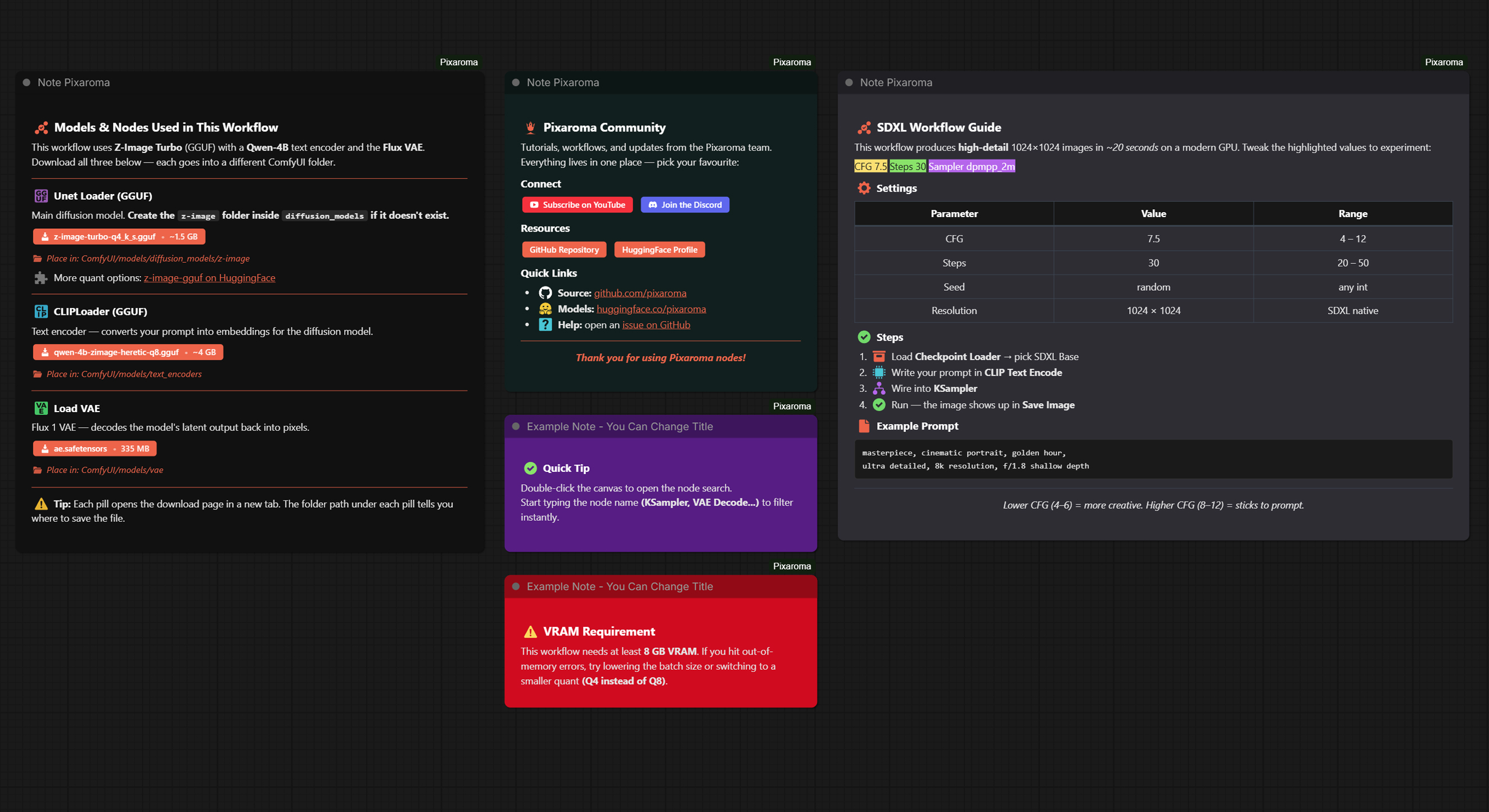
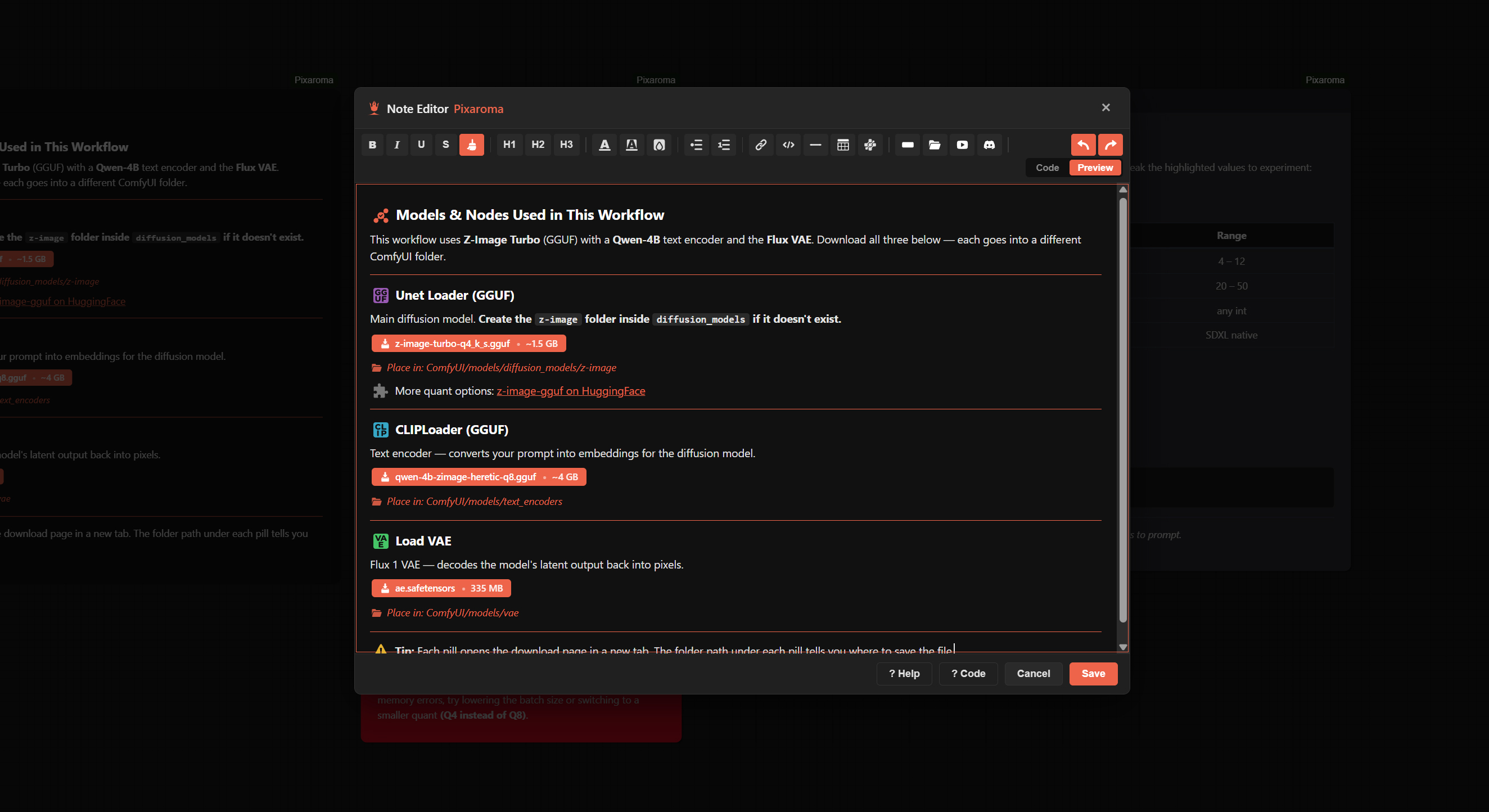
A beautiful, simple text editor to document your workflows right on the canvas. Write normally with bold, italics, lists, headings, code blocks (with copy button), and inline icons (CLIP, LORA, GGUF, model versions, and 30+ more). Drop in custom-colored buttons (Download / View Page / Read More / plain), separators (5 line styles: solid, dashed, dotted, double, thick), tables, and folder hints for download paths. Each block carries its OWN colour, picked from a clean modal that opens centered on the screen, so two separators (or two grids, or two folder hints) in the same note can have totally different looks. YouTube and Discord pills come pre-colored. There is also a Code view for hand-editing the underlying HTML, plus a drop-in LLM prompt at assets/note-pixaroma-llm-prompt.txt if you want ChatGPT, Gemini, or a custom GPT to generate notes for you. It perfectly saves and restores exactly how you styled it.
🏷️ Label Pixaroma
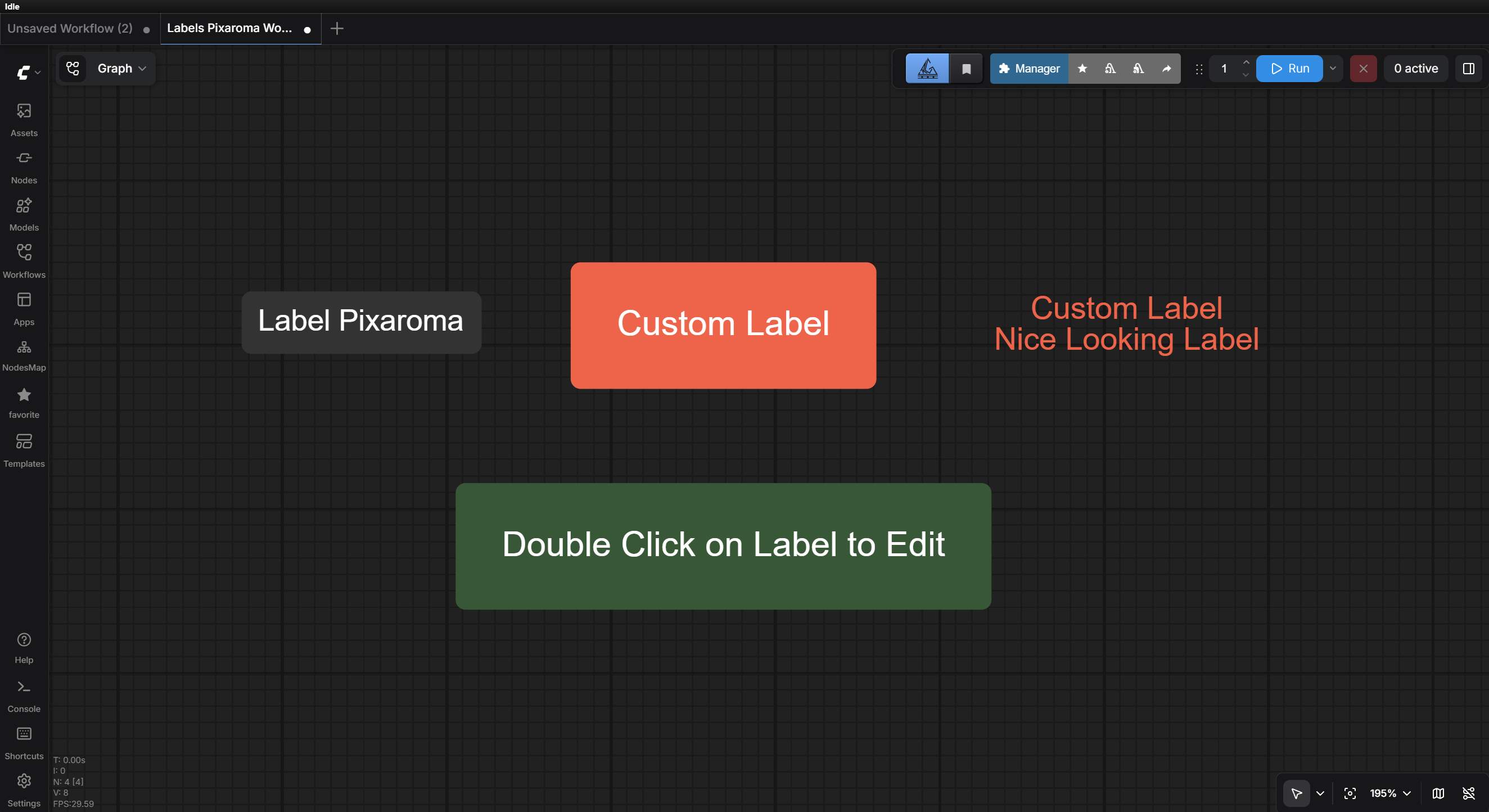
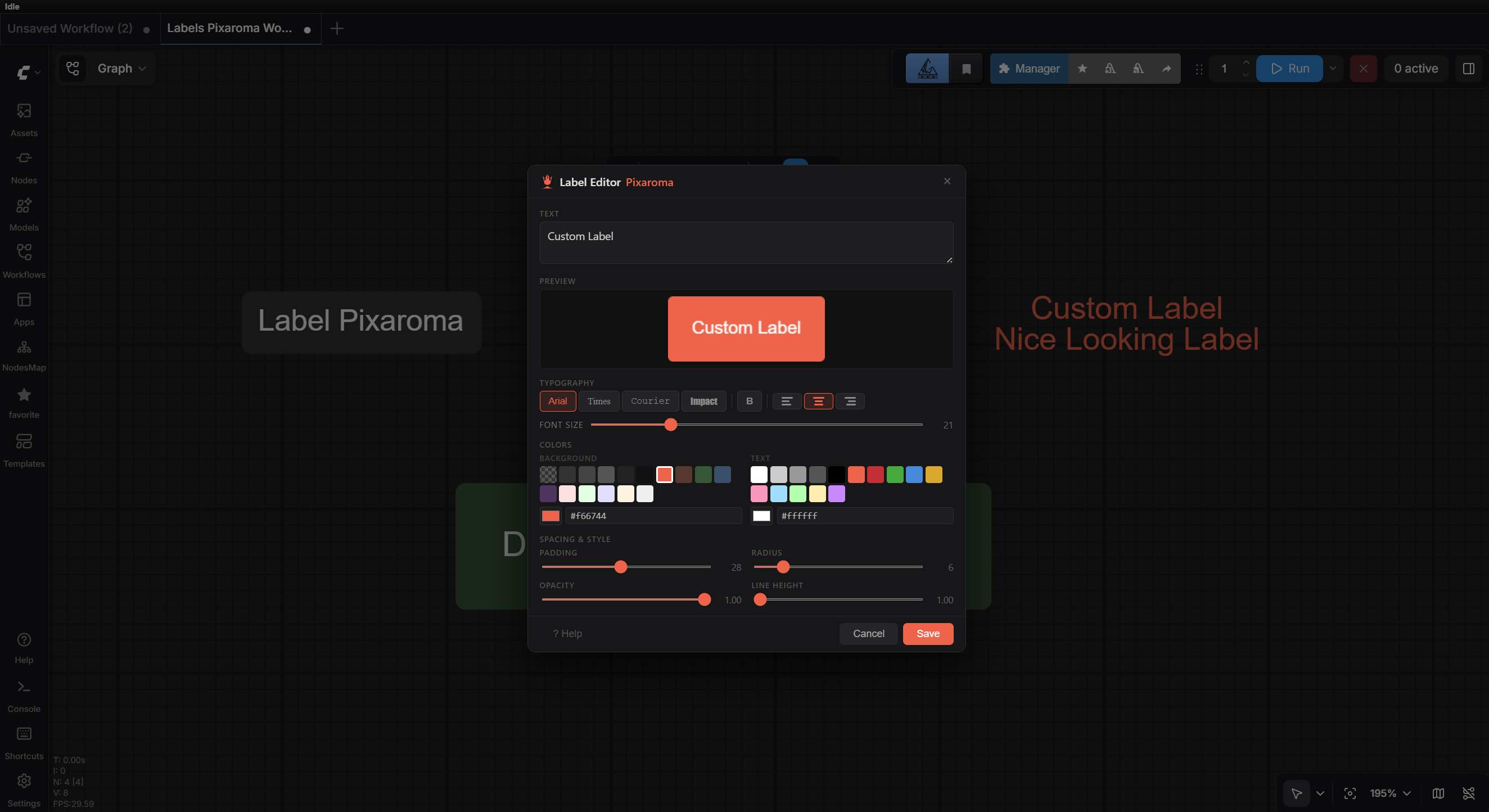
Keep your workflows tidy with clean, custom labels.
✏️ Text Overlay Pixaroma
Drop a styled text caption straight onto an image. 10 bundled fonts (Inter, Roboto, Montserrat, Oswald, Playfair Display, Lora, Bebas Neue, Anton, Caveat, JetBrains Mono), bold and italic toggles, three alignment options, size, line height, letter spacing, opacity, rotation, X / Y position, text color and an optional background bar behind the text. Type math like 100+12 in any number field and it evaluates. Click Open Text Editor for a fullscreen canvas where you can drag the text to move it, drag the corners to resize, drag the round handle on top to rotate, snap to canvas center / thirds / edges, and use Fit W or Fit H to fill the image. Save your work straight to disk as a PNG. Wire the optional text input to feed the caption from any upstream text source (the textarea on the node grays out so you know not to type there). New nodes auto-center the text on whatever image you wire in, no manual positioning needed for the first render.
💧 Text Watermark Pixaroma
A no-editor sibling of Text Overlay built for stamping a watermark onto an image (or a whole batch). Pick a corner, edge, or center on a 3x3 grid plus a small margin, and the text lands in the same spot on every image regardless of size. Size the text as fixed pixels or as a percentage of the image width (so mixed-size batches stay consistent), with the same font / weight / color / opacity / rotation / background bar controls as Text Overlay. No fullscreen editor - everything's on the node body. Use it when you want a watermark, a date stamp, or a corner caption applied uniformly to many images.
🎞️ Load Video Pixaroma
Bring a video into ComfyUI and turn it into frames. Upload one from your computer or pick from the dropdown, and it plays right on the node so you can check it before running (click the picture to play / pause). It hands you the frames, the audio, and the details (frame count, fps, width, height, length) all at once, so you rarely need a separate info node. Control how much to load: cap the number of frames for long clips, skip frames off the start, force a steady frame rate, or resize each frame (crop-to-fill an exact size with no stretching). Pairs with Save Mp4 - send the frames and audio straight across to rebuild the video.
🎯 Load Video Frame Pixaroma
Grab one exact frame out of a video and use it as an image - like a Load Image node, but for video. Load a clip and a preview appears on the node with a slider: drag it to any spot, step one frame back or forward with the arrow buttons for a pinpoint pick, or type the exact frame number. It reads the frame count for you and shows where you are ("frame 76 · 117 frames"), then hands you the picked frame plus its mask and the video's frame count, fps, width and height. Perfect for pulling a still, a start frame, or a reference out of a video without exporting it in another program first. Works in both the classic and the new node interface.
🔚 First Last Frame Pixaroma
Takes the very first and the very last frame out of a video and hands them to you as two pictures. The reason most people want this is to carry on from where a clip ended: render a video, take its last frame, use that as the starting picture for the next video, and the two clips join up. Repeat that and a long scene can be built out of short ones. Wire either output into Save Image to keep it. There are two inputs because ComfyUI has two different kinds of video travelling on wires and they do not fit the same slot: use video_frames for a batch of frames (the output of Load Video Pixaroma, or the frames coming straight out of a video model), and video for ComfyUI's own Load Video node. Connect whichever one you have. Reading a video file only costs the two frames it needs, so pointing it at a long clip does not fill your memory with the whole thing, and the frames come out exactly as they are in the video with nothing resized, cropped or recoloured. Works in both the classic and the new node interface.
🎵 Load Audio Pixaroma
Pick a sound file and take exactly the piece you want, without cutting it up somewhere else first. The whole file is drawn as a waveform on the node, so you can see where the loud parts are, and you drag a window across it to choose your moment: drag either orange edge to trim, drag the middle to slide, or click anywhere to place the play cursor and press play to hear it. Wire the seconds output of Duration Pixaroma into it and the window becomes exactly as long as the video you are about to make, resizing the moment you connect it, so picture and sound cannot drift apart. If your window runs past the end of the file it fills the rest with real silence or loops back, whichever you chose, and says so on the node. Upload straight from your computer, and the file list refreshes every time you open it. Works with any model.
🎤 H3 Audio Sync Pixaroma
Make a MiniMax H3 video perform your recording instead of the meaningless sound the model would invent. H3 is unusual: it creates the picture and the sound together as one thing, which is why you cannot simply mute what it made and lay your own song on top - the mouth was never moving to your song in the first place. This node drops your recording into the sound half and holds it still, so the only thing left for the model to decide is the picture that fits it. It works out the clip length by itself, so you never type a duration, and it hands back your track cut to exactly that length, ready for the save node. If your recording is shorter than the clip it fills the rest with silence or loops it, and if the clip is longer than about 15 seconds it warns you before the render rather than after. Pairs with Load Audio Pixaroma.
🎥 Video Prompt Pixaroma
Type your idea in plain words, press Generate, and get a finished MiniMax H3 prompt written for you, on your own machine. H3 wants its prompts in a particular shape, with named sections, a soundscape, music and a strict way of writing anything a person says out loud, and getting it wrong quietly spoils the clip. This node does all of that from a sentence like "a blacksmith hammers glowing steel in a dark forge". It also hands back a frames output already snapped to the pattern H3 accepts, so the video is exactly as long as the prompt was written for - getting those two out of step is the easiest way to waste a render. You do not pick a mode: wire nothing and it writes text to video, wire one picture and it looks at that picture and animates it, wire two and it writes the journey between them, joining them for you so they cannot end up the wrong way round. Everything runs locally through a vision model in your text_encoders folder, with no account and nothing sent anywhere, and the node finds a suitable model by itself if you have one. Every word of the wording it follows is yours to edit in the settings, kept outside the plugin folder so updates never overwrite it, and you can switch our length instructions off entirely and use your own for any video model you like. A Free VRAM switch hands the memory straight back to your video model once the prompt is written.
🤖 AI Prompt Pixaroma
A model, an instruction you save on the node, and whatever you wire in - out comes text. Everything runs on your own machine using a model in your text_encoders folder, with no account, no key, and nothing sent anywhere. The instruction is called the formula, and because it lives on the node rather than in a shared file, a copy of the node is a complete independent one, so a row of three can hold three different jobs. That is the point: the output is plain text and the text input takes plain text, so they chain with nothing in between - one node turns a photo into a prompt, the next rewrites it in another style, a third names the mood of a piece of music, and all of it joins up. It comes with six ready-made recipes, each naming the model it was written for: two for Krea 2 (from your idea, or from a picture you feed it), one for Z-Image Turbo, and three that use audio and video - transcribe what is said, describe what a recording sounds like, or watch a clip and write the video prompt that would recreate it. A recipe carries the sampling settings it was measured at as well as the wording, because the two together are what make it work, and you can share one as a plain readable .txt or straight to the clipboard for a chat message. Wire nothing and it simply passes your text through, so you can drop it into a working graph and set it up afterwards.
🎬 Save Mp4 Pixaroma
Encode video frames + optional audio straight to MP4. Built-in <video> preview right on the node so you can watch the result without leaving ComfyUI (click the picture to play / pause). Pairs with AudioReact and Load Video, but works with any source that produces frames + AUDIO.
🔁 Loop Start / Loop End + Combine Pixaroma
Repeat a section of your workflow a set number of times. Put your nodes between Loop Start and Loop End, choose how many rounds, and the whole section runs again and again - perfect for building a long video in chunks or piling up a batch of images. Each round can carry values forward (the frames so far, a running counter), and the Combine node joins each round's result onto the growing pile (images into one batch, numbers into a list). Things that don't fit together (like an image and some text) stop with a clear, plain message instead of a confusing error. Works in both the classic and the new node interface.
💬 Show Text Pixaroma
See what text or data is flowing through your nodes, with a real read-only text box you can select and copy from. Resize the node freely in any direction; long text scrolls with a scrollbar instead of forcing the node to grow. New STRING output lets you chain it into other nodes (great for inspecting a prompt before passing it on). Saves and restores with your workflow.
🔍 Prompt Reader Pixaroma
Load any PNG that was generated with ComfyUI (or Automatic1111 / Forge) and read the positive prompt saved inside its metadata. No image preview - just the text. Drag-drop a file, click Upload Image, or pick from the file combo; the prompt appears the moment you choose a file, so you see it before running. One orange Copy button puts the prompt on your clipboard. The STRING output wires straight into CLIPTextEncode (or any text input) so you can re-use the prompt without retyping. Handles complex workflows with chained text nodes (ConditioningCombine, StringConcatenate, SDXL dual-text encoders). If the image has no prompt (JPG, screenshot, or a PNG whose metadata was stripped), you get a short clear message instead of a silent fail.
🖼️ Preview Image Pixaroma
A handy way to preview your images right on the node, but better! Works with single images and full batches: every frame appears as a thumbnail strip with a i / N counter - click any thumbnail to open it large inside the node. Use the arrow keys (← →) to flip through the batch, click anywhere on the open image to advance to the next, hit Esc or the × button to collapse back. Two save buttons act on the currently selected frame: Save to Disk (choose any folder on your computer; the suggested filename auto-increments per click) and Save to Output (saves to ComfyUI's output/, supports subfolder syntax like SDXL/portrait). Flip the save_mode widget to save and the node turns into a drop-in replacement for SaveImage - every batch frame is automatically written to output/ with embedded workflow metadata. Both modes embed your workflow into the saved PNG so you can drag it back into ComfyUI later. The preview also survives workflow tab switching, so you can leave it on a frame and come back to it later.
💾 Save Image Pixaroma
Save your images to any folder on your computer, not just ComfyUI's output folder. Type or paste a path, click Browse to pick a folder with the normal system dialog, or leave it empty to use the output folder. The filename builder has clickable chips for everything you might want in a name - the wired filename from Load Image, the date or time, an auto-increasing counter, the width and height, the batch number, even the seed from a Seed node - and a live "Will save as" line always shows the exact file the next run will create, so a complex pattern is never a surprise. Files never overwrite (the counter continues from the highest one already there), and typing / in the name makes subfolders (like a folder per day). Pick PNG (keeps transparency, embeds the workflow so you can drag the file back into ComfyUI) or JPG (smaller, with a quality setting). The saved images show in a big preview right on the node - one image fills the space, a batch shows as a grid you can click through - so it doubles as a preview node, with Copy, Open, and Open Folder buttons and a right-click menu on the picture. Flip Mode to Preview to see results on the node without writing anything to disk. Works in both the classic and the new node interface.
📐 Resolution Pixaroma
A simple, one-click resolution picker. Choose from 9 popular aspect ratios - 1:1, 16:9, 9:16, 2:1, 3:2, 2:3, 4:3, 3:4, and 4:5 (Instagram-portrait friendly) - and instantly get the exact width and height you need, including popular sizes for AI video. Type any Custom Ratio (21:9, 16:10, anything) with auto-computed AI-friendly sizes, or use Custom Resolution to type exact dimensions. Math expressions work in the Width and Height fields too - type 1024+128 or 512*2 and it just works. It perfectly saves all your settings with your workflow!
📐 Sizes Pixaroma
Keep your favourite exact resolutions in one tidy list and pick the one you want with a click - it sends out the width and height. Add any size you like from the settings (a 1024 × 1536 here, a 1920 × 1080 there), and a Portrait / Landscape button flips the whole list between tall and wide, so you only ever add a size once and switch orientation on the fly. There is an optional snap to keep every size on a multiple of 8, 16, 32 or 64 (handy for models that are fussy about dimensions), and you can recolour the node's buttons per node - or save your colour as the default for every new one. A small arrow folds the node down to just the size you have selected when you want it out of the way, and adding a size you already have never makes a duplicate - it just points you at the one that is there. Works in both the classic and the new node interface.
🌱 Seed Pixaroma
A dedicated seed node you wire into KSampler (or any node with a seed input). Flip between Random - a fresh seed every run - and Fixed - the same seed for repeatable results - right on the node. New fixed random rolls a new seed and locks it (great for keeping a lucky result while you tweak other things), Use last seed brings back the seed from the previous run, and Copy puts the current seed on your clipboard. Type any number into the big readout to set it exactly, and in Random mode a Last run line tells you which seed actually made the latest image. One Seed node can feed several samplers at once so they all stay in sync. Works in both the classic and the new node interface.
🔽 Dropdown Pixaroma
A dropdown you fill in yourself. Each entry is a short name and the value it stands for, so you pick "warm light" instead of pasting the same long sentence again. Perfect for LoRA trigger words, prompt fragments you reuse, favourite sizes, or step counts. Open the settings from the gear on the node, type your entries, and choose what it sends out: text, a whole number, a decimal, or on/off. The output renames itself to match, so you can see at a glance what will come out, and it refuses a connection that would not fit. The small letter on the node decides which entry it sends each time you run, and you click it to change: F keeps the entry you picked, I steps to the next one every run, and R picks any of them at random - handy for trying a whole list of looks without touching anything between runs. Values that will not read as the chosen type are flagged rather than quietly changed, and your text is always kept if you switch type. Unlike Control Panel Pixaroma, which copies the type of whatever you plug it into, the list and the type belong to this node, so you can plug it in anywhere. XY Plot Pixaroma can drive it too, giving you one square per entry with the names written along the edge. The list is saved inside the workflow, so sharing the workflow shares your entries, and Export and Import move a list between workflows. Works in both the classic and the new node interface.
🎛️ Control Panel Pixaroma
One node that gathers every dial, switch and setting you keep reaching for, so you tweak them all from one place instead of hunting through the graph. Add a control, wire it to any input, and it becomes whatever you plug it into: a slider for a number (steps, cfg, denoise, a LoRA strength) that you drag, hold Shift for fine control, or double-click to type; a switch for an on/off setting; a dropdown for a picker like the sampler or scheduler that learns the whole list - and in the settings you tick which options to show, so it only offers the ones you actually use; a seed with randomize and new-seed buttons; or a text field you type into. A new control starts on Auto and the first input you connect it to teaches it everything - the kind, a sensible name, and for a slider the range, step and current value - so connecting never changes your workflow behind your back. Each control carries its own output on its own row, and it changes to match if you move it to a different input. It won't connect to things it can't drive, like a model or an image, and it tells you if you try. Right-click the node for the settings, where you add and remove controls, rename them, set a slider's range, choose which options a dropdown shows, and pick the colour the controls paint with (per node, and you can save your colour as the default for every new panel). Up to 16 controls per node, mixed freely, and you can add as many panels as you like. Works in both the classic and the new node interface.
📏 WH Pixaroma
A tiny utility node with two number fields for width and height, and matching width/height outputs. Use it when you want to type a target resolution manually somewhere in your workflow. Math expressions like 1024+64 or 512*2 work directly in the fields. Pairs perfectly with Switch WH Pixaroma so you can flip between manual values and the size coming from another node.
✂️ Remove Background Pixaroma
One node replaces the usual three-node chain (Remove Background, Invert Mask, Join Image with Alpha). Wire in your image, pick a model from the built-in dropdown, and get three outputs in one shot: the cutout image with a transparent background, the foreground mask (white on black), and the inverted mask (black on white). No separate Load Background Removal Model node to wire in. Three BiRefNet variants are supported, each tuned for a different use case:
- birefnet.safetensors (Standard) - 424 MB - 4-6 GB VRAM - processes at 1024×1024. Best for clean objects, products, logos. Fast everyday cutouts.
- birefnet-hr.safetensors (High Resolution) - 444 MB - 8 GB+ VRAM - processes at 2048×2048. Best for large images where you need fine outline detail picked up (jewelry, intricate hardware, complex shapes).
- birefnet-matting.safetensors (Soft Alpha Edges) - 444 MB - 8 GB+ VRAM - processes at 2048×2048. Best for hair, fur, lace, soft fabric. Also worth trying for glass, smoke, sheer materials (trained mostly on portraits, so results on transparency vary).
Drop the .safetensors files into ComfyUI/models/background_removal/; if the folder is empty the node tells you exactly what to download and where to put it. The model resizes your image to its internal resolution before finding the cutout, then the mask is scaled back to match your original size - so your output stays the same dimensions as your input regardless of which model you pick. Downloads: Standard, HR, HR-matting.
🔀 Switch Pixaroma
A universal multi-input switch for any data type. Connect models, images, prompts, masks, audio, latents, anything you want, and pick which one flows through with a single click on its toggle. The node starts with one input and grows on its own as you connect more cables (up to 32 rows). Each row gets a label that auto-fills with the type name (MODEL, IMAGE, CLIP...) so you can tell what is wired where at a glance; click the label to type your own name (for example "main checkpoint" or "alt prompt"), clear it and press Enter to revert to the type name. Only one input can be active at a time, lit up in Pixaroma orange. Disconnect the active row and the switch automatically moves to the next available one so your workflow doesn't break. All settings save with your workflow.
🔀 Switch WH Pixaroma
Switch between two width/height sources with a single click. Wire two width+height pairs into the A and B inputs (for example a Load Image Pixaroma's WIDTH/HEIGHT and a manual size from WH Pixaroma), then click A or B on the node body to choose which pair flows through. No rewiring cables. If one side has only one cable connected (the other forgotten), the node uses the complete side instead so the workflow doesn't break. If nothing is wired, you get a clear error message.
🔄 Portrait Landscape Pixaroma
Flip a size between portrait (tall) and landscape (wide) with one click. Enter your two dimensions (or wire them in), then tap Portrait or Landscape - Portrait makes the smaller number the width (a tall image), Landscape makes the larger number the width (a wide image), so the order you type them never matters. One node replaces keeping two WH nodes and a Switch WH just to flip orientation. Models are usually fussy about sizes, wanting them in steps of 8, 16, 32 or 64, so a small button at the top of the node steps through Off, 8, 16, 32 and 64 and rounds both numbers to the nearest one before they go out - never down to nothing, and Off sends them exactly as typed. Each node keeps its own step, so one workflow can hold several set up differently, and the gear beside the button offers the same choice as a row of buttons along with the node's colour. Beside them the node shows the size it will actually send, like 896x1312, updating as you change the step, flip the orientation or edit the numbers, so there is no guessing before a run (if a size is arriving on a wire it says so instead). Outputs WIDTH, HEIGHT - wire them straight into an empty latent. Works in both the classic and the new node interface.
🔁 Switch Source Pixaroma
Flip a whole pipeline (or any set of wires) between two sources with one click. Wire your A bank and B bank for as many rows as you need (works for any wire type: MODEL, CLIP, VAE, IMAGE, LATENT, STRING...), then toggle A or B to swap them all at once - no rewiring cables. Two common setups: swap a combined Load Checkpoint against three separate model/CLIP/VAE loaders, or flip a "local" pipeline against an "api" one without ticking ten little switches. Output labels are editable per row, and you can pick whether empty rows leave the output blank or show a clear error.
🔇 Mute Switch Pixaroma
Skip whole parts of a workflow with one click. Wire the last node of each "scene" (usually a KSampler) into a row, then use the small switches to pick what runs and what doesn't. Two pills at the top: Single (only one scene runs at a time, like a radio button) or Multi (any combination), and Mute (the scene doesn't run) or Bypass (each node passes its input through unchanged). Chain Mute Switches together to group scenes: an outer Mute Switch can pick a group, and inner Mute Switches fine-tune which scenes inside that group run. Right-click for Enable all rows / Disable all rows to flip every row at once in Multi mode. Labels on rows are editable so you can name your scenes.
🎛️ Group Switch Pixaroma
A control panel of on / off switches, one per group, to mute or bypass whole groups with a click - a tidy, built-in way to do it with no extra extension needed. It lists both Pixaroma groups and regular ComfyUI groups, each with its colour dot and name (and a number if two share a name). A small gear opens a floating panel where you choose Mute or Bypass, whether to show all groups or just the ones you pick (with a search box and a locate button to jump to a group), and a switching rule: any number on, only one on at a time, or always keep one on. Flip a switch here and the group's own header button and any copies of this node all stay in sync. Works in both the classic and the new node interface.
🔗 Set / Get Pixaroma
Wireless connections for a cleaner canvas. Drop a Set node, wire anything into it (image, model, number, prompt), and give it a name. The Set has a passthrough output, so a node sitting nearby can wire to it directly, while far ones read it with a Get node - pick the name from a dropdown and it carries the same value, no cable stretched across the workflow. Colour a Set however you like and its Gets take the same colour (and follow along when you recolour it), so matching pairs are easy to spot, and the Get dropdown tags each name with its colour. Collapse them to almost nothing so they disappear into the background, and right-click to jump between a Get and its Set. They respect subgraphs (a value you Set in the main graph can be read by Get nodes inside your subgraphs), show a tiny value preview for plain numbers and text, and at run time they resolve straight to the original source - identical to a direct wire, with no extra cost. Works in both the classic and the new node interface. Needs ComfyUI frontend 1.39.16 or newer - older 1.39.x builds are missing a link feature these two nodes rely on (tested on 1.45.15). Not sure which frontend you have? Drop a Version Check Pixaroma node on the canvas, or look in Settings → About.
⏱️ Duration Pixaroma
Say how long a video should be in seconds, and this works out the frame count your model actually wants. It replaces the pair of nodes people normally wire up for this: one holding the number of seconds, and one doing maths on it. Video models are fussy about length, and most will not take just any frame count: they want it to land on a particular pattern. Open the gear on the node, pick your model, and it fills the numbers in for you, or type the frame rate, the step and the plus yourself for a model that is not listed. You decide which lengths it offers: give it a short list like 3, 5, 10 and 15 and you get buttons to click, or give it a smallest and largest and you get a slider. Two of these on the same canvas can be set up completely differently, so each workflow only offers lengths that make sense for it. It shows you what it will send before you run, including the true length, because rounding to your model's pattern usually shifts it a little: 5 seconds at 24 frames per second becomes 124 frames, which is really 5.17 seconds. The settings list every allowed length and what each one turns into, so a wrong setting shows up before you spend a render rather than after. There are two outputs: the frame count for your video node, and the real length in seconds for anything that has to stay in step with the picture, such as audio. Prefer to write the maths yourself? Choose Custom formula and type it, using the same functions as ComfyUI's own Math Expression node, so an expression pastes straight across. Only one is ever active, so picking a model switches the formula off and the other way round. Works in both the classic and the new node interface.
🔢 Number Pixaroma
A small node with one number field and two outputs: int and float. Useful when one downstream node wants a whole number and another wants a decimal from the same value, or when you want to convert a decimal into a whole number cleanly in the middle of a workflow. Accepts whole numbers, decimals, and math expressions like 1024+64 or 1024/3. The int output rounds to the nearest whole number (3.5 becomes 4, 3.4 becomes 3). Range is roughly plus or minus 1 quadrillion, so even very large numbers fit.
✍️ Text Pixaroma
A multi-line text field with a STRING output. Write your prompt (or any other long text) once and wire the output into multiple downstream nodes - positive prompt, negative prompt, captions, instructions, anywhere a string is needed. The field grows when you drag the node bigger, so you have plenty of room for long prompts. The text saves with your workflow.
💬 Prompt Pixaroma
A prompt box with a personal library of reusable shortcuts. Save a long chunk of prompt once (an oil-painting look, a lighting recipe, a quality booster), give it a short name, and then just type @name - it becomes the full text at run time, so the box stays short and readable. Type @ for a searchable list of your saved shortcuts grouped by category; known ones show orange, a typo shows red, and a Show expanded preview shows exactly what gets sent. Wire another prompt into the text input and the two are joined - choose My prompt first or Wired first and the separator (comma, space, new line, pipe, and more). The Tags button opens a full-screen library where shortcuts live as cards you can create, rename, move between categories, and share with Export / Import; right-click any text in the box to copy it or save it as a shortcut, filling the library in for you so you only name it. Your library is stored on your own machine, stays private, and survives updating the pack - a shared workflow keeps your shortcuts to yourself, and dropping a finished image into Prompt Reader Pixaroma recovers the prompt behind it. For variety, type * and a category name (like *Styles) to drop in a RANDOM saved shortcut from that category, freshly chosen every run - it shows violet so it stands out from a fixed orange @. A shortcut can also be a List: put one option per line and type #name to drop in one of them each run. Each list picks its own way, from Shuffle (the default, which deals your options like a shuffled deck so every one comes up before any repeats), Random, or In order (1, 2, 3 and around again), and the last two remember their place between sessions. The library keeps the two apart, with Text categories and List categories in the sidebar, so @ offers your wording and # offers your lists. Each node's button colour and the default join order are set from its gear. Works in both the classic and the new node interface.
🧱 Prompt Stack Pixaroma
A single node that holds an ordered stack of prompt chunks you can mute or include with one click. Add as many rows as you want, type a different piece of your prompt in each (style words, subject, lighting, quality boosters, anything), give each row a short label so you remember what it does, and toggle the orange ON / OFF pill to include or skip that row at run time. All the ON rows get joined into one text output with whatever separator you pick in the node's own settings (opened with the gear button on the node toolbar, or by right-clicking the node) (default comma+space, also works as newline, space, pipe, or anything you type). Drag the handle on the left of any row to reorder them, and the join order updates too. Rows that grow to many lines scroll on their own. The node tidies itself as you add and delete rows so it always fits its content with a bit of breathing room. Everything saves with your workflow. Great for testing prompt variants by clicking toggles instead of editing text.
🎲 Prompt Multi Pixaroma
The sibling of Prompt Stack: instead of joining your rows into one text output, it runs the workflow once for each enabled row. Type two or more prompt variants, give each a short label (e.g. "v1", "blue version"), and hit Run - you get one image per enabled prompt, sequentially, each as its own item in the ComfyUI queue panel so you can cancel any of them individually. Toggle the orange ON / OFF pill to skip a row without deleting it. Drag the handle on the left to reorder. Each generated image carries only the prompt that produced it, so dropping the PNG back into Prompt Reader Pixaroma correctly recovers that exact variant. Great for batch-comparing prompt ideas with a single click instead of editing text and re-running by hand. Also has a List Prompts mode (pill toggle at top) that ships the whole list out a prompts output for downstream Prompt From List Pixaroma nodes to pick from.
🎯 Prompt From List Pixaroma
A tiny picker that pairs with Prompt Multi Pixaroma in List Prompts mode. Wire Prompt Multi's prompts output into this node's input, set a 1-based index, and you get back the prompt at that position. Drop multiple From List nodes to fan one prompt library out to different places - for example, use index 1 in scene A, index 2 in scene B. Out-of-range index returns an empty string instead of erroring, so a workflow with a mistyped index still runs.
📦 Prompt Pack Pixaroma
Paste a block of prompts and queue one workflow run per prompt - no per-row buttons to toggle. A small pill at the top picks how the block splits: Paragraph (blank-line splits, for multi-line prompts) or Line (newline splits, for short one-line prompts). A counter pill shows total / active prompts so you know how many runs you're about to queue. Each generated image carries its own prompt (recoverable via Prompt Reader). Use it when you already have a long list of prompts in a text file or document and want to batch-run them all without typing each into its own field.
🔤 Find and Replace Pixaroma
Drop this node into a wire between a text source (an LLM node, Show Text, Text Pixaroma, any text output) and whatever uses the text. It catches the text on the way through, swaps out the words you tell it to, and passes the edited version on - the original source stays untouched. Add one rule per change: type what to find and what to put in its place, or leave the replace box empty to just delete the found text. Stack as many rules as you want and drag them to reorder (they apply top to bottom); toggle any rule off to skip it without losing it. Four switches at the top fine-tune the matching: Case (match capital letters exactly), Whole word (so "art" doesn't get caught inside "artist"), Regex (advanced pattern matching), and Tidy (cleans up double spaces and stray commas left behind by your edits). The node shows a live before-and-after right on its body so you can see exactly what changed, and that preview saves with your workflow - handy when you want to share an example where the prompt gets rewritten and have it visible the moment someone opens it. A Reset button clears everything in one click.
🔔 Notify Pixaroma
A small terminal node that plays a sound when reached during workflow execution, and times how long the run took to get there. Drop one at the end of a workflow to hear "render finished" while you're in another browser tab or app, or branch one off any node mid-graph to be alerted at a checkpoint. Pick from 10 bundled notification sounds (drop more .mp3/.wav/.ogg into assets/sounds/ to extend), set a per-node volume and an optional label, and tap the ▶ Preview button to audition a sound without running the workflow. A master toggle in the node's own settings (opened with the gear button on the node toolbar, or by right-clicking the node) silences every Notify node at once for quiet sessions. Each node also has its own enabled toggle. Always re-fires on every Run, even when upstream is fully cached.
Every node is also a checkpoint timer: the clock starts when you press Run and stops the moment this node is reached, so it answers "how long did it take to get this far". One at the end times the whole run; branch several through the graph and the gaps between their times are the per-segment times. The timing is independent of the sound - it still records with the sound off or the master mute on, so you can time a workflow in silence, and a 🔇 marker on the clock row means the ding won't play. Each node keeps its own history of the last 10 times (right-click → Notify time history), with the fastest marked, plus Copy, Export .txt and Clear; the times live on your machine, so a shared workflow never carries them. A small arrow on the clock row folds the node down to just the clock. Right-click also has Record time (per-node timer on/off) and Mute all Notify sounds. Works in both the classic and the new node interface.
⏱️ Run Timer Pixaroma
A clock that times how long a workflow takes. It resets to zero the moment you press Run, counts up live while the workflow is working, then freezes on the total the instant it finishes and plays a chime, so you know it's done even when you're in another tab or app. The node face shows only the clock - small m / s / h markers sit next to the centered digits, and a long run rolls over to hours automatically. Everything else is in the right-click menu: turn the chime on or off, pick the sound and volume (with a ▶ Preview) from the same library as Notify Pixaroma, choose how much detail to show (just minutes and seconds, or add hundredths or milliseconds), and set the clock colour with a full colour picker built right into the panel. A master mute for every Run Timer sits at the top of the node's own settings (opened with the gear button on the node toolbar, or by right-clicking the node). Just drop it on the canvas - it doesn't need wiring to anything. Works in both the classic and the new node interface.
🗒️ Run Log Pixaroma
A companion to Run Timer that keeps the last 10 run times right on the node. Every time you press Run it times the whole workflow and drops the finished time on top of the list, newest first - the most recent run is highlighted in orange and the quickest of the ten is marked in green, so you can watch a workflow get faster over a session or notice when a change slows it down. It shows only the times, and the list belongs to that one workflow: it is saved with it and travels with it, so a different workflow keeps its own separate list. Two subtle buttons in the corner export the list as a .txt file or clear it, and the same actions plus Copy are on the right-click menu. Just drop it on the canvas - it doesn't need wiring to anything. Works in both the classic and the new node interface.
🧲 Align Pixaroma
A canvas-wide smart-snap and alignment-guide system. Toggle it on with the mountain icon in the top toolbar (next to the Manager). Once enabled, dragging or resizing any node makes its edges and centers snap to nearby nodes, with thin orange guide lines showing exactly what aligned with what (Photoshop / Figma style). Multi-selection drags as a rigid bounding box. A column of 3+ nodes sharing an edge gets a single guide spanning the whole column. Hold Shift to bypass snap for a single drag (Alt is reserved by ComfyUI for duplicate-during-drag). Snap distance is adjustable (4 to 16 screen pixels) under Settings → 👑 Pixaroma → Align (advanced). Default OFF, zero overhead until you toggle it on.
🚀 Getting Started
1. Installation
Method A: ComfyUI Easy Install (Zero-Config)
If you use ComfyUI Easy Install for Windows, Pixaroma is already included! Just update via the built-in updater and you're good to go.
Method B: ComfyUI Manager
- Search for Pixaroma in the ComfyUI Manager.
- Click Install and restart ComfyUI.
Method C: Manual Installation
cd ComfyUI/custom_nodes
git clone https://gitlab.com/pixaroma/comfyui-pixaroma.git
⚠️ Node looks blank or broken right after updating? This is almost always your browser cache, not a bug. Hard-refresh with Ctrl + Shift + R (Windows / Linux) or Cmd + Shift + R (Mac). If a node is still broken after that, see Read this first.
2. Optional: AI Background Removal
AI Remove Background is used in three places in Pixaroma: the Remove Background Pixaroma node, the Image Composer editor's AI Background Removal button, and the Paint Pixaroma editor's AI Background Removal button.
- The node uses Pixaroma BiRefNet only (
ComfyUI/models/background_removal/*.safetensors). - The two editors can use Pixaroma BiRefNet OR rembg - their dropdown shows BiRefNet variants on top and rembg options below. Any BiRefNet model you install once works in all three places.
There are two ways to get AI background removal working: Pixaroma BiRefNet (recommended, no extra Python deps, three model variants, works in the node AND the editors) and rembg (a separate Python library with four model options, works in the editors only). They can be used side-by-side - install whichever you want from the dropdown.
Option A: Pixaroma BiRefNet (recommended)
Download one of these three .safetensors files and drop it into ComfyUI/models/background_removal/. The dropdown shows them grouped under "Pixaroma BiRefNet" at the top. The filename matters - it controls which preprocessing resolution is used. Rename the downloaded file to one of the names below so the dropdown picks the right one.
| Variant | Filename | VRAM | Best for |
|---|---|---|---|
| Standard | birefnet.safetensors (424 MB) |
4-6 GB | Clean objects, products, logos. Fast everyday cutouts. Default. Download |
| High Resolution | birefnet-hr.safetensors (444 MB) |
8 GB+ | Large images with fine outline detail (jewelry, intricate hardware). Download |
| Matting (Soft Edges) | birefnet-matting.safetensors (444 MB) |
8 GB+ | Hair, fur, lace, soft fabric. Also worth trying for glass / smoke. Download |
Important: HR and Matting need renaming after download. The Standard model from Comfy-Org is already named birefnet.safetensors and works as-is. But the HR and Matting variants come from ZhengPeng7's HuggingFace repos as model.safetensors, and Pixaroma needs them named correctly to know which preprocessing resolution to use.
- Standard (
birefnet.safetensors) - no rename needed, drop the file in as-is - HR (downloaded as
model.safetensors) - rename tobirefnet-hr.safetensors - Matting (downloaded as
model.safetensors) - rename tobirefnet-matting.safetensors
Rename steps on Windows: right-click the file, Rename, type the new name (keeping .safetensors at the end), press Enter. If Windows hides extensions: View tab → check "File name extensions" first, otherwise the rename can accidentally drop the extension. Why the names matter: filenames containing matt or hr (case-insensitive) tell Pixaroma to preprocess at 2048×2048; anything else preprocesses at 1024×1024. If you name HR as plain birefnet.safetensors, it will load but run at 1024 and you'll lose the whole point of HR.
Option B: rembg (alternative)
rembg is a separate Python library. Install it once and you get four bundled model options.
# Windows Portable (ComfyUI Easy-Install)
# Open ComfyUI/python_embeded folder, type cmd in the address bar, run:
python.exe -m pip install rembg

# Standard installation
pip install rembg
Restart ComfyUI. Once installed, the dropdown shows these under "rembg":
| Option | Size | What it is |
|---|---|---|
| rembg Auto | n/a | Picks the best installed rembg model. |
| rembg Fast (u2net) | ~176 MB | Works on any setup, great for quick cutouts. |
| rembg Balanced (isnet) | ~170 MB | Cleaner edges than u2net. |
| rembg Best (BiRefNet via rembg) | ~900 MB | rembg's own BiRefNet ONNX. Largest, slowest. |
Model files download automatically on first use to ComfyUI/models/rembg/. For details and troubleshooting, see rembg on GitHub.
What gets picked by default?
If you have at least one BiRefNet variant installed, the dropdown defaults to BiRefNet Standard (or HR / Matting if Standard isn't installed). Otherwise it falls back to rembg Auto. You can always change the selection manually - the dropdown shows install / download instructions inline for any option that isn't ready to use.
🔧 Krea LoRA Converter
Trained a LoRA for the Krea 2 model on fal.ai? It will not load in ComfyUI on its own, because it names its layers differently than ComfyUI expects. This node fixes that: pick your LoRA, press Convert, and it saves a ready-to-use copy into your LoRAs folder that works with any LoRA loader. The conversion is exact - your training is untouched, the result is identical, just loadable. It reads the file first and tells you what it is (so it will not touch a LoRA that already works), and it only ever reads your file and writes a new one. It never changes the original or downloads anything.
📺 Learning Resources
Master the Pixaroma suite with our video guides and workflow deep-dives:
🛠 Changelog
August 16, 2026 · v1.4.109–v1.4.110
- NEW: First Last Frame Pixaroma. Takes the first and last frame out of a video as two pictures, so the next clip can start where the last one ended. Works with Load Video Pixaroma or ComfyUI's own Load Video.
- Run Timer: drag the corner and the whole clock grows with it, digits and all, and it remembers the size with your workflow. You can also pick the clock font now, your own .ttf files included.
- The timer says when it will stay silent by dimming the sound rows, and there is a mute button beside the volume.
- 16-bit pictures load properly now in Load Image, Load Image Mini and Load Images from Folder. Scans and depth maps used to come out almost white.
- Plus fixes: no grey edge down the right of the clock; Load Video Frame handles 16-bit clips.
August 14, 2026 · v1.4.107–v1.4.108
- Your written prompt stays put. On AI Prompt and Video Prompt it used to vanish the moment you switched workflow tab and came back. It is kept with the workflow now, along with the seed that wrote it, so the number beside the text is the one that made it.
- The Krea 2 idea recipe keeps the look you asked for. Say cartoon, illustration or 3D animation and it says so in the prompt instead of quietly writing a photograph, and a colourful idea comes out colourful rather than moody. On a node you already have, load the preset again to pick it up.
- AI Prompt's banner says what it is sending. With a model on the wire and your idea typed in it used to read "nothing wired", which looked like a warning on a node that was about to work perfectly well.
- The formula box in the settings panel scrolls. It was showing about an eighth of a long recipe with no way to reach or copy the rest.
- The prompt box looks like a preview, not somewhere to type, since it never was.
- NEW: AI Prompt Pixaroma. Give it a model and an instruction you save on the node, wire in whatever you have, and it writes text. Runs on your own machine, no account and no key. It comes with six ready-made recipes for Krea 2, Z-Image and audio and video work, each naming the model it was written for.
- It reads pictures, audio and video, not just text. Point it at a photo to get the prompt that would make a similar one, at a recording to get the words or the mood, or at a clip to get a video prompt describing what happens.
- Chain them. The output is plain text and the text input takes plain text, so one node describes a photo, the next restyles it, and nothing goes in between.
- Share a recipe as one readable .txt file, or straight to the clipboard for a message. Anything you import joins your own list.
- Settings panels no longer open with their bottom off the screen, and a dropdown closes when you zoom instead of hanging in mid-air.
August 13, 2026 · v1.4.105–v1.4.106
- Video Prompt: the idea box can be made bigger. Drag the node, drag the bar under the box, or press Expand for a full-screen one.
- LoRA Loader: a LoRA two folders deep no longer shows "Empty folder", and a LoRA's trigger word is now ticked for you when you pick it.
- Right-click in a text box gives copy and paste again instead of the node menu, on the prompt and text nodes.
- Save Mp4: dates in the filename work.
%date:yyyy-MM-dd%used to be left in the name. - Run Timer keeps counting when you switch workflow and come back. Its chime now starts off.
- Thank you to everyone who reported these.
August 12, 2026 · v1.4.104
- NEW: Video Prompt Pixaroma. Type your idea in plain words and get a finished MiniMax H3 prompt back, replacing three workflows of about ten nodes each. Runs entirely on your own machine, no account or key, using one vision model you download once.
- It picks the mode from what you wire in: nothing for text to video, one picture to animate that picture, two for the journey between them. The banner says which.
- The frames output is snapped to the length H3 accepts, so the video is exactly as long as the prompt was written for. Wan, Hunyuan and LTX too.
- Talking prompts now work at 5 seconds, where the spoken line used to be dropped every time.
- Also: the wording is yours to edit and survives updates; a Free VRAM switch hands the model back to your video model; Prompt Reader can pull your idea back out.
August 10, 2026 · v1.4.103
- NEW: Save Video Pixaroma. Everything Save Image does with folders and filenames, but for video: save an mp4 anywhere on your computer, build the name from tokens with a live line showing the exact file, and watch it play on the node.
- Two quality settings. MP4 plays on everything; MP4 HQ is H.265 at 10-bit, keeping skies and fades smooth at roughly half the size. Quality is a normal 1 to 100 slider.
- Three new filename pieces: frame rate, length and frame count, giving
Video_24fps_81f_3-4s_001.mp4with no typing. - Fixed: Save Image showed the old picture after you deleted a saved file. Only the node's picture was stale; the file on disk was always right.
- Save Mp4 is unchanged and still there for the quick drop-in case.
August 10, 2026 · v1.4.100–v1.4.102
- NEW: Save Image can save WebP, roughly a fifth the size of a PNG with transparency kept, and unlike JPG you can still drag it back in to reload the workflow. A lossless switch is in the settings.
- New in Save Image: a settings gear beside the fold triangle, a row to hide the buttons you never use, keeping your folder structure from a wired name, and a + Input folder chip. Help gained a table of worked examples.
- Fixed: the Save Mp4 preview could show a black screen with a dead play button. It remembered the file name without checking the file was still there, which happens whenever ComfyUI clears its temp folder or a file is moved. It now says what happened and greys the controls.
- Fixed: the video timeline could stick to your cursor if the mouse release was lost part way through a drag.
- Fixed: Save Mp4 no longer stops the run over a wrong sound connection or transparent frames. Both used to leave a broken or empty file behind with no explanation.
- Fixed: Load Image Mini showed the wrong picture after switching workflow tabs, which also made the INPUT size and the Mask Editor wrong. Load Image too.
- Also: a saved picture no longer carries the previous run's preview, and the Will save as line always matches the file that is written.
August 7, 2026 · v1.4.99
- Fixed: a change you made by clicking a Pixaroma control was not always noticed, so a workflow could look saved when it was not, and with Auto Save on the change could be lost entirely. Every control now reports it the instant you make it, and Ctrl+Z undoes it properly. Worth knowing either way: a workflow opened from the built-in templates always reopens as it came, so save it under your own name once it is set up.
August 6, 2026 · v1.4.97–v1.4.98
- Fixed: Pause Text made your whole workflow redo itself, so everything after it ran again on every Run even with a fixed seed and nothing changed. Pause Image had the same problem, found by checking rather than waiting for a report.
- Fixed: workflow cards showed a broken picture for anything that makes video. They now show the drawn map of the graph, and cards already stuck put themselves right.
- Fixed: a cover you picked is no longer replaced by the next run's output. It stays until you use Remove cover.
August 5, 2026 · v1.4.91–v1.4.96
- NEW: Load Audio Pixaroma. Pick a sound file and take exactly the piece you want: drag the orange edges to trim, drag the middle to slide, and press play to hear it before you spend a render. Wire in Duration Pixaroma and the window matches your video exactly.
- NEW: H3 Audio Sync Pixaroma. Makes a MiniMax H3 video perform your recording instead of the sound the model invents. H3 makes picture and sound as one thing, so you cannot simply lay a track on top; this puts yours in and holds it there. It reads the length itself and warns past H3's roughly 15 seconds.
- NEW: Longest Side Pixaroma. Click a size and the longer edge becomes exactly that, the other following so nothing is squashed. Optional shape crops first, and a button rounds both sides to 8, 16, 32 or 64.
- Your own picture for any LoRA: click the small picture, drop one on it, or paste. Yours wins over the Civitai one, and the x brings the automatic one back. Kept with your settings, so it survives updates and read-only model drives.
- Fixed: Image Resize no longer loses a see-through background. It comes out of the mask output, cropped and resized to match, ready for Join Image with Alpha.
- Also: saving an unsaved workflow into a folder now uses the folder you chose; a LoRA picture or your trigger words could vanish while the panel was still loading; loaders could show a different picture than the one you picked.
August 4, 2026 · v1.4.85–v1.4.90
- Pixaroma now works properly on online ComfyUI services. The Save Mp4 player, Note icons, fonts, sounds and several pickers were quietly broken there: around 270 addresses were built as if ComfyUI owned the whole site. Nothing changes on your own PC.
- Your own LoRA trigger words now belong to the LoRA, not to one row, so a word you type once is waiting wherever you use that LoRA. Words you already typed move across the first time you open the panel.
- Our full screen editors no longer hold up the rest of ComfyUI. Ctrl+Z is still kept inside the editor, but the old way of doing it also switched off workflow loading for the whole page, which affected other creators' nodes.
- Switch and Mute Switch survive changing the node style. Flipping ComfyUI's classic/new node setting without refreshing used to leave them empty or drawn twice. Both rebuild themselves now, rows intact.
- Run Log can show your PC's hardware in the corner, like
RTX 4090 · 24GB VRAM · 128GB RAM, so shared times mean something. Off until you turn it on, never saved into your workflow. - Sizes can star your recommended sizes, so the ones that suit your model stand out on the node.
- It is easier to find where your own fonts go: the font list says so at the bottom, and Help has a new "Add your own fonts" page.
- Also: a bad setting on one node can no longer stop the Run button; Pixaroma is back in the ComfyUI Manager list; Run Log fills the node properly in the new node style; AudioReact and Save Image check a folder is allowed before looking it up, which matters on Windows network paths.
August 3, 2026 · v1.4.82–v1.4.84
- Please update: Pixaroma now only reads and writes where you have said it can. It stays inside ComfyUI's own input, output and temp folders plus any folder you pick with Browse, which approves it for good. Nothing you already save to the output folder changes, and the node warns you before you run rather than after. Found in a security review, with no report of it being used against anyone.
- NEW: Duration Pixaroma. Say how long a video should be in seconds and it works out the frame count your model wants, replacing the seconds-plus-maths pair people usually wire up. You decide which lengths it offers, as buttons or a slider, and it shows the frame count and the true length before you run. Outputs both, so audio can line up. Custom formula understands the same functions as ComfyUI's Math Expression.
- Portrait Landscape can round your sizes to a step of 8, 16, 32 or 64, each node keeping its own, and it shows the size it will send. Existing nodes open with rounding off.
- Fixed: Control Panel and Dropdown could not connect to some newer ComfyUI nodes, including its own Math Expression - the wire appeared and vanished a moment later. Connection sparkles light up on those inputs now too.
August 2, 2026 · v1.4.76–v1.4.81
- LoRA Loader: add your Civitai API key in the gear and lookups find models the site keeps from anyone not signed in. Your key stays on your computer, never in a workflow, and only its last four characters are shown back. Try Civitai also works on more connections now, and its info panels follow the node as you zoom.
- XY Plot: long prompts are readable at last, wrapping with numbered lines in the value box and into the side strip as an axis label instead of running across your pictures. The grid preview follows the node width, and the saved grid carries its workflow.
- Prompt: put your tag categories in any order by dragging or the ⋯ menu. Colours show where each piece came from - tag, category or list - and a half-typed tag gets a spellcheck-style underline instead of glowing red at you.
- Start ComfyUI with
--disable-metadataand Pixaroma writes nothing into your pictures: no workflow, no prompt, no Civitai info. Before, only the video saver honoured it. - Plus fixes: Export (API) left out everything after a paused Pause node; dragging a workflow or category onto a text box could rename a file or edit a tag; renaming a category to change only its capitals did nothing; Inpaint Crop failing on newer NumPy.
August 1, 2026 · v1.4.73–v1.4.75
- Using a list twice in one prompt gives you two different things.
#fruit #fruitnow deals the next one along instead of repeating. - You can see what a prompt actually picked. The expanded box shows the real words the moment you press Run, and they travel inside the picture.
- Fixed: a picture now remembers the seed that made it. Drag it back onto the canvas and Run recreates it, locked to that seed.
- Fixed: a confusing warning on startup. One of the pack's own files was saved with an invisible marker, and a new check stops that happening again.
July 31, 2026 · v1.4.69–v1.4.72
- NEW: Dropdown Pixaroma. Your own named list for the values you keep retyping - pick "warm light" instead of pasting the sentence. Sends text, a whole number, a decimal or on/off.
- It can change entry on its own each run. The letter on the node: F keeps your pick, I steps to the next, R picks at random. XY Plot can compare every entry.
- The Workflows panel can be made bigger. Three A buttons in its toolbar scale the writing, cards, pictures and folder list together.
- Folders inside folders now fold away, and you can right-click a folder to make another one inside it.
- You can hide the Align, Workflows and Help buttons with three tick boxes in Settings. Alt+W and Alt+H still work.
- XY Plot warns when another LoRA is quietly in every square, and its help gained worked examples plus a section just for LoRAs.
- Plus fixes: the Workflows search box emptied itself when you changed the view, the sort or the size.
July 30, 2026 · v1.4.66–v1.4.68
- NEW: a panel for your workflows - the orange W in the top toolbar, or Alt+W. It reads the folder you already use, gives every workflow a picture, and searches inside the files.
- Organise without leaving ComfyUI: rename with F2, drag onto a folder, duplicate, set a cover, delete. Needs tidying gathers the mess in one click.
- Save Image and Preview Image can add the generation info Civitai reads. Right-click to switch it on; the values are read from your workflow. Off by default.
- XY Plot can compare the LoRAs in LoRA Loader Pixaroma - the file in each row, its strength, or both at once on a grid.
- Plus fixes: "no workflow data available" when opening from your history on a cloned install, and an XY Plot asking you to save a workflow you never edited.
July 29, 2026 · v1.4.64–v1.4.65
- NEW: a help button in the top toolbar, the orange ? next to Align. It covers every node, the canvas tools and four short guides, and search reads the whole text.
- Your version is always on screen along the bottom of the help window, and one click copies the full details for a support question.
- Fixed: the typing cursor could sit away from the text in Prompt Pixaroma on long prompts.
- Fixed: Label Pixaroma was only showing half its help, plus two wrong instructions in the Pixaroma Group help.
July 28, 2026 · v1.4.63
- Pick your own colour for almost any Pixaroma node - around fifty of them now, up from seven. Apply it to one node, to every node of that kind, or to the whole pack.
- A settings gear on the node toolbar, next to the question mark, and in the right-click menu too.
- A node's own options moved onto the node, out of the Settings window. Everything you had already chosen carries over.
- Fixed: Load Image Mini, Image Info and Prompt could make an untouched workflow ask to be saved.
July 27, 2026 · v1.4.60–v1.4.62
- Outpaint: type the edge amounts instead of only dragging, with a reset button. Sums like
512*2work. - Renamed model files show up when you press R - fixed in the LoRA picker, the folder gallery, Run Timer's sounds and the Note icon picker.
- A LoRA whose file is missing finally says so, with a red mark, instead of looking normal and quietly doing nothing.
- NEW: choose how much memory the LoRA Loader uses - Standard, Fast or Lowest, in the gear. Standard is the new default.
- Prompt: deleting from the tag library is easy to find - every category row has a plain ⋯ menu now.
- Anything that takes something away asks first, names exactly what goes, and offers to export a backup.
- Plus fixes: your place in a sequence only moves on a real Run, and odd entries from a hand-edited import file are refused cleanly.
July 25, 2026 · v1.4.58–v1.4.59
- LoRAs kept on another drive through a shortcut folder now show their details - they came back as "not found" before. Prompt Reader, Save Image and XY Plot benefit too.
- Civitai lookups are steadier and previews load far faster, with a useful reason when something does go wrong.
- The details window no longer flashes in the corner, and it opens next to the node.
- The mouse wheel zooms again over seven nodes that had stopped it, plus a new setting for what it does over a text box or list.
July 24, 2026 · v1.4.56–v1.4.57
- NEW: Pause Text Pixaroma. A checkpoint for words: read and fix AI-written text before it goes on, or hit Regenerate for a fresh one.
- Prompt learns lists. Flip a shortcut to List, put one option per line, and
#animalsbecomes one of them each run - Shuffle, Random or In order. - The tag library keeps your writing and your lists apart, so
@offers your wording and#offers your lists. - Share part of your library instead of all of it - export one category, and see what is in a file before importing it.
- Plus fixes: Pause Image no longer skips your other branches on Continue, and Text Join no longer hides words behind the line label.
July 23, 2026 · v1.4.54–v1.4.55
- Run Log lets you label each run. Double-click a row and type a short note; it travels with that run's time and comes along when you export.
- Copying a Switch or Mute Switch keeps everything you set up - row names, the row you had switched through, and which branches were off.
July 22, 2026 · v1.4.53
- Sliders grows into Control Panel Pixaroma. Each row becomes whatever you plug it into: a slider, a switch, a dropdown, a seed or a text field. Up to 16 per node, and your existing Sliders nodes simply gain the new abilities.
July 21, 2026 · v1.4.47–v1.4.52
- NEW: LoRA Loader Pixaroma. Stack as many LoRAs as you like in one small node, each with an on/off switch and a strength. Click the i for trigger words read straight from the file, tap the ones you want, and they come out of a triggers output.
- NEW: Text Join Pixaroma (Two, Three and Four). Join pieces of text, each line either typed or wired in. Right-click to set the separator, skip empty lines, and rename each line.
- NEW: Run Log Pixaroma. Keeps the last 10 run times on the node, newest first, one list per workflow. No wiring needed.
- NEW: Outpaint Stitch Pixaroma. Puts your original picture back at full quality after an outpaint and keeps only the new area, with Feather and Color match.
- Prompt can roll a random shortcut each run - type
*and a category name. - LoRA Loader's info window is tidier, with a File / Civitai switch and an option to hide the file ending.
July 19, 2026 · v1.4.43–v1.4.46
- NEW: Prompt Pixaroma. A prompt box with a personal library: save a long chunk once, then just type
@name. Type@for a searchable list, and Tags opens a full-screen library you can export and import. - NEW: Load Image Mini Pixaroma, with an Image Info companion. A stripped-down loader that keeps all the resizing behind the gear; wire Image Info in when you need the mask, size or filename.
- Updates now show up on their own - no more hard refresh. One last Ctrl+Shift+R may be needed if your browser is already stuck on an old copy.
- Prompt's preview keeps up with a connected prompt as you change it.
July 18, 2026 · v1.4.42
- NEW: Outpaint Pixaroma. Adds a border around your image so an outpainting model can fill in new scenery. Grow to a ratio, add exact pixels per edge, or drag a green edge on the preview. Optional megapixel cap and snap.
July 16, 2026 · v1.4.40–v1.4.41
- Notify now times your workflow. The clock starts on Run and stops when the workflow reaches that node, so several Notify nodes give you per-section times. Each keeps its own history of the last 10.
- Fixed: Save Image no longer stretches itself very tall, and workflows already saved that way are put right when you open them.
July 15, 2026 · v1.4.38–v1.4.39
- NEW: Sizes Pixaroma. A tidy list of your favourite exact resolutions, with a Portrait / Landscape button that flips the whole list and an optional snap.
- Fixed: duplicating a Crop or Inpaint Crop node no longer touches the original - every copy starts with a clean slate.
July 14, 2026 · v1.4.33–v1.4.37
- NEW: Sliders Pixaroma. A panel holding every number you keep reaching for. Wire a slider to any number input and it learns the name, range, step and type.
- Switch and Mute Switch line up properly in the new node style - each socket now sits on its own row.
- The Switch exports properly to API format, and picks the right branch when run through the API. Switch Source too.
- All on / All off buttons on the Group Switch, plus a mute-all switch for Run Timer in its settings.
July 13, 2026 · v1.4.31–v1.4.32
- Run Timer remembers your recent run times. Right-click for the last ten, with the workflow name, the time of day, and the fastest marked.
- NEW: Krea LoRA Converter. A LoRA trained for Krea 2 on fal.ai will not load in ComfyUI; pick it, press Convert, and it saves a working copy. Your original is never touched.
July 11, 2026 · v1.4.30
- The Seed node gained up/down arrows, shorter random seeds, and a history panel of the last ten seeds you ran.
- Pause Image buttons are in a clearer order - Regenerate on the left, Continue on the right.
July 9, 2026 · v1.4.25–v1.4.29
- Image Compare no longer errors when one image is missing - it just shows whichever one is connected.
- Prompt Reader can follow a connected image. Wire a filename in and it keeps up as you flip through pictures.
- Pause Image keeps your image details when you press Continue, so the prompt and seed survive.
- Groups no longer slow down the canvas, and the corner grip tucks back inside the rounded edge.
July 8, 2026 · v1.4.24
- XY Plot works with the Power Lora Loader, and can compare lora strengths - put the lora across and the strength down for a grid of both.
July 7, 2026 · v1.4.20–v1.4.23
- A cleaner Run Timer - just the floating clock, no title bar or frame, sized tightly to the time.
- A smaller Seed node. Right-click for "Seed compact size" to shrink it to one row, plus a settings panel to cap how many digits a random seed has.
- Fold the Save Image node with the arrow in its corner to tuck away the folder and file-name settings.
July 6, 2026 · v1.4.19
- NEW: Save Image Pixaroma. Save to any folder on your computer, build the file name from clickable chips, and see a live "Will save as" line. Files never overwrite, PNG or JPG, with a big preview on the node.
July 3, 2026 · v1.4.18
- Put the seed into your saved file names. Type
%Seed Pixaroma.seed%in the filename field and the number lands in the file, in our save nodes and the built-in one.
July 2, 2026 · v1.4.17
- Run Timer keeps each workflow's time when you switch tabs, and after a page reload.
July 1, 2026 · v1.4.14–v1.4.16
- NEW: Load Video Frame Pixaroma. Grab one exact frame out of a video: drag the slider, step with the arrows, or type the frame number.
- The mouse wheel zooms the canvas over Pixaroma nodes now, while text boxes and lists still scroll normally.
- XY Plot saves at full resolution. A Save row picks 2048, 4096, 8192 or Full.
June 30, 2026 · v1.4.13
- Drag a quick preview back onto the canvas. Preview Image now saves the workflow inside its temporary images too.
June 29, 2026 · v1.4.12
- Pin a Pixaroma Group so you cannot move or resize it by accident, and pinned nodes stay locked when Align is on.
- Draw inpaint masks with a pen or tablet in Inpaint Crop.
- Prompt Multi and Prompt Stack keep their text rows the right size after a workflow or tab switch.
June 28, 2026 · v1.4.9–v1.4.11
- NEW: Run Timer Pixaroma. A clock that resets on Run, counts up live, freezes on the total and plays a chime. Right-click for the sound, the detail and the colour.
- Turn a regular group into a Pixaroma Group with one right-click, and groups no longer leak into subgraphs.
- Save Mp4 stores the workflow inside the video, so you can drag a saved video back in.
- The Seed node shows the seed it actually used in Random mode.
- Plus fixes: dragging a group by its title bar always works, lowercase
hhworks in filename date stamps, Set Pixaroma is findable by dragging any wire, and Get / Set hold their picked name more reliably.
June 26, 2026 · v1.4.3–v1.4.8
- Pixaroma Groups stay with their workflow - no more appearing on the wrong tab or disappearing.
- Set / Get fixed: a Set could grow a duplicate input that stopped the value passing through. Older workflows repair themselves when you open them.
- Copy and paste a Pixaroma group with Ctrl+C / Ctrl+V, landing at your cursor, and Ctrl+A now selects them too.
- Group Switch is friendlier - click anywhere on a row to flip it, and switched-off rows are dimmed.
- Version Check warns about an out-of-date browser cache, with the fix, and the Copy button includes it.
- Plus smaller touches: group snap-to-grid, a cleaner right-click menu, smoother group dragging, colouring a whole selection at once, and resizable Seed and Group Switch nodes.
June 25, 2026 · v1.4.2
- NEW: Group Switch Pixaroma. On / off switches, one per group, that mute or bypass whole groups with a click. Lists both Pixaroma and regular groups.
- Move a node and its group together, and group selection now matches ComfyUI (Ctrl+drag replaces, Shift adds).
- Choose how group header buttons appear - always, on hover, or a tidy in-between.
June 24, 2026 · v1.4.0–v1.4.1
- Groups, reimagined: the Pixaroma Group. Select some nodes and press G. A coloured header with the node count, one-click run / mute / bypass / fold, nesting, and Align snapping. Regular ComfyUI groups go back to their plain look.
- Group Mute and Bypass reach inside subgraphs, and the header has a Run button for just that group.
- A cleaner, more modern Label editor, and the Label looks right on the canvas again.
- Plus smaller touches: the colour menu colours your whole selection, and the "deprecated" console warnings are gone.
June 22, 2026 · v1.3.101–v1.3.102
- Align now works with groups. Drag a group and it snaps to nearby nodes and groups, taking its own nodes with it.
- NEW: Group styling - rounded corners, a coloured header with the node count, and hover buttons to mute, bypass, colour or collapse.
- NEW: Smart node title colour - titles turn white or dark so they stay readable on any node colour.
- Plus smaller touches: separate node and group colour favourites, fresher swatches, more Align fixes, and Load Video uses less memory.
June 21, 2026 · v1.3.100
- NEW: Loop Start / Loop End + Combine Pixaroma. Repeat a section of your workflow as many times as you like - good for a long video in chunks or a batch of images. Combine piles each round's result onto the total.
June 20, 2026 · v1.3.99
- NEW: Load Video Pixaroma. Load a video and turn it into frames, with a preview that plays on the node. Gives you the frames, the audio and the details all at once.
- Save Mp4 keeps every frame by default, plays on click, and handles audio a touch shorter than the picture.
June 19, 2026 · v1.3.95-1.3.98
- NEW: Set / Get Pixaroma. Wireless connections: wire anything into a Set, name it, and read it anywhere with a Get. They work inside subgraphs and behave exactly like a real wire.
- NEW: Resize Crop Pixaroma. Set a width and height and it fills that size exactly, cropping the overflow from the centre.
- NEW: Portrait Landscape Pixaroma. Flip a size between tall and wide with one click.
- Save Mp4 preview, much improved - it keeps the size you set, with its own playback bar, Download and fullscreen.
- Tidier menu - the nodes are sorted into folders instead of one long list.
June 17, 2026 · v1.3.93-1.3.94
- NEW: Seed Pixaroma. Flip between Random and Fixed, lock in a lucky roll, bring back the previous seed, or copy the number. One node can feed several samplers.
- Load Images from Folder: the First box works as you type, and caps to how many images are actually there.
June 16, 2026 · v1.3.92
- NEW: Inpaint Crop + Inpaint Stitch Pixaroma. Paint over the part you want changed and it crops a clean, model-friendly piece; Stitch pastes the result back so the seam disappears. Zoom, pan, brush, erase and invert in the editor.
- No more hard refresh after every update (do one last Ctrl+Shift+R right after this one).
- Press
\to open Node Colors with a node or group selected.
June 15, 2026 · v1.3.88-1.3.91
- NEW: Image Uncrop Pixaroma. Paste an edited or upscaled crop back onto the original at the exact spot, with a feather slider.
- NEW: Load Images from Folder Pixaroma. Point it at any folder, pick images in a gallery, and Run once to process each one.
- Image Crop now carries transparency plus a
crop_infowire that feeds Image Uncrop. (Its width and height outputs moved down one spot.) - Preview Image: mixed-size batches fit each thumbnail to its own shape.
June 10, 2026 · v1.3.84-1.3.87
- NEW: vertical text in Text Overlay, Composer text layers and Text Watermark.
- NEW: a Restore brush for the Composer eraser - paint the original image back.
- NEW: a Help button on every node - select one and click the orange ? in the toolbar.
- NEW: a Dynamic prompts switch on the Text node -
{red|blue|green}picks one at random. - Plus fixes: Text no longer strips curly braces, save names in any language work, and Image Compare shows each input's size.
June 9, 2026 · v1.3.82-1.3.83
- Load Image keeps a steady size instead of resizing itself and shoving your other nodes around.
- Finished the GitLab move, and the README now flags the browser-cache fix up front.
June 8, 2026 · v1.3.79-1.3.81
- XY Plot: whole numbers stay whole and decimals stick, plus a new Snap toggle that rounds sizes to clean multiples.
- XY Plot: a Help button, separate Reset X and Reset Y, and buttons that wrap instead of spilling out of a narrow node.
June 7, 2026 · v1.3.78
- Project moved to GitLab. The links now point to the new home; the nodes themselves are unchanged.
June 3, 2026 · v1.3.73–1.3.77
- NEW: XY Plot Pixaroma. Compare settings side by side with no setup: wire your image in, pick what changes across and down, Run once, and a labelled grid fills the node.
- NEW: Find and Replace Pixaroma. Sit it in a wire and it swaps words on the way through - stack rules, drag to reorder, and see a live before-and-after.
- Fixed: Find and Replace, Prompt Stack, Prompt Pack, Prompt Multi and XY Plot now work inside subgraphs.
- Sharper previews when you zoom in on Preview Image and Load Image.
June 2, 2026 · v1.3.72
- NEW: Pause Image Pixaroma. Pause and preview before the slow part; hit Continue and only the steps after it run, so you upscale the exact image you saw.
- Image Compare: a sharper preview plus Save to disk and Save to output buttons.
- Align: nodes no longer jump or move the wrong node when you resize.
June 1, 2026 · v1.3.70–1.3.71
- Every Pixaroma node now works in ComfyUI's new node interface. Mute Switch, Image Resize and Label were the last three.
- Align guides, the node colour picker and Connection FX all work there too, and the colour picker was redesigned to pop out beside the node.
May 29, 2026 · v1.3.67-1.3.69
- Most Pixaroma nodes now work in ComfyUI's new node interface, including Preview Image, Load Image, Image Compare, Switch and Switch Source.
- NEW: Version Check Pixaroma. Shows your ComfyUI, frontend and Pixaroma versions and which node interface is active, with a Copy button for bug reports.
May 28, 2026 · v1.3.62-1.3.66
- NEW: Mute Switch Pixaroma. Skip whole parts of a workflow with one click, with Single / Multi and Mute / Bypass pills, and chaining to group scenes.
- NEW: Switch Source Pixaroma. Flip a whole pipeline between two banks of wires with one click.
- Preview Image: saved images now appear in the Media Assets panel, plus an option to leave the counter off a Save to Disk filename.
- Prompt Reader sees through Switch Source.
May 27, 2026 · v1.3.59-1.3.61
- NEW: Text Watermark node. Stamp text in a fixed spot on an image or a whole batch, sized in pixels or as a percentage of the width.
- NEW: use your own fonts. Drop
.ttf/.otffiles intoComfyUI/models/fonts/and they appear in the picker. - Undo inside an editor stays inside that editor - Ctrl+Z can no longer delete the node or revert your workflow.
- Plus fixes: Prompt Multi / Prompt Pack no longer make too many images through one Switch, plus many Image Composer reliability fixes.
May 26, 2026 · v1.3.58
- Fixed: Load Image keeps the original filename after you draw a mask.
May 25, 2026 · v1.3.56
- NEW: node colors organized by color. Right-click a node for Red, Orange, Gold and so on, each opening its shades, plus a Dark folder.
- Plus fixes: masks work again on Load Image, Copy / Paste loads the right picture, and Number and WH keep their size across workflows.
May 22, 2026 · v1.3.53-1.3.55
- NEW: color your groups, not just nodes, plus copy a colour and paste it anywhere, and save up to four favourites.
- NEW: crop a single layer in Image Composer with C - non-destructive, and re-openable any time.
- Text: random options and notes in your prompt.
{day|night}picks one at random;//lines and/* */blocks are left out. - Plus fixes: Switch now runs only the input you picked, Preview Image's save buttons recreate the same picture, and Load Image gained thumbnails, search and a folder sidebar.
May 21, 2026 · v1.3.51-1.3.52
- NEW: Image Resize Pixaroma. Eight modes including Crop to fill and Pad, with a live Input → Output preview and a wireable width or height.
- Press Ctrl+Enter to run while typing in the text and prompt nodes.
- Every node now explains itself - hover any control for a tip, and the Info panel describes each input and output.
- Nodes remember their settings on reload (Switch, Image Resize, Crop).
May 20, 2026 · v1.3.48-1.3.50
- Text Overlay: move the whole caption in one click with a Position on canvas row.
- Fixed: opening and closing a workflow no longer falsely asks to Save Changes.
- Fixed: drag the ⋮⋮ handle to reorder rows in Prompt Stack and Prompt Multi.
- Plus fixes: the fullscreen editors can no longer freeze the UI, and Prompt Pack / Prompt Multi no longer block a Run when they are not in use.
May 19, 2026 · v1.3.40-1.3.47
- NEW: Run Button FX & Connection FX. Eight styles for the Run button, and a magnetic glow while you drag a wire. Both off by default.
- NEW: One-click node colors. Right-click any node for 33 ready-made themes, a saved favourite and a custom picker.
- Text & prompt nodes share one clean look, and Text gained Copy all / Replace / Clear.
- Plus smaller touches: ◀ ▶ arrows on Load Image and Prompt Reader, Align lines up with Labels and Notes, and it works again on older ComfyUI installs.
May 18, 2026 · v1.3.37-1.3.39
- NEW: Text Overlay Pixaroma. A styled caption on any image, with a fullscreen editor to drag, scale and rotate it with snap guides.
- NEW: Prompt Pack Pixaroma. Paste a block of prompts and it runs once per prompt, with a live countdown.
- NEW: Prompt From List Pixaroma plus Prompt Multi's List mode, to send different prompts to different parts of one workflow.
May 17, 2026 · v1.3.32-1.3.35
- NEW: Prompt Stack Pixaroma. Stack prompt chunks in labelled rows, toggle each on or off, drag to reorder, and join them with your chosen separator.
- AI Background Removal: a built-in model dropdown with three BiRefNet quality levels, now working on 4-6 GB cards.
May 15, 2026 · v1.3.28-1.3.31
- NEW: Switch Pixaroma. A universal one-click switch for any data type, growing its inputs as you wire more.
- NEW: Remove Background Pixaroma. One node giving the cutout, the mask and the inverted mask together.
- Show Text: a one-click Copy button, and Prompt Reader reads prompts routed through a Switch.
May 13, 2026 · v1.3.24-1.3.27
- NEW: Prompt Reader Pixaroma. Drop a generated PNG on it to read the prompt saved inside, with a Copy button and a text output.
- Load Image: cleaner resize math, and the on-canvas readout matches the real output.
- AudioReact handles long audio without crashing.
May 12, 2026 · v1.3.21-1.3.23
- NEW: Load Image Pixaroma. A drop-in replacement for LoadImage with built-in resize controls and 7 outputs, so you can skip downstream resize chains.
- NEW: small utility nodes - Text, Number, WH and Switch WH.
- Drag-and-drop images onto Image Crop / Composer / Paint, plus Copy and Open buttons on Preview Image.
May 10, 2026 · v1.3.18-1.3.20
- Preview Image: a native-style grid for batches, with a per-node Grid / Strip toggle and date folders in filenames.
- Image Composer: your canvas background colour now survives a Run.
- Fixed: the right-sidebar Parameters tab no longer breaks Pixaroma node bodies.
May 09, 2026
- NEW: Notify Pixaroma. A tiny node that plays a sound when reached during a run, so you know it finished from another tab. 10 bundled sounds, per-node volume, and a Preview button.
May 08, 2026
- Align fixes: Ctrl+drag marquee selection no longer slides previously-selected nodes around, and canvas pans no longer trigger snap.
May 07, 2026
- Show Text rewrite: a real read-only box you can select and copy from, freely resizable, with a new STRING output.
- Note: a centered modal for every insert button, each block carrying its own colour, plus 5 separator styles and a plain button option.
- Preview Image fixes: single images now show the
WxHfooter, and a stuck close X is gone.
May 06, 2026
- NEW: Align Pixaroma. Smart-snap and alignment guides for the canvas - click the mountain icon to enable, hold Shift to bypass. Default off.
- Note colour pickers got a swatches popup, and picks stay put across cursor moves.
- Image Crop upgrade: works with any IMAGE source, a compact panel on the node, math in the fields, and Ctrl+V paste.
May 05, 2026
- Image Composer: per-layer blur, and Shift+Scroll to scale the selected layer.
- Fixed: high-res upstream images no longer get downsampled to the placeholder size.
May 04, 2026
- Preview Image upgrade: batches render as a thumbnail strip with a counter, arrow keys navigate, and a new save_mode turns it into a drop-in SaveImage.
- Resolution: added 4:3, 3:4 and 4:5, a Custom Ratio mode, and math in the Width and Height fields.
April 27, 2026
- NEW: AudioReact Pixaroma - turn an image into an audio-reactive video, with 15 motion modes and 8 overlays in a fullscreen editor.
- NEW: Save Mp4 Pixaroma - encode frames and audio straight to MP4, with a preview on the node.
April 25, 2026
- Smoother 3D Builder: moving the camera, spinning and zooming are much faster.
April 23, 2026
- New Preview Node: Added Preview Image Pixaroma with simple buttons to save your image anywhere on your computer.
- Organized Menu: All our nodes now live under a single
👑 Pixaromamenu.
April 22, 2026
- New Resolution Node: A simple, one-click resolution picker for your aspect ratios.
- New Note Node: A beautiful rich-text editor for adding notes directly to your canvas. Watch the tutorial.
April 19, 2026
- Clearer Close Buttons: Pop-up editors now have an obvious red "Close" button.
- Offline 3D Builder: The 3D Builder no longer needs an internet connection to start.
- Paint Fixes: Fixed the brush cursor disappearing, and added a new "Remove Background" AI button.
- Composer Fixes: Layer blend modes (like Multiply or Screen) now save and load correctly.
- 3D Shortcuts: Added Blender-style keyboard shortcuts (G to move, Shift+D to duplicate, etc.).
April 15, 2026
- Huge 3D Builder Update: Added 18 basic shapes, 16 complex objects (trees, furniture), 5 hollow vessels, and custom 3D model imports. Added camera views, a drop-to-floor button, and instant undo/redo. Watch the tutorial.
April 14, 2026
- Transparent Saves: Added a checkbox to save images with transparent backgrounds in Paint, Composer, and 3D Builder.
April 13, 2026
- Paint Improvements: Better cursors, smoother color picking, and quick brush resizing.
- Compare Tool Updates: Better controls and a new solo-image view.
- Settings: Pixaroma now has its own section in the ComfyUI settings menu.
April 02, 2026
- ComfyUI 2.0 Compatibility: Updated all nodes to run smoothly on the latest ComfyUI version.
April 01, 2026
- Launch Day: Initial release of the Pixaroma suite! Watch the video.
📜 About, Feedback & License
[!NOTE] This suite was developed with significant AI assistance. While thoroughly tested, we welcome bug reports and feedback from the community!
🏠 Home: ComfyUI-Pixaroma is developed on GitLab - the place for the latest code. Any copy hosted elsewhere (such as a GitHub mirror) is a backup.
💡 Have an idea for a new node or improvement? Share it in the #pixaroma-nodes channel on Discord.
🐞 Found a bug? Open a work item (GitLab's name for an issue) on GitLab, or post in #pixaroma-nodes on Discord.
⚖️ Licensed under MIT
ComfyUI-Pixaroma is an independent, community-made extension. It is not affiliated with, endorsed by, or sponsored by Comfy Org or the ComfyUI project. Product names, logos, and trademarks are the property of their respective owners.