
 # QTranslate
**The translation tool that Questsoft abandoned. Rebuilt from scratch. Built to last.**
[](https://github.com/ahatem/QTranslate/releases/latest)
[](LICENSE)
[](https://github.com/ahatem/QTranslate/actions)
[](CONTRIBUTING.md)
[](https://kotlinlang.org)
[**Download**](#installation) · [**Plugin Guide**](wiki/Creating-a-Plugin.md) · [**Build from source**](wiki/Building-from-Source.md) · [**Contributing**](CONTRIBUTING.md) · [**Wiki**](wiki/Home.md)
# QTranslate
**The translation tool that Questsoft abandoned. Rebuilt from scratch. Built to last.**
[](https://github.com/ahatem/QTranslate/releases/latest)
[](LICENSE)
[](https://github.com/ahatem/QTranslate/actions)
[](CONTRIBUTING.md)
[](https://kotlinlang.org)
[**Download**](#installation) · [**Plugin Guide**](wiki/Creating-a-Plugin.md) · [**Build from source**](wiki/Building-from-Source.md) · [**Contributing**](CONTRIBUTING.md) · [**Wiki**](wiki/Home.md)
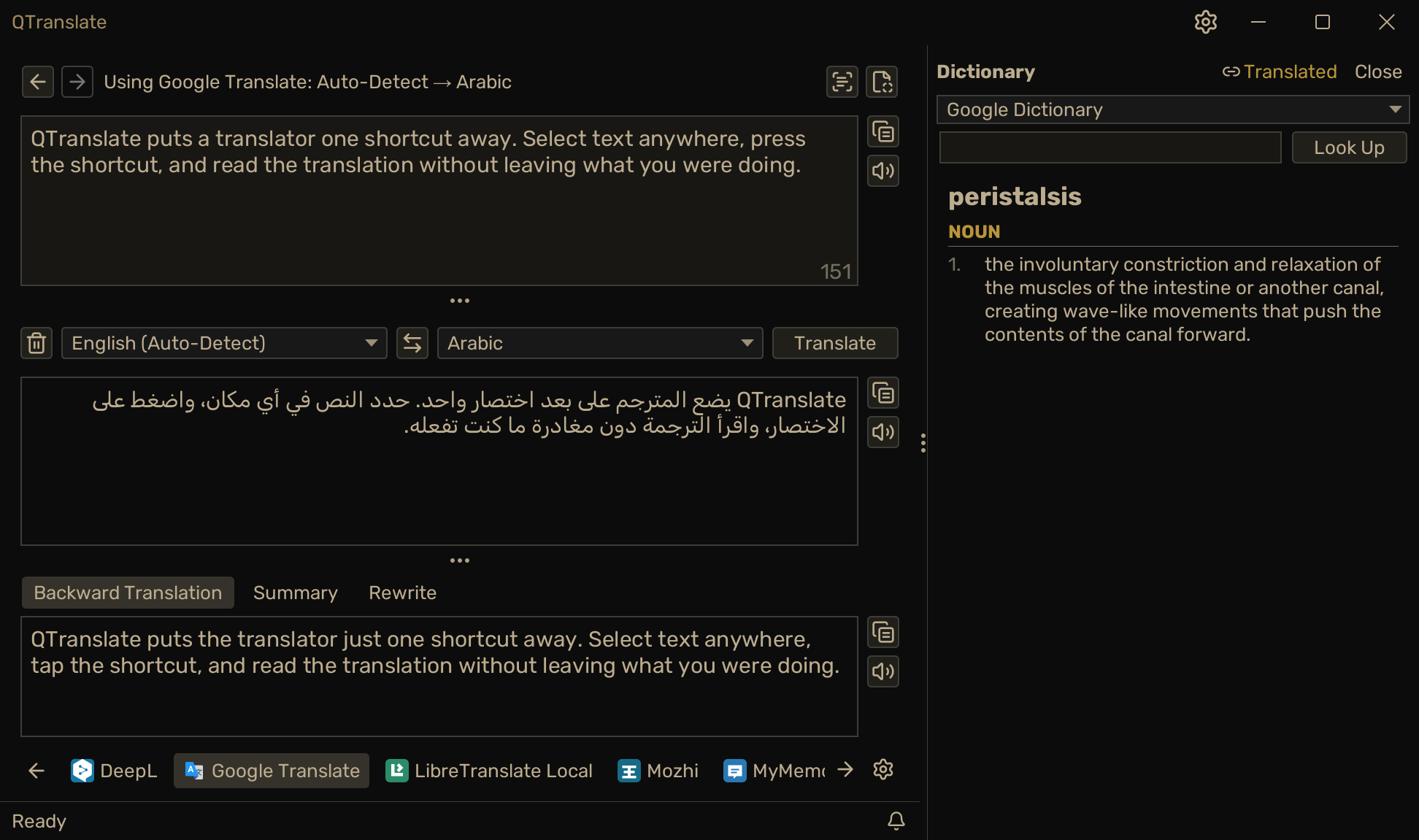
The original QTranslate by Questsoft was the best desktop translation tool on Windows — until development stopped, APIs broke, and users were left with a dead app.
This is a full rewrite in Kotlin with one core design change: everything is a plugin. Translation engines, OCR, TTS, spell checkers, dictionaries — all separate JARs you install at runtime. When a service changes its API or shuts down, you swap the plugin. The app keeps running.
What it does
Select text anywhere → press Ctrl+Q → translation appears instantly. That's the core of it.

Quick Translate — select text in any app, press Ctrl+Q
For longer work: open the main window, type or paste, translate. Switch engines in one click. Translate a document while preserving its structure. Run OCR on a screenshot. Listen to pronunciation. Check spelling. Browse history. All from the keyboard, all without opening a browser.
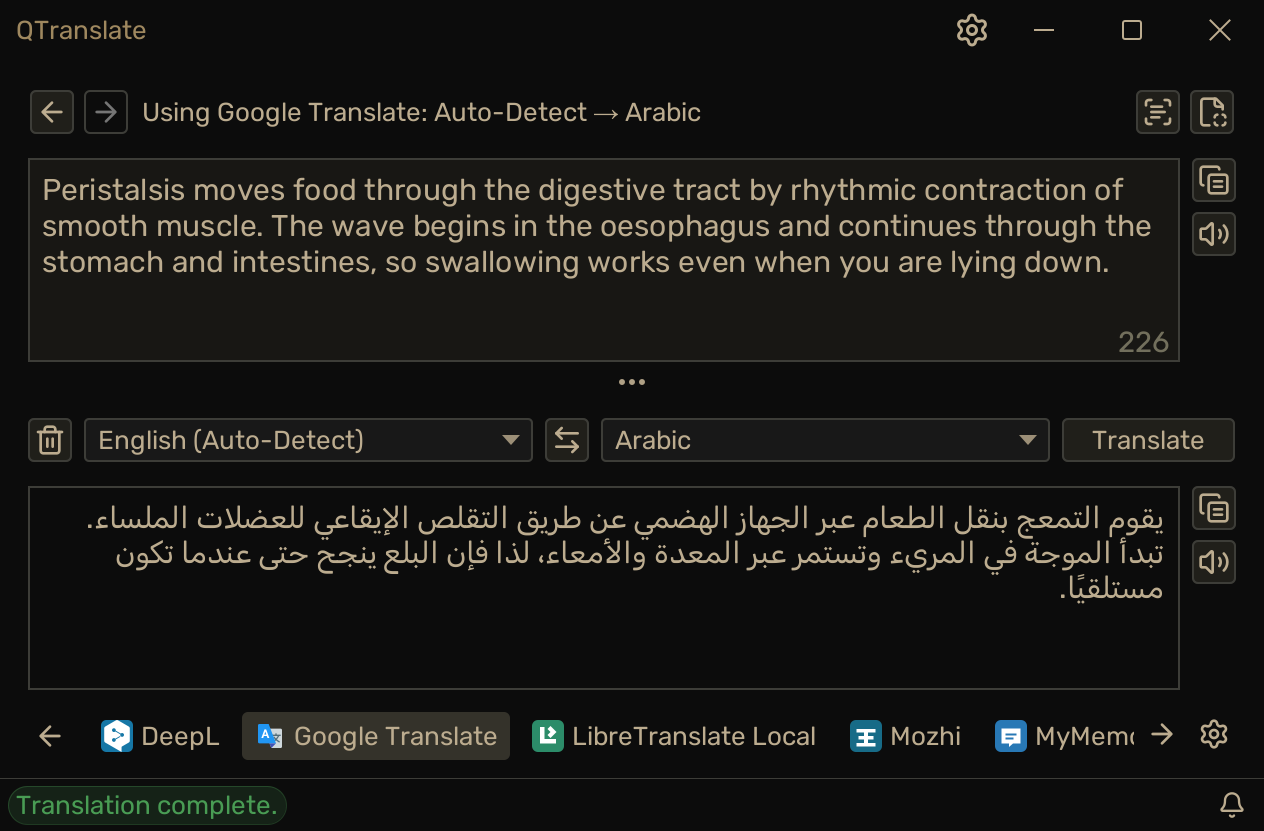 Main window — translate, summarize, rewrite, spell check, browse history |
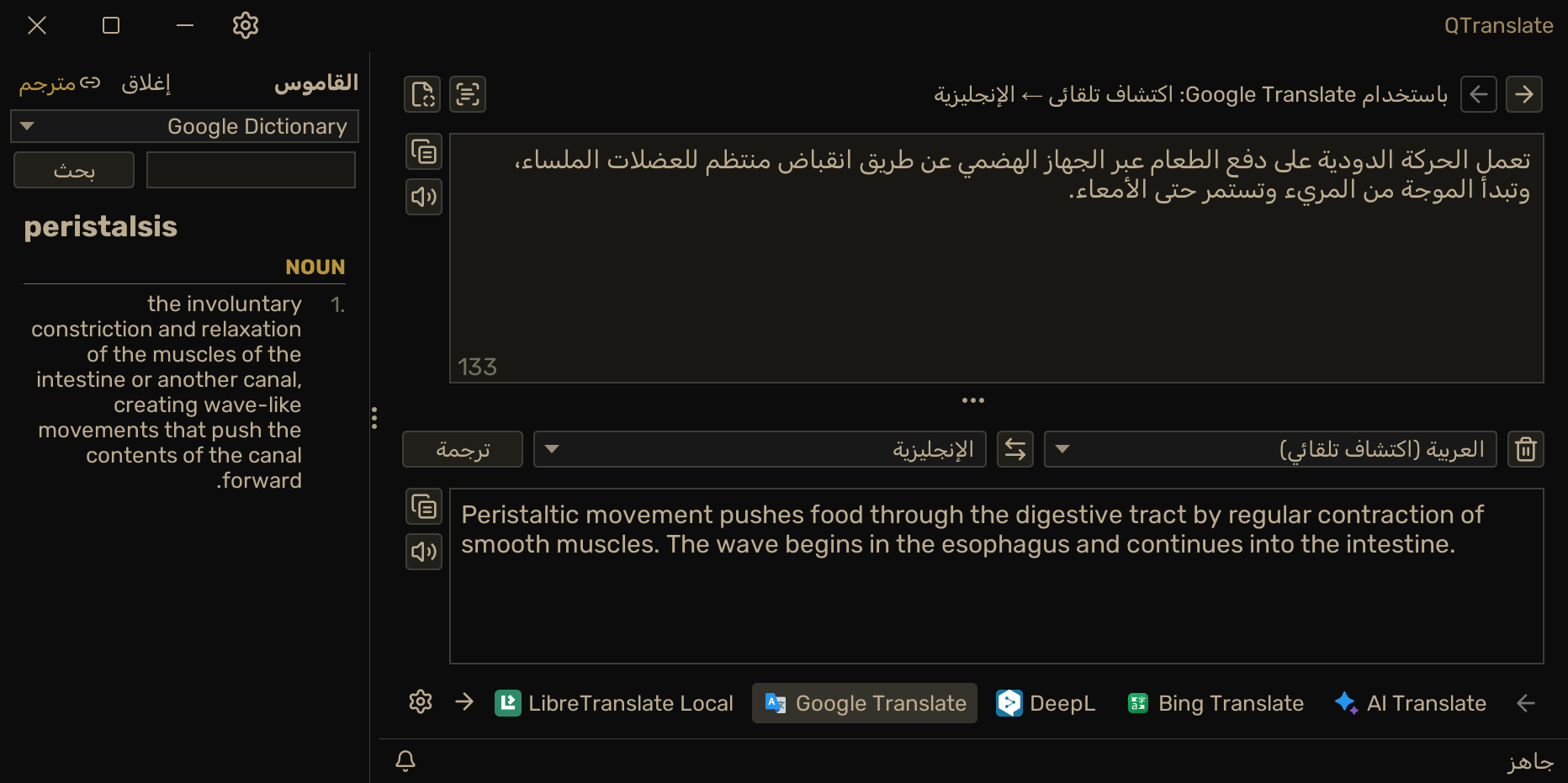 RTL support — full layout mirroring for Arabic, Hebrew, Farsi, and more |
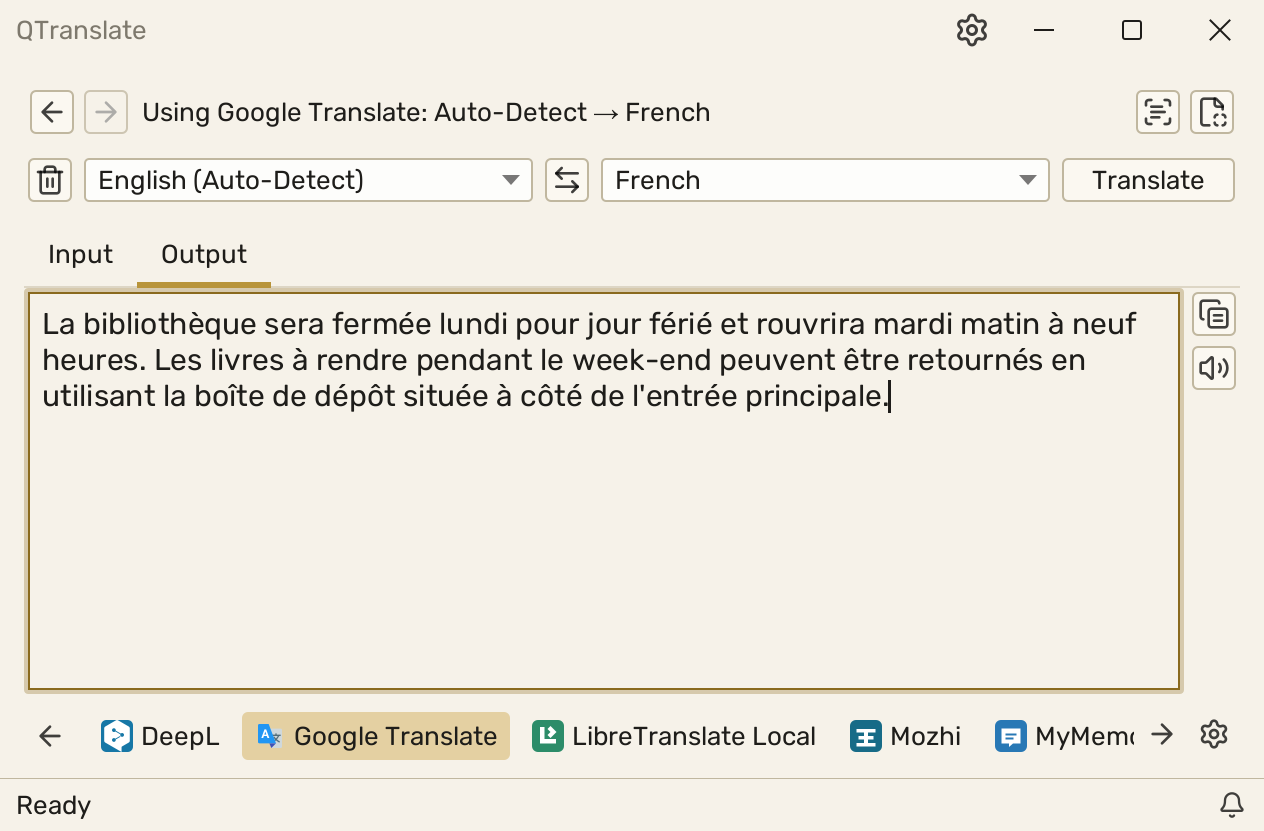 Compact layout, light theme — tabbed view, fits any workflow |
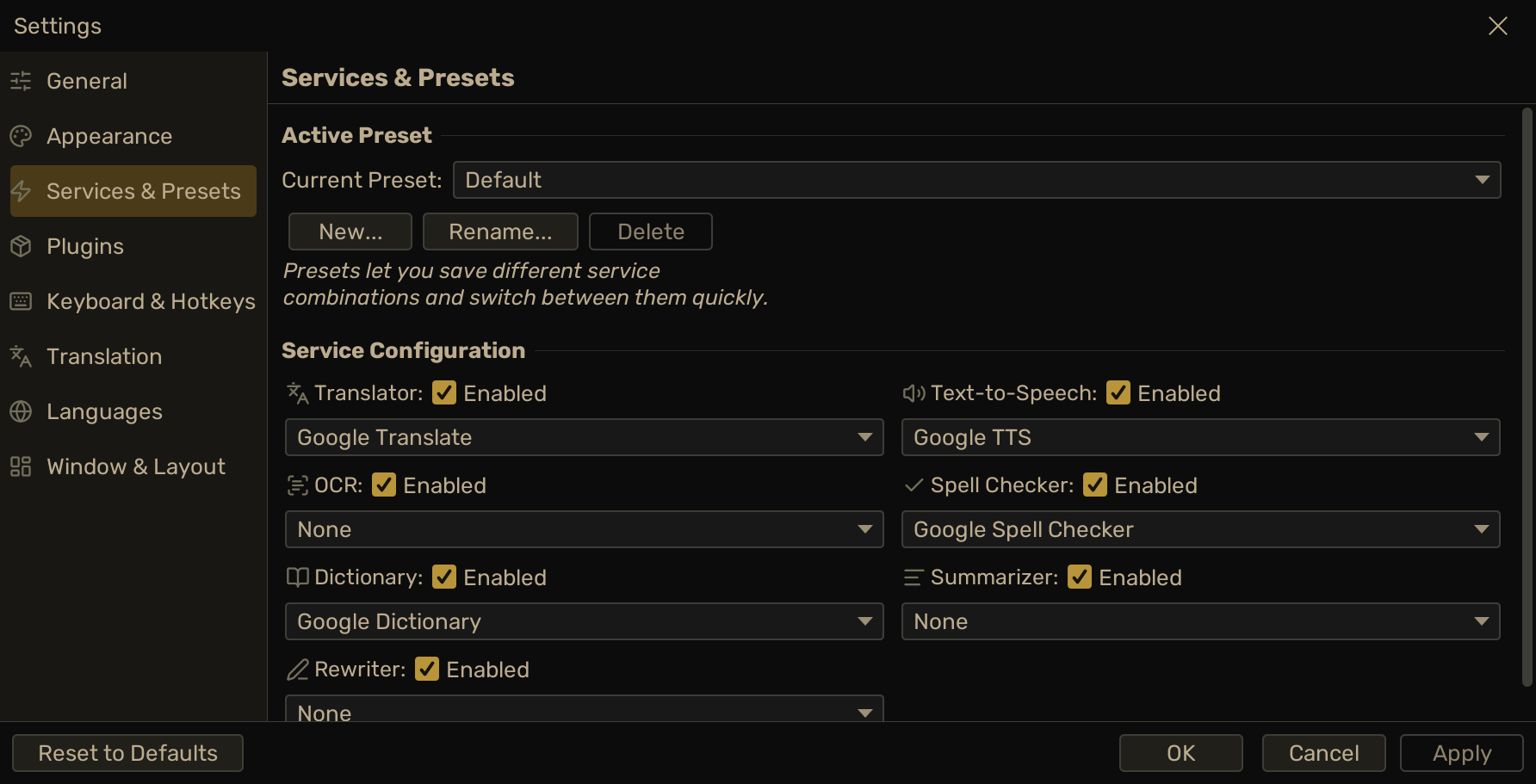 Settings — Services & Presets — configure engines, presets, and API keys |
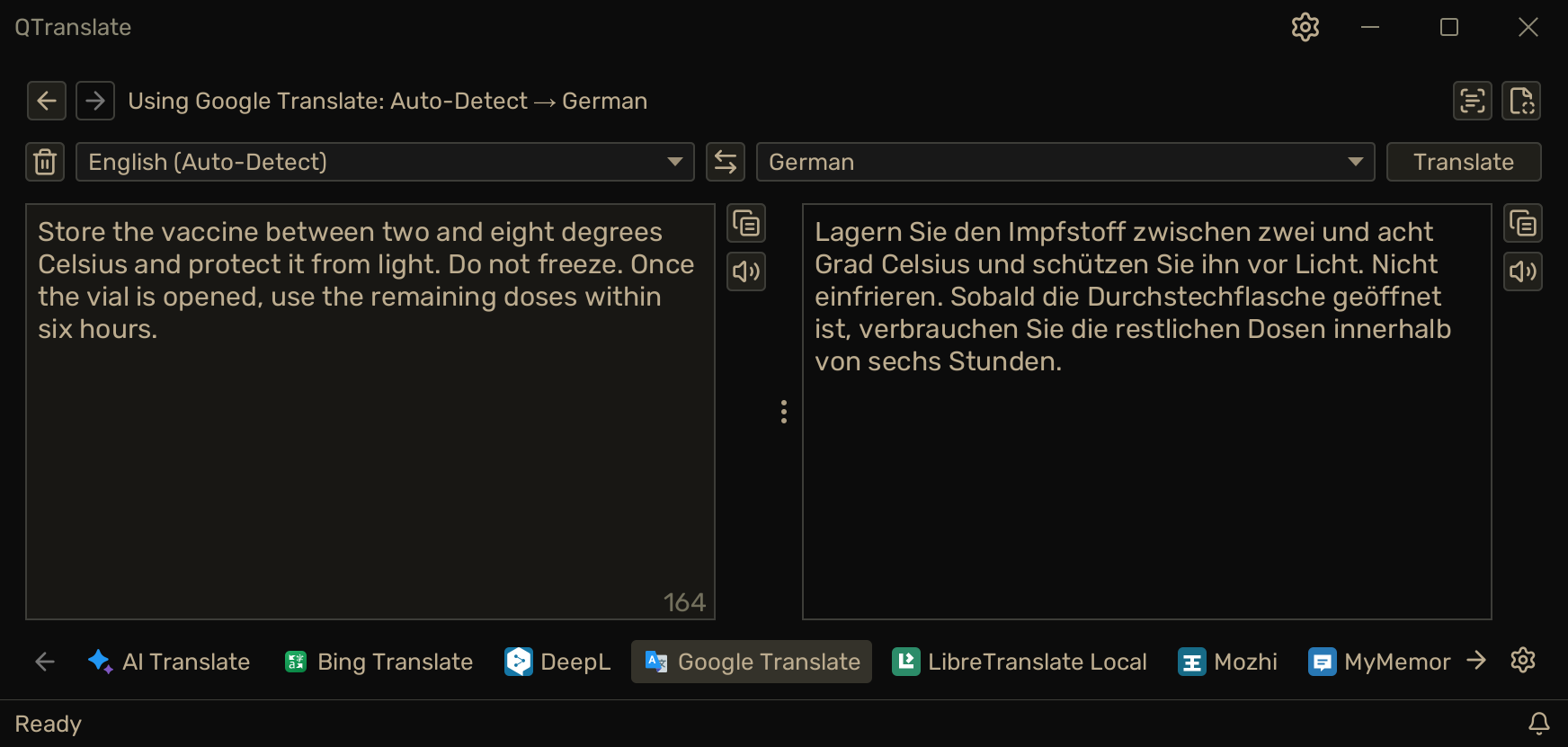 Side-by-side layout — source and translation in parallel columns |
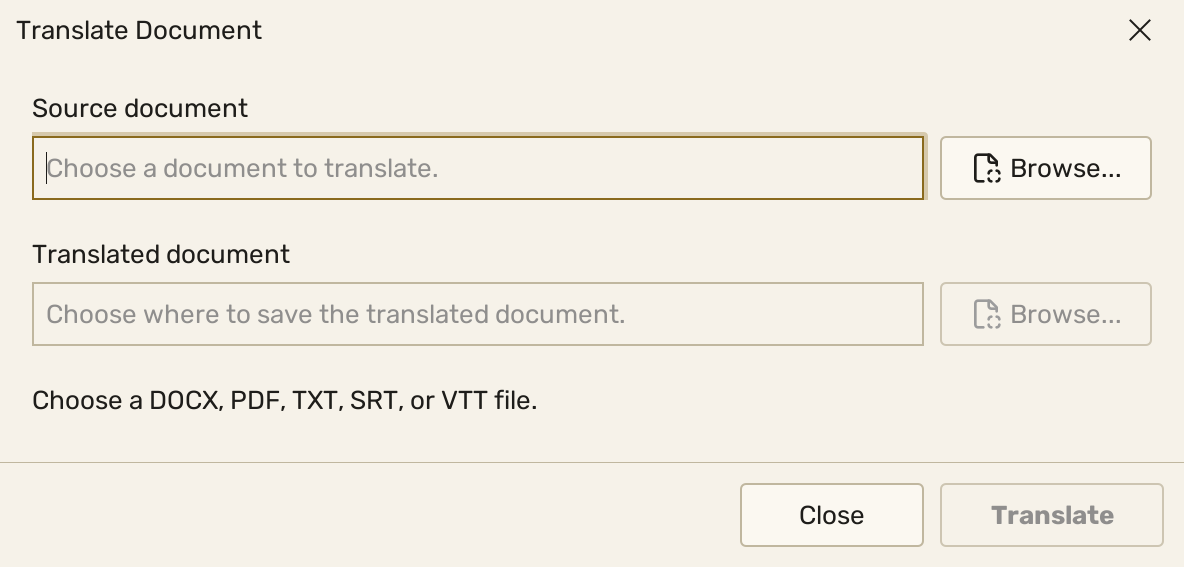 Document translation — DOCX, PDF, TXT, SRT and VTT, structure preserved |
Features
Translation
| Quick Translate popup | Ctrl+Q on any selected text — popup with result, no main window needed |
| Image search | Ctrl+Shift+Q on any selected word — a grid of reference pictures from Wikimedia Commons, enlarged in place, licence shown and source page a click away. For the words a definition alone does not settle |
| Instant translation | Translates as you type with configurable debounce |
| Inline replace | Ctrl+Shift+T — translates selected text and pastes the result back in place |
| Backward translation | See the round-trip result alongside the main output — spots awkward phrasing instantly |
| Summarize | Get a condensed version of long text, configurable length |
| Rewrite | Rewrite in a different style: Formal, Casual, Concise, Detailed, or Simplified |
| Translation history | Full undo/redo through every past translation |
| Translation rules | Auto-correct source text before translating — fix common mistakes, expand abbreviations, normalize input |
| Document translation | Translate DOCX, PDF, TXT, SRT, and VTT files with progress and cancellation; DOCX structure and subtitle timing are preserved |
Input
| Screen OCR | Draw a rectangle anywhere on screen — translate, copy text, copy image, or save; re-crop without closing |
| Spell checking | Live underlines as you type, click a suggestion to apply |
| Remove line breaks | Strips newlines from pasted text so PDF content translates as sentences |
| Language filter | Pin 3–4 target languages so the picker isn't overwhelming |
| Cycle languages | Ctrl+L steps through pinned languages without touching the mouse |
Services & plugins
| Plugin system | Install .jar plugins at runtime — no restart, no reinstall |
| Plugin manager | Search and filter installed plugins, inspect metadata and errors, configure or toggle services inline, and install by file or drag-and-drop |
| Service presets | Save different engine combinations for different contexts |
| Google Services | Translator, TTS, OCR, Spell Checker, Dictionary — included |
| Bing Services | Translator, TTS, Spell Checker — included |
| AI Services | Translator, Summarizer, Rewriter, Spell Checker, Dictionary, Vision OCR — via OpenRouter (300+ models, one API key) — included. Setup guide |
| Free translation choices | Mozhi, MyMemory, DeepL web fallback, Reverso, and Yandex Web work without an API key; unofficial endpoints may change or be rate-limited |
| Fully offline & private | Point AI Services at a local Ollama or LM Studio server, or use a self-hosted LibreTranslate instance. No account, no API key, no per-word cost, and nothing leaves your machine — for work under an NDA, proprietary code, or anything else that cannot go to a cloud service. Setup guide |
| Reference services | Wikipedia and Wiktionary lookups, and Wikimedia Commons image search, through official MediaWiki APIs |
| CSV dictionary | Point it at your own CSV — a glossary, an abbreviation list, a table of error codes, a set of study notes — and look terms up in it. Which columns hold the term and its meaning is configurable, and nothing leaves your machine |
Interface
| Three layouts | Classic (stacked), Side-by-side, Compact (tabbed) |
| Global hotkeys | Every action is bindable, configurable as global or app-local |
| RTL support | Full layout mirroring for Arabic, Hebrew, Farsi, and more |
| QTranslate Light & Dark | Purpose-built defaults with OS light/dark synchronization, plus 30+ FlatLaf themes and custom IntelliJ .theme.json support |
| Portable | Runs from any folder, all data lives next to the JAR |
Installation
All downloads live on the latest release page.
| Your platform | Download | Java required |
|---|---|---|
| Windows | QTranslate-<version>-windows-x64.zip |
No — Java is included |
| macOS / Linux | QTranslate-<version>.zip |
Java 11+ |
| Any (app only, no plugins) | QTranslate-App-<version>.jar |
Java 11+ |
Every download already contains all bundled plugins, languages, and themes. Pick one — you do not need the others.
Windows
- Download
QTranslate-<version>-windows-x64.zip - Extract to a writable folder
- Run
QTranslate.exe
No Java installation needed — the package ships its own trimmed runtime.
macOS and Linux
- Install Java 11 or later (Temurin recommended)
- Download and extract
QTranslate-<version>.zip - Run
QTranslate.jar, orjava -jar QTranslate.jarfrom a terminal
QTranslate/
  ├── QTranslate.jar                  ← double-click, or: java -jar QTranslate.jar
  ├── plugins/
  │     ├── google-services-plugin.jar
  │     ├── bing-services-plugin.jar
  │     ├── mozhi-services-plugin.jar
  │     └── ...
  ├── themes/
  │     └── kokedera.theme.json       ← community theme included; drop more .theme.json files here
  └── languages/
        ├── ar-SA.toml
        ├── zh-CN.toml
        ├── de-DE.toml
        └── ...
Bundled plugins: Google, Bing, AI Services, DeepL, Mozhi, MyMemory, LibreTranslate Local, Reverso, Yandex Web, and Wikimedia Reference. Configure a service from the service selector or Settings → Plugins.
Individual plugin JARs are also attached to each release. They are only for adding or updating a single plugin in an existing install — you do not need them for a fresh setup.
Getting "This application requires a Java Runtime Environment"? Java isn't installed or
JAVA_HOMEisn't set — or use the Windows package, which needs neither. ▶ How to Install Java JDK and Set JAVA_HOME (first 7 minutes)
Build from source → Building from Source
Preparing a release → Release Guide
Quick start
- Launch
QTranslate.jar— it starts in the system tray - Select text anywhere on screen
- Press
Ctrl+Q— Quick Translate popup opens with the result ready - Press
Ctrl+D— open the Dictionary for the selected word - Press
Ctrl+Shift+Q— see pictures of the selected word - Press
Ctrl+E— listen to the selected text - Press
Ctrl+I— draw a screen region to OCR and translate
Open Settings (gear icon) to configure API keys, themes, hotkeys, and service presets.
Plugins
Installing a plugin: Settings → Plugins → Install Plugin, or drop a plugin JAR onto the plugin panel. Review its details, enable it, configure it, then assign its services under Services & Presets.
Full guide → Installing Plugins
Community plugins
The in-app catalog and independent plugin updater are planned but are not available yet. Until then, install only JARs from publishers you trust and verify any checksum they provide.
Built a plugin? Publish its source, release JAR, compatibility range, and checksum. See the plugin publishing guide.
Build a plugin
A minimal translator is ~50 lines of Kotlin. No framework, no registration — implement a few interfaces, build a fat JAR, install it through the UI.
class MyPlugin : Plugin<PluginSettings.None> {
    override val id      = "com.example.my-plugin"
    override val name    = "My Plugin"
    override val version = "1.0.0"

    override fun getSettings() = PluginSettings.None
    override fun getServices() = listOf(MyTranslatorService())
}
All bundled plugins are open source under plugins/. They provide real-world examples of authentication, no-key services, local endpoints, throttling, language mapping, batch translation, dictionaries, and structured errors.
Full guide → Creating a Plugin
Translate the interface
QTranslate ships with 13 languages built in:
Arabic · Bengali · Chinese · English · French · German · Hungarian · Italian · Japanese · Portuguese · Russian · Spanish · Turkish
Want another language? Copy languages/en.toml, rename it to your language code, translate the values. No code needed.
Guide → Adding a Language
Architecture
Clean Architecture + MVI. Nothing leaks between layers:
:api          ← plugin interfaces — plugins only depend on this
:core         ← business logic, use cases, MVI stores
:ui-swing     ← Swing UI, Renderable<State> components
:app          ← composition root
:plugins/*    ← independently packaged service implementations
:plugins/common ← shared HTTP client, JSON, language utilities
Guide → Architecture
Support
If QTranslate saves you from Alt-Tabbing to Google Translate a dozen times a day, a coffee is always appreciated!

Contributing
Bug fixes, features, translations, docs, and plugins all welcome. Look for good first issue for well-scoped starting points.
Built with Kotlin · FlatLaf · Ktor · Coroutines
Found it useful? A ⭐ helps other people find the project.